蒙娜丽莎,我要带你去一个地方……
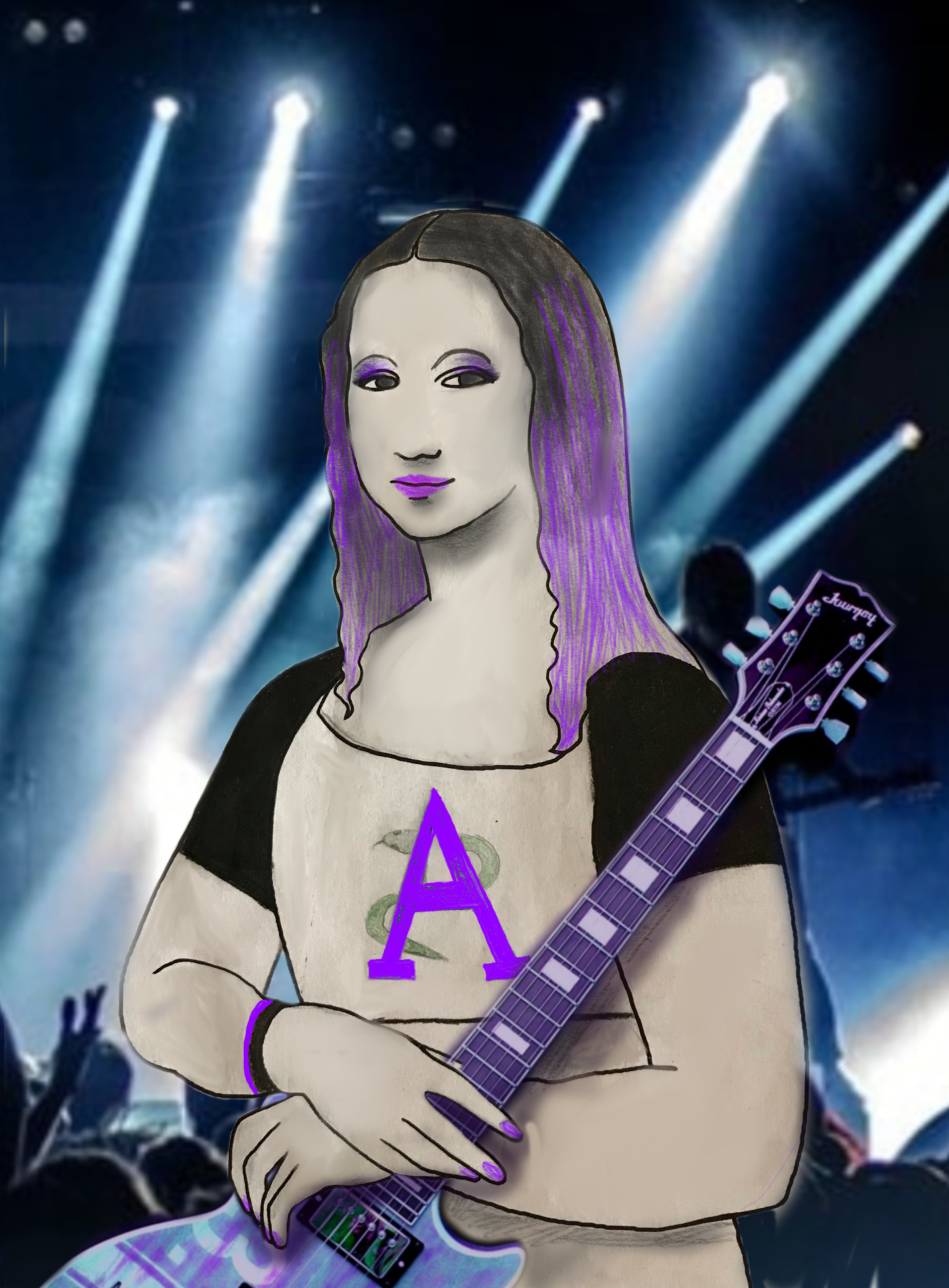
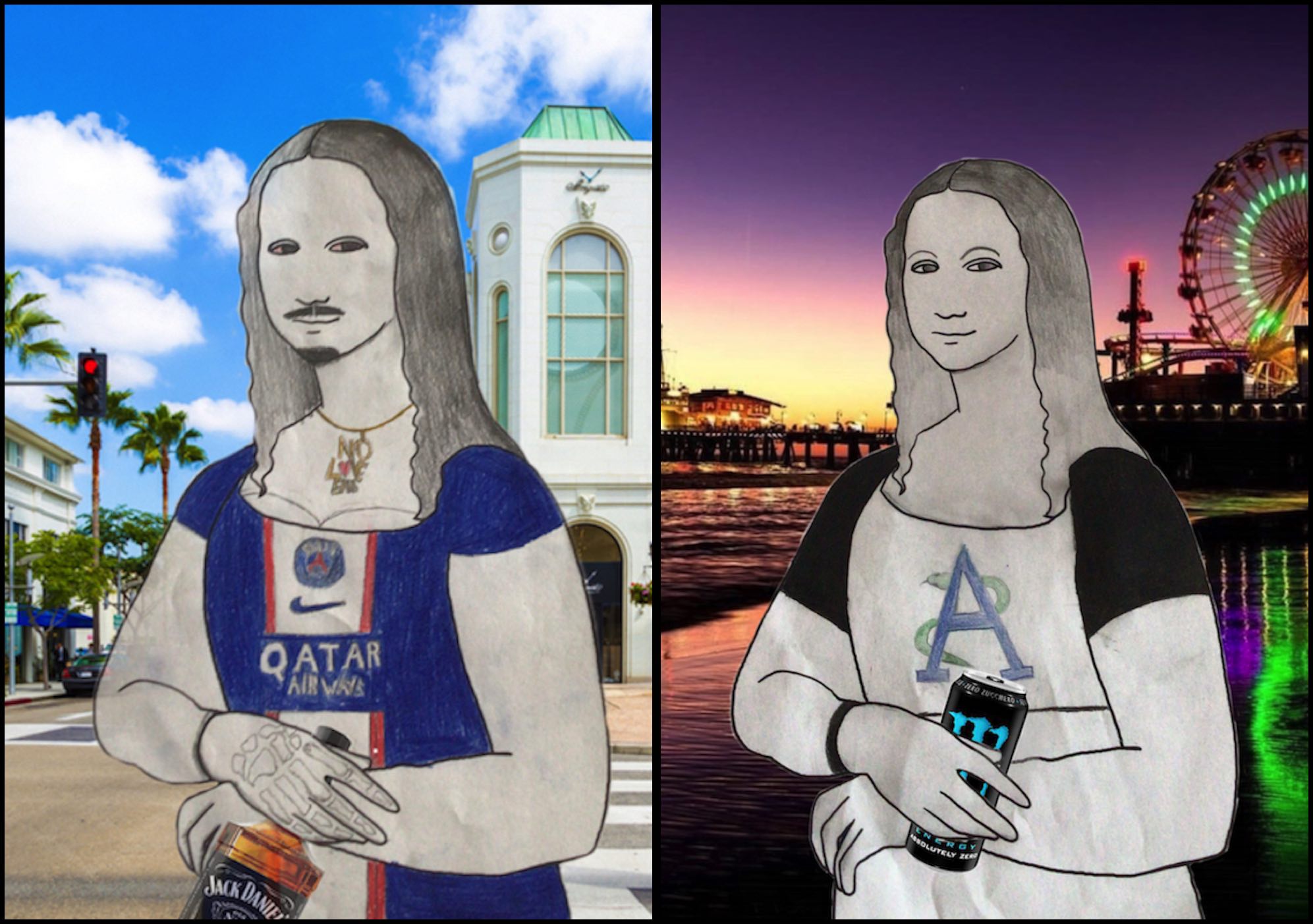
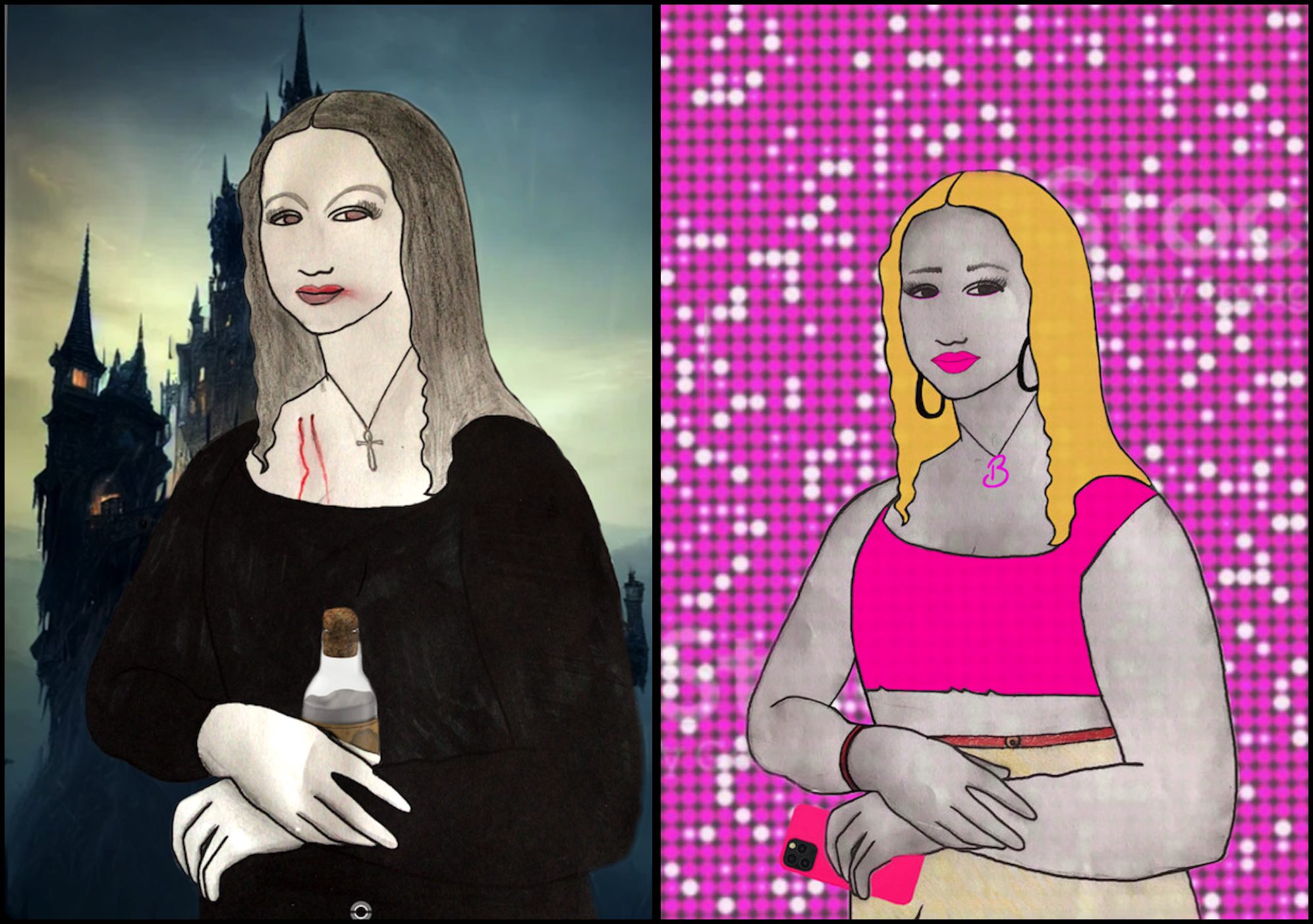
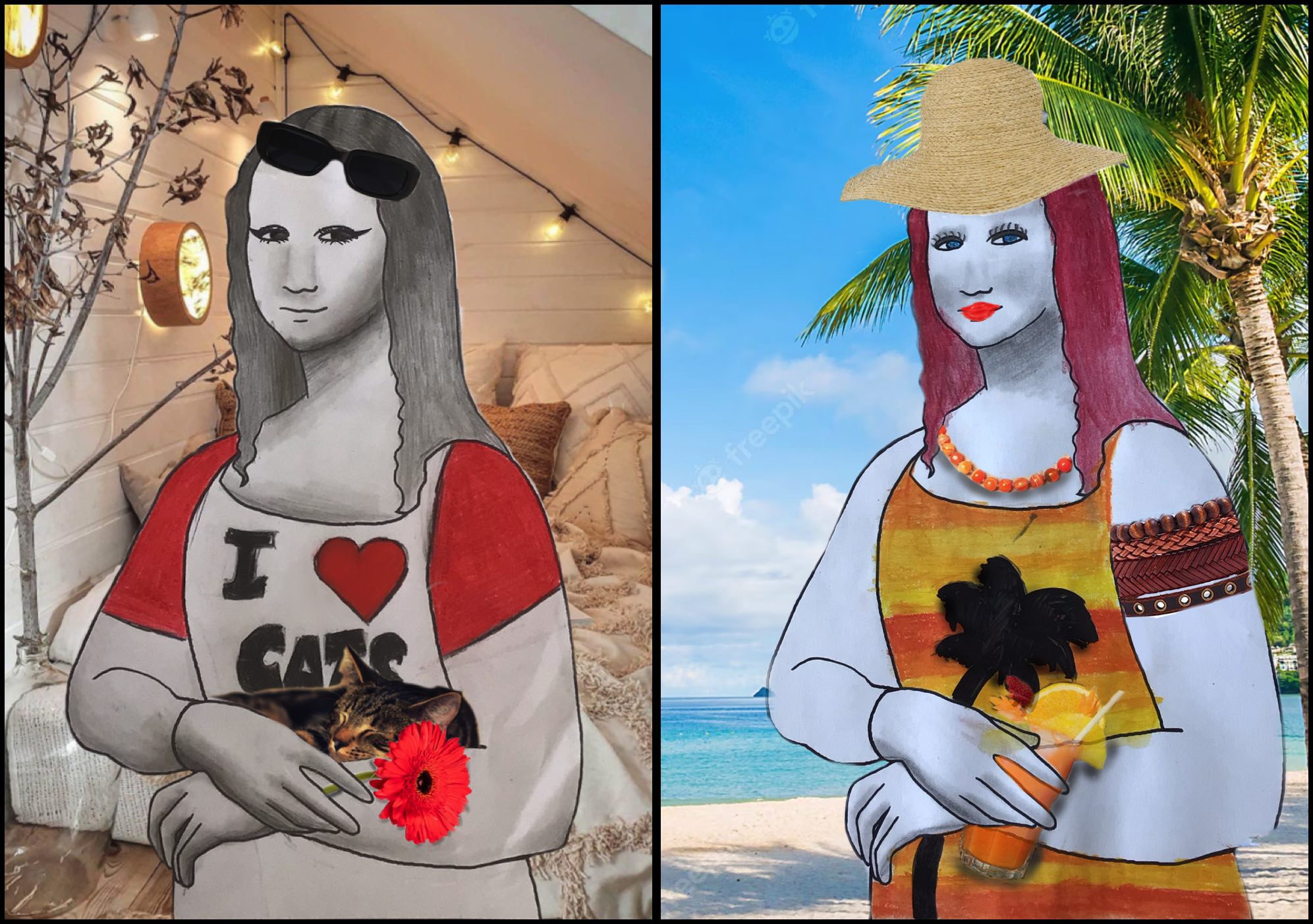
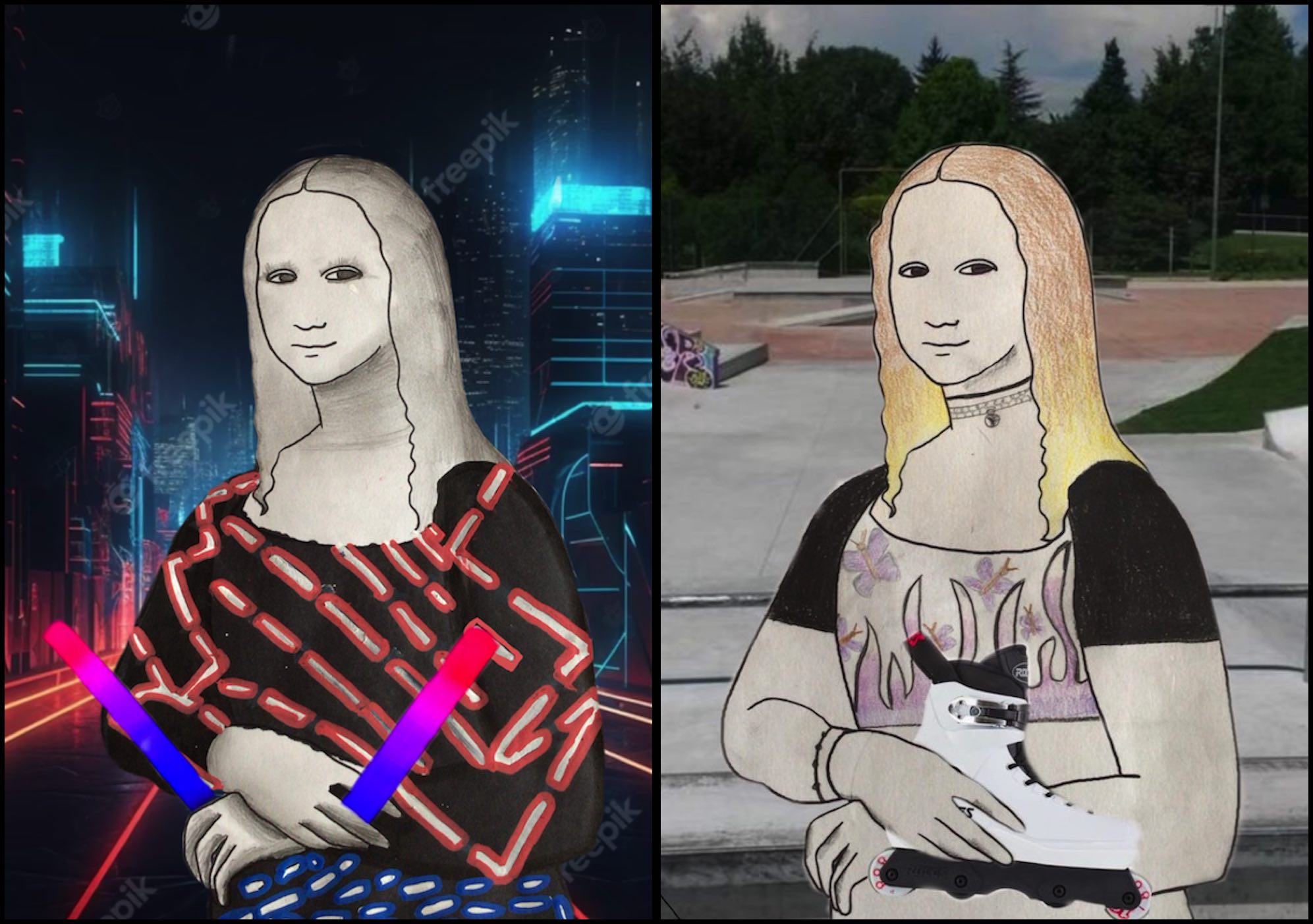
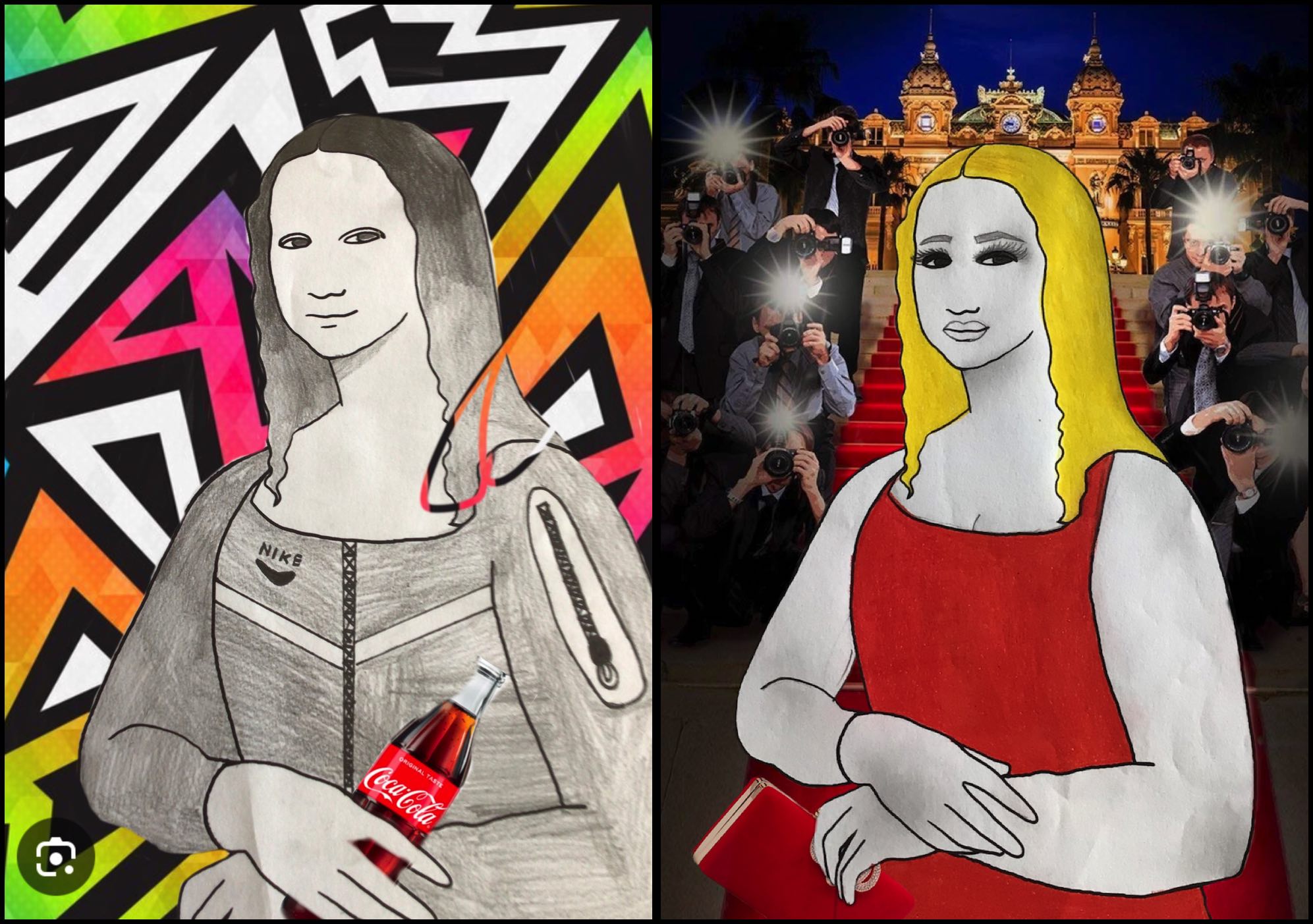
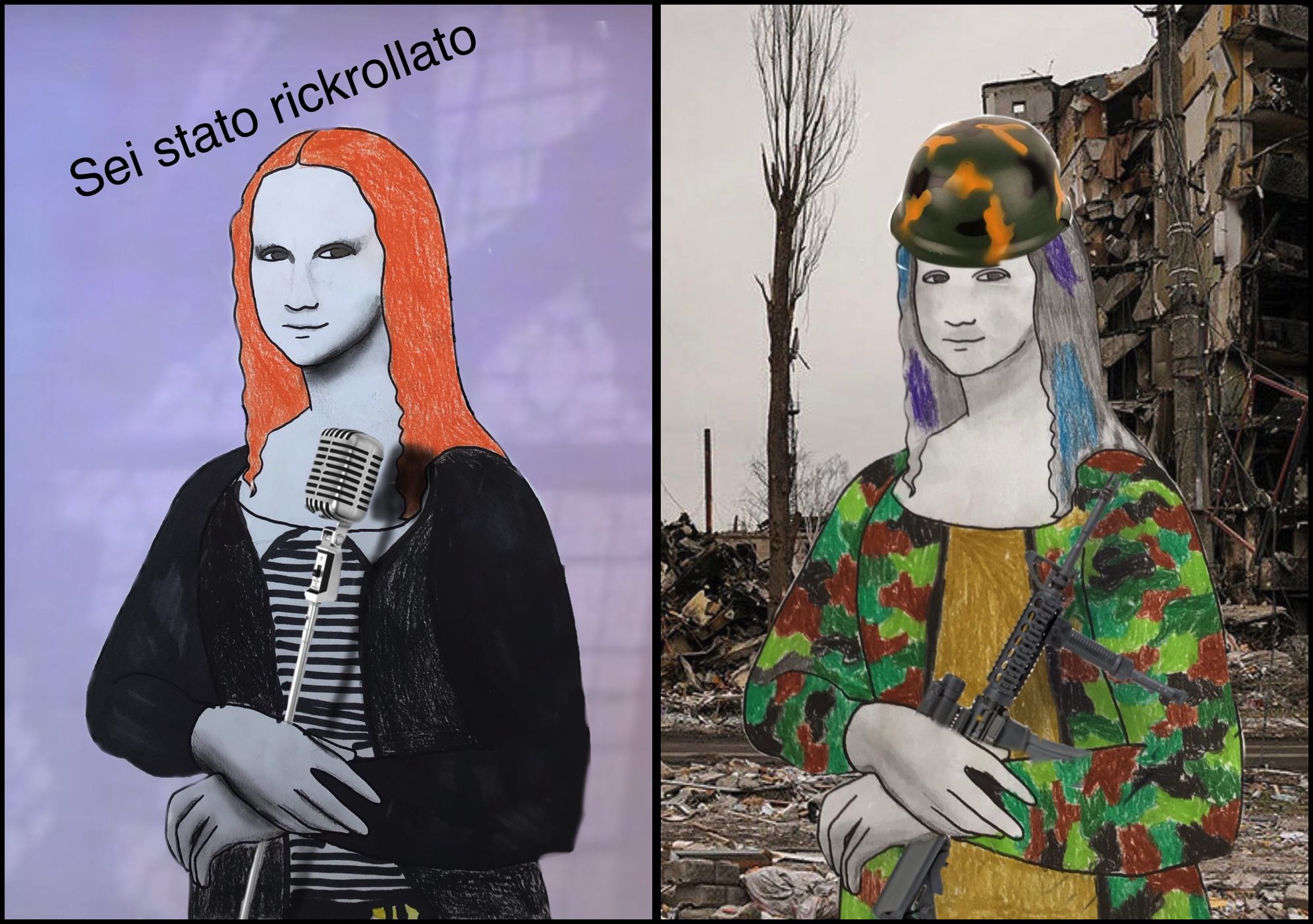
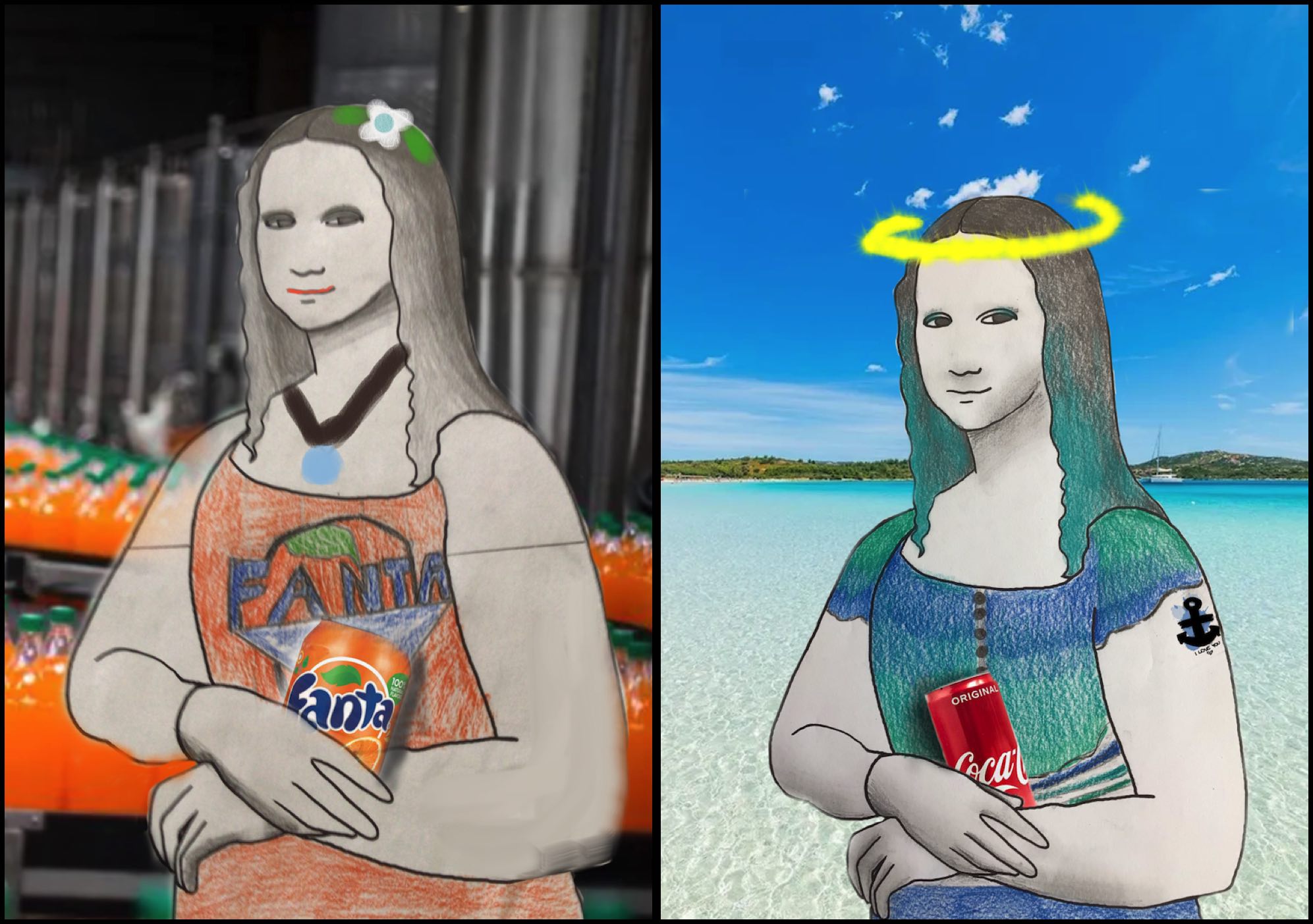
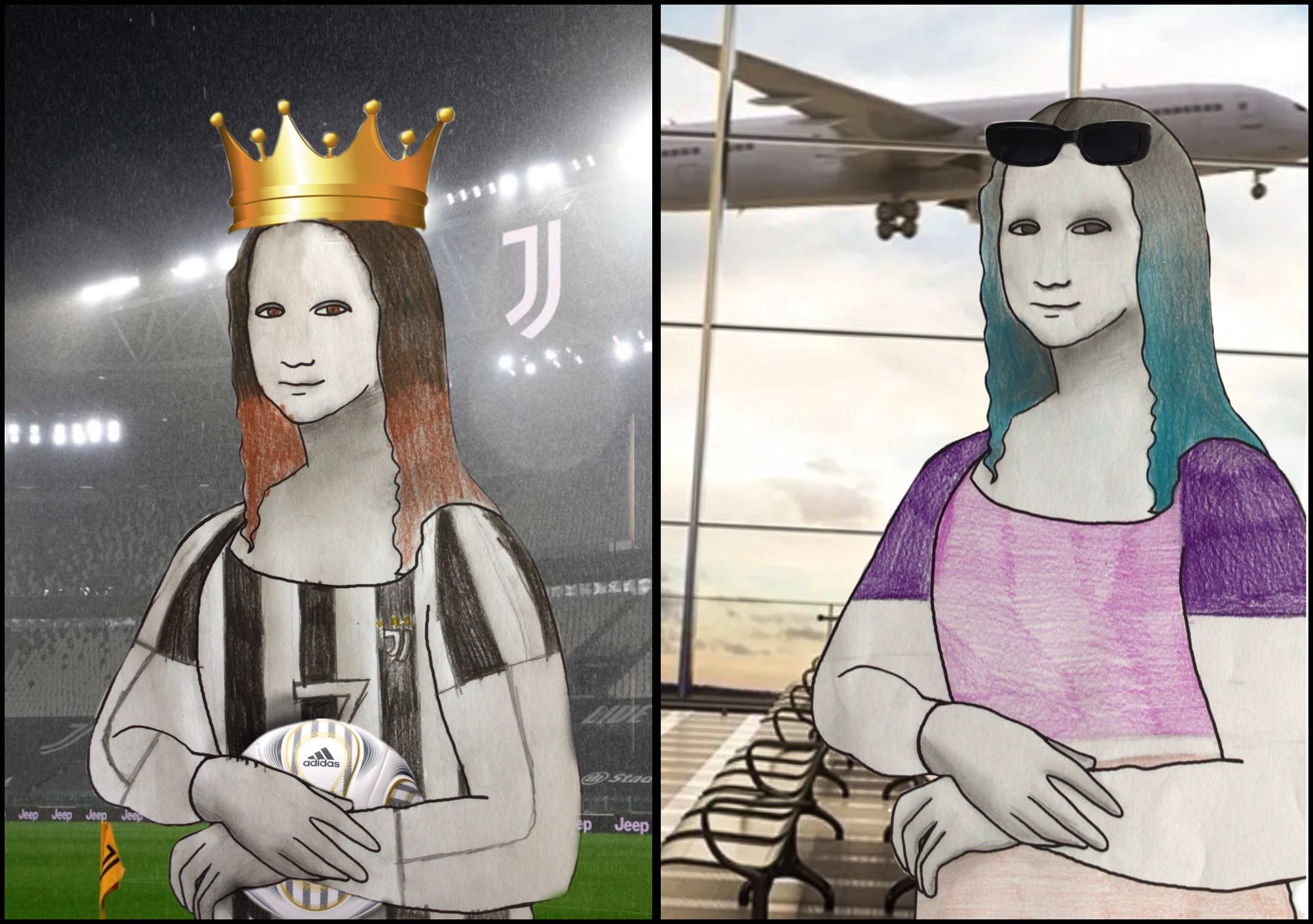
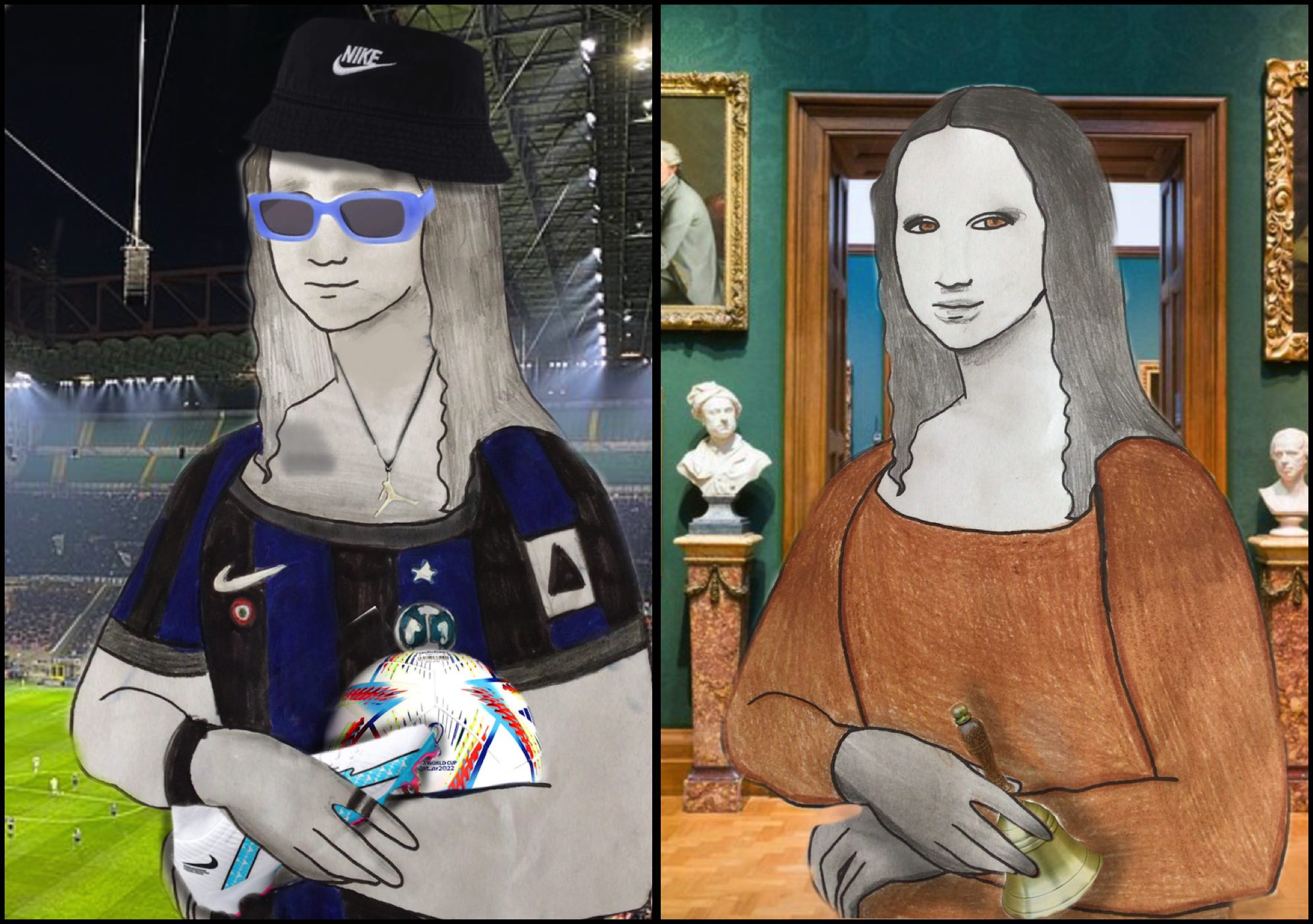
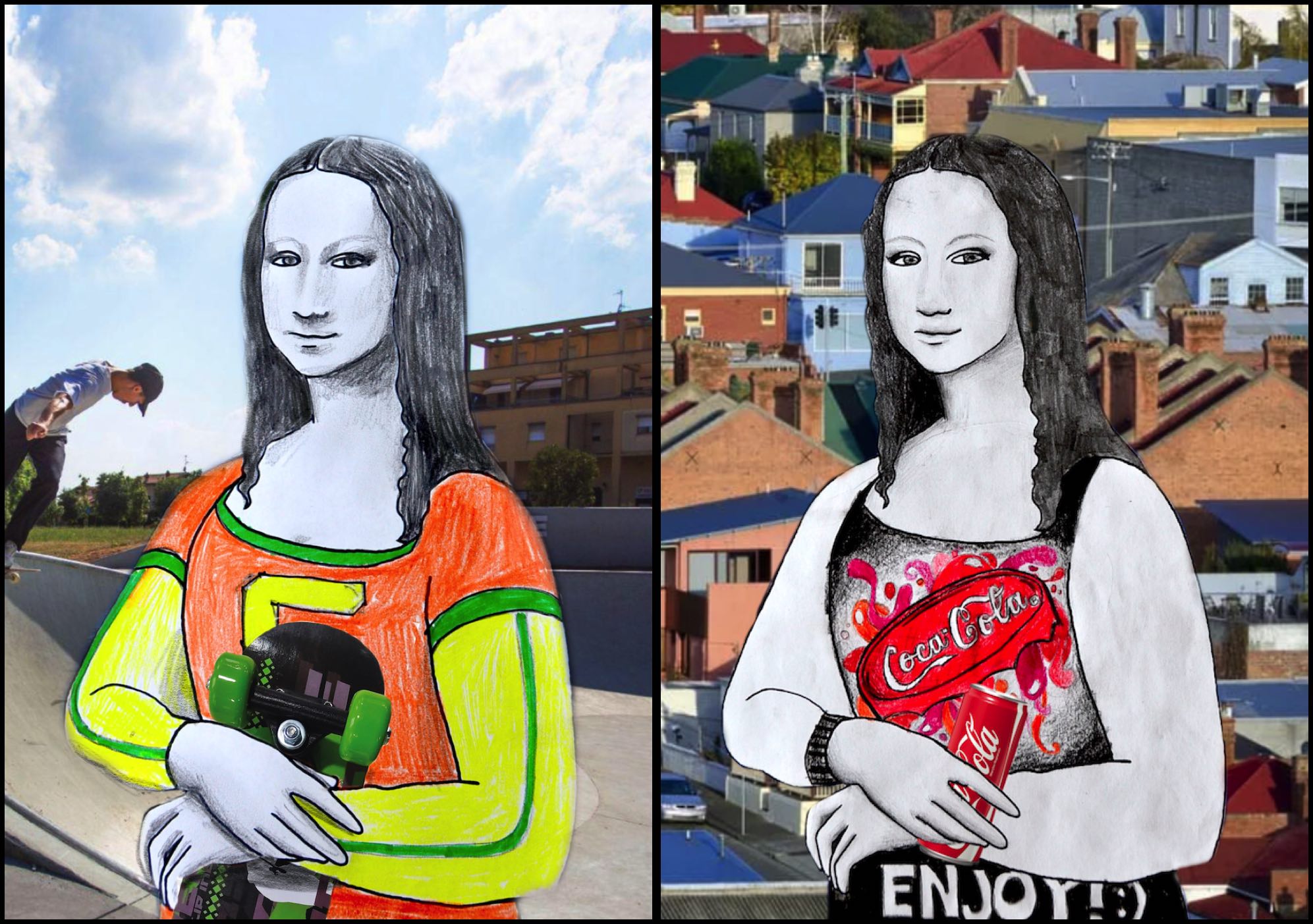
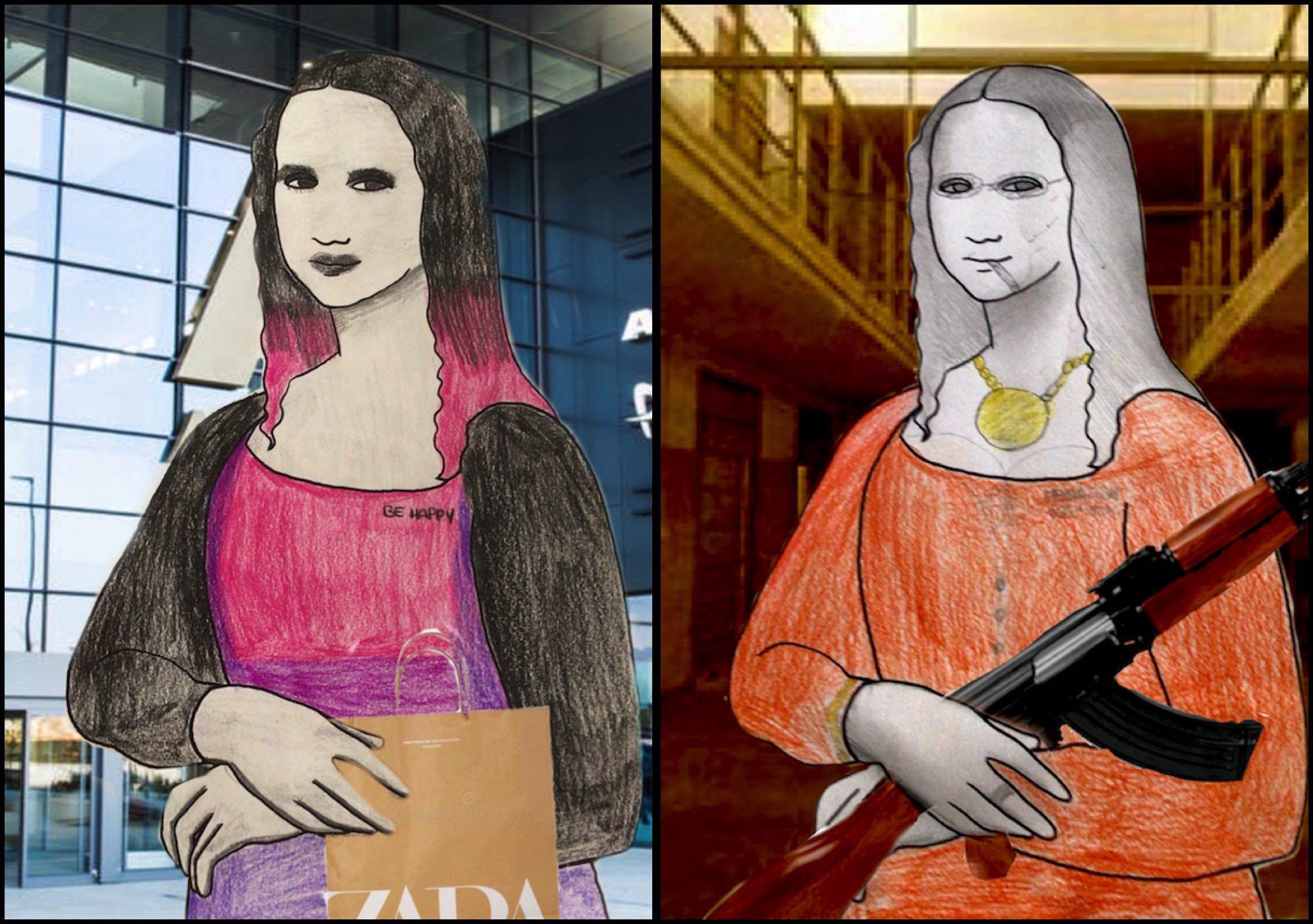
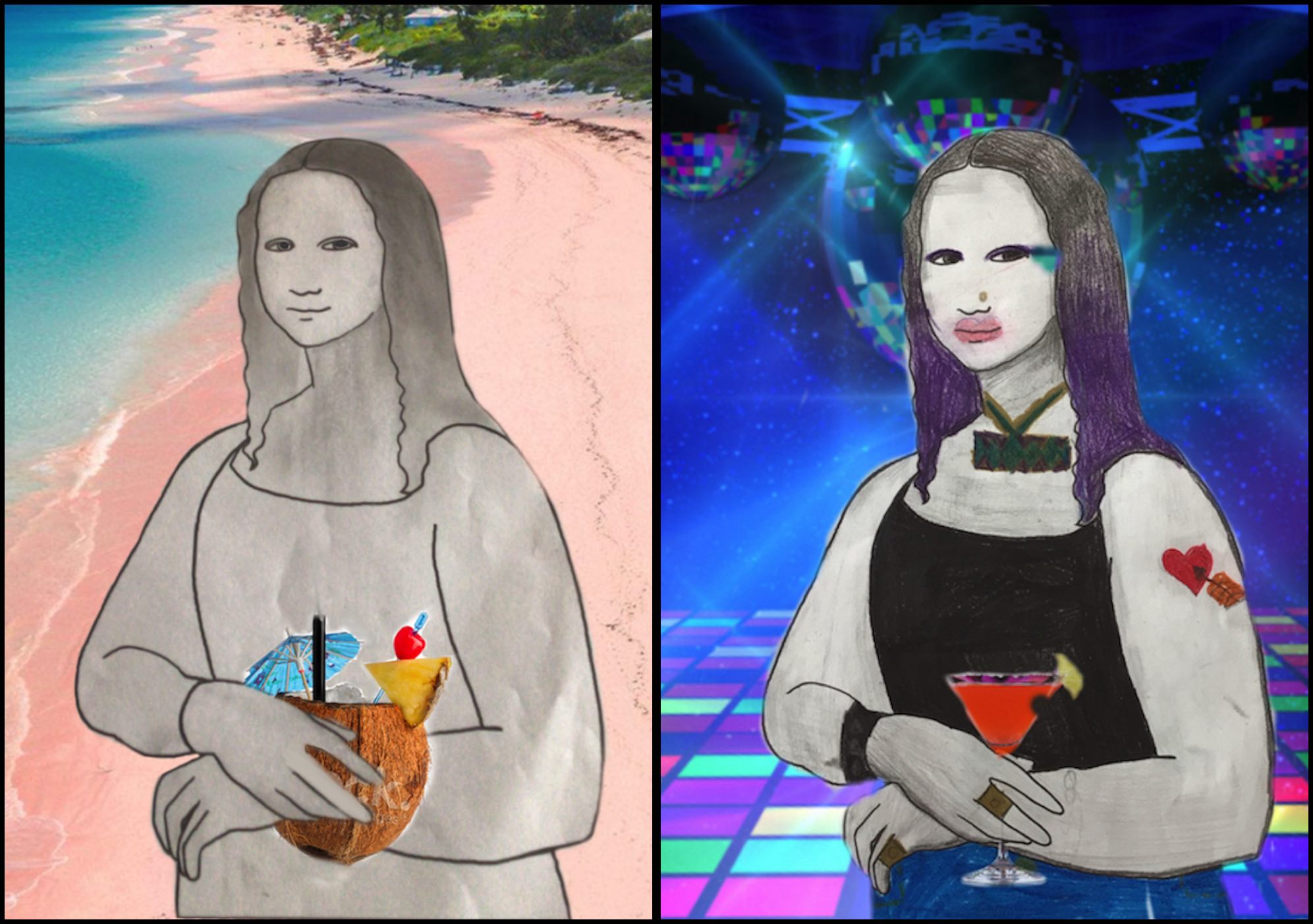
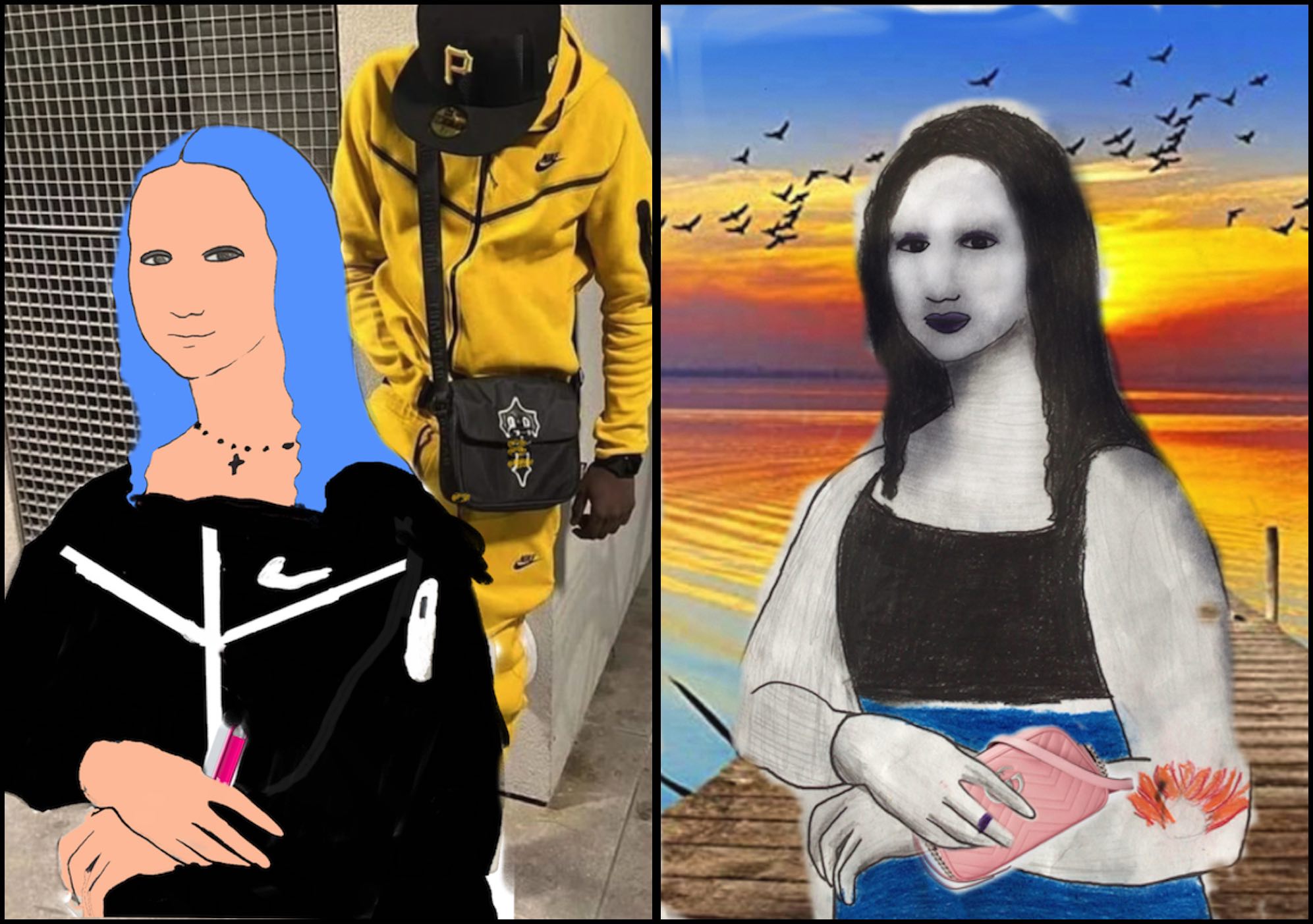
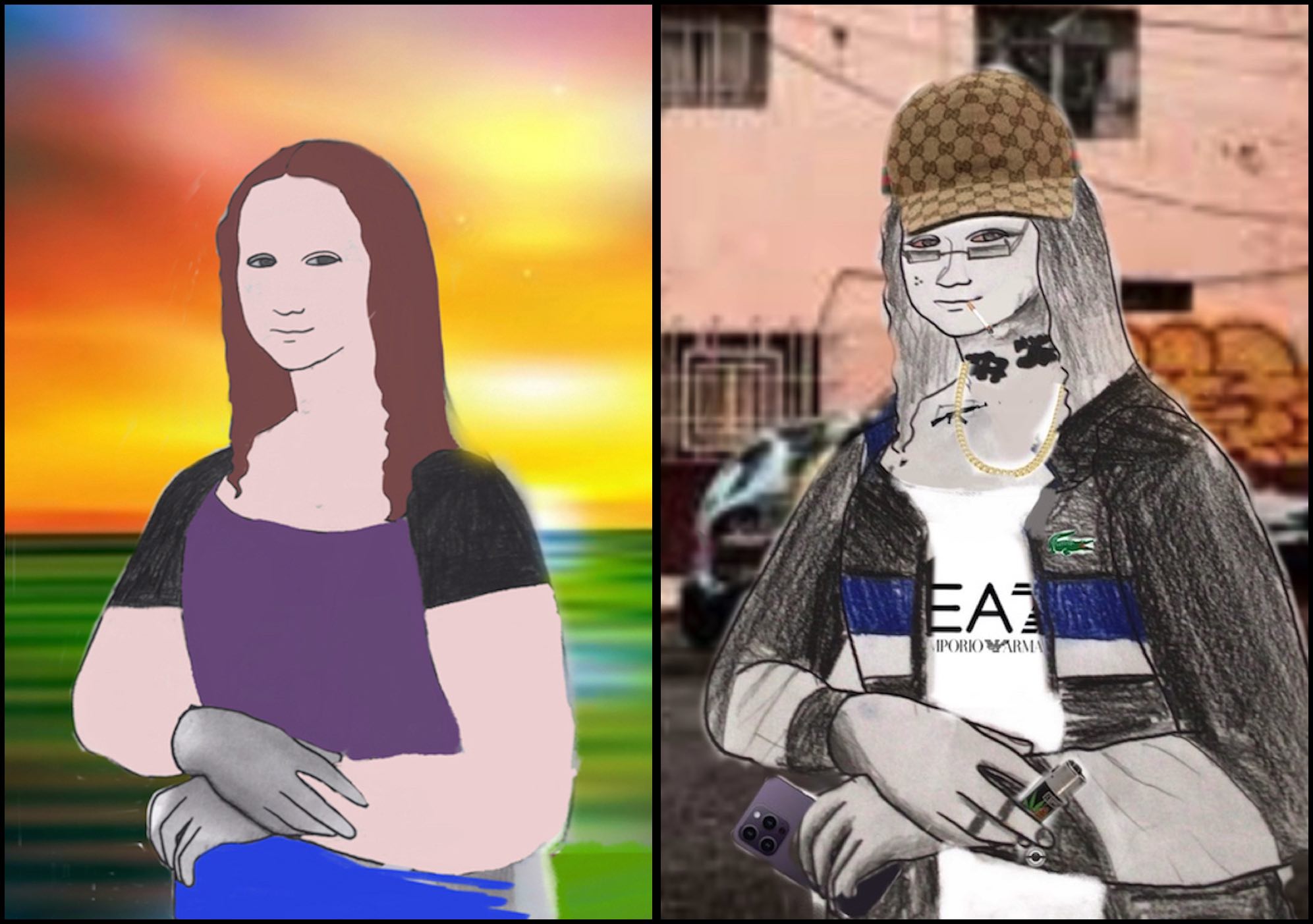
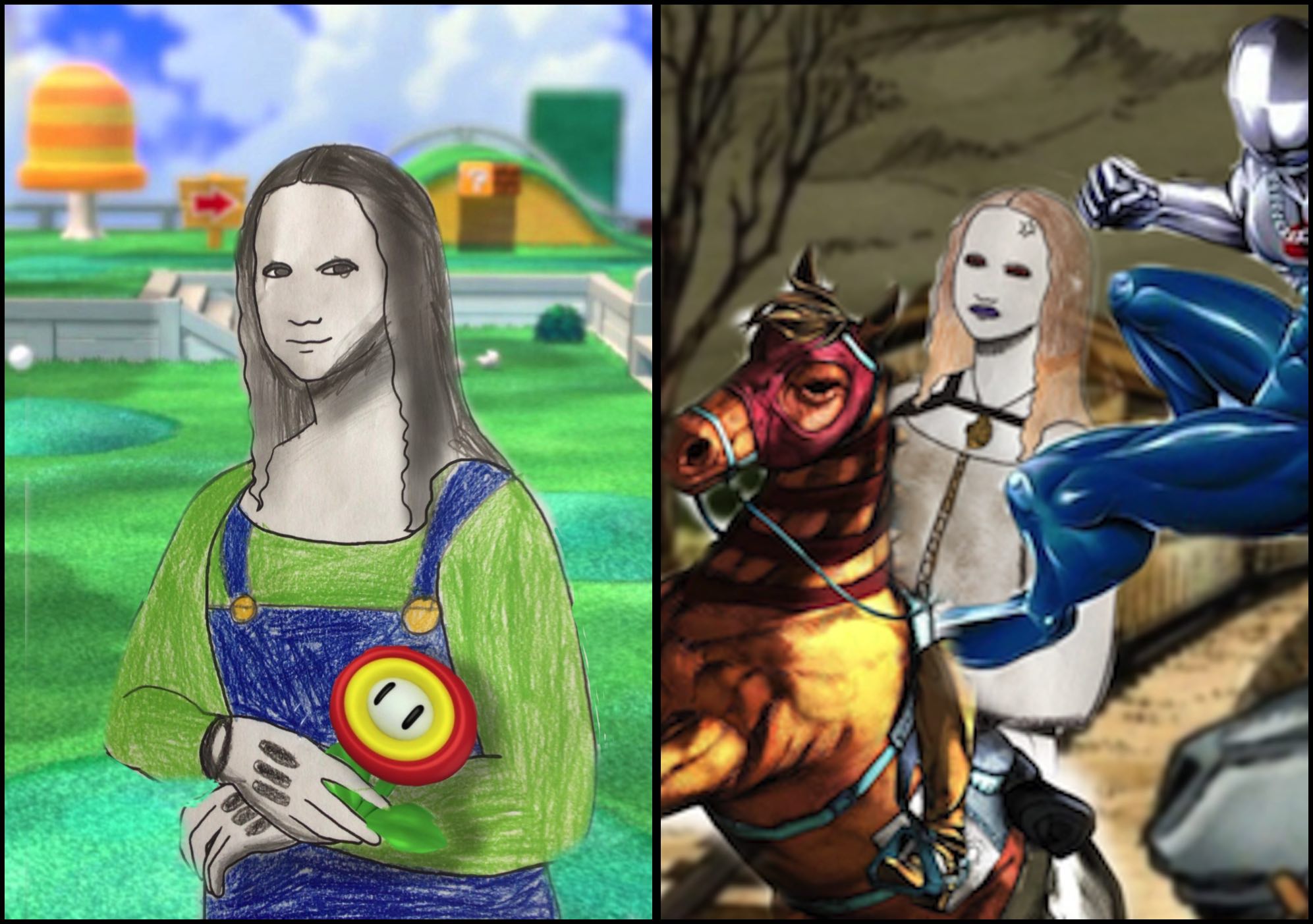
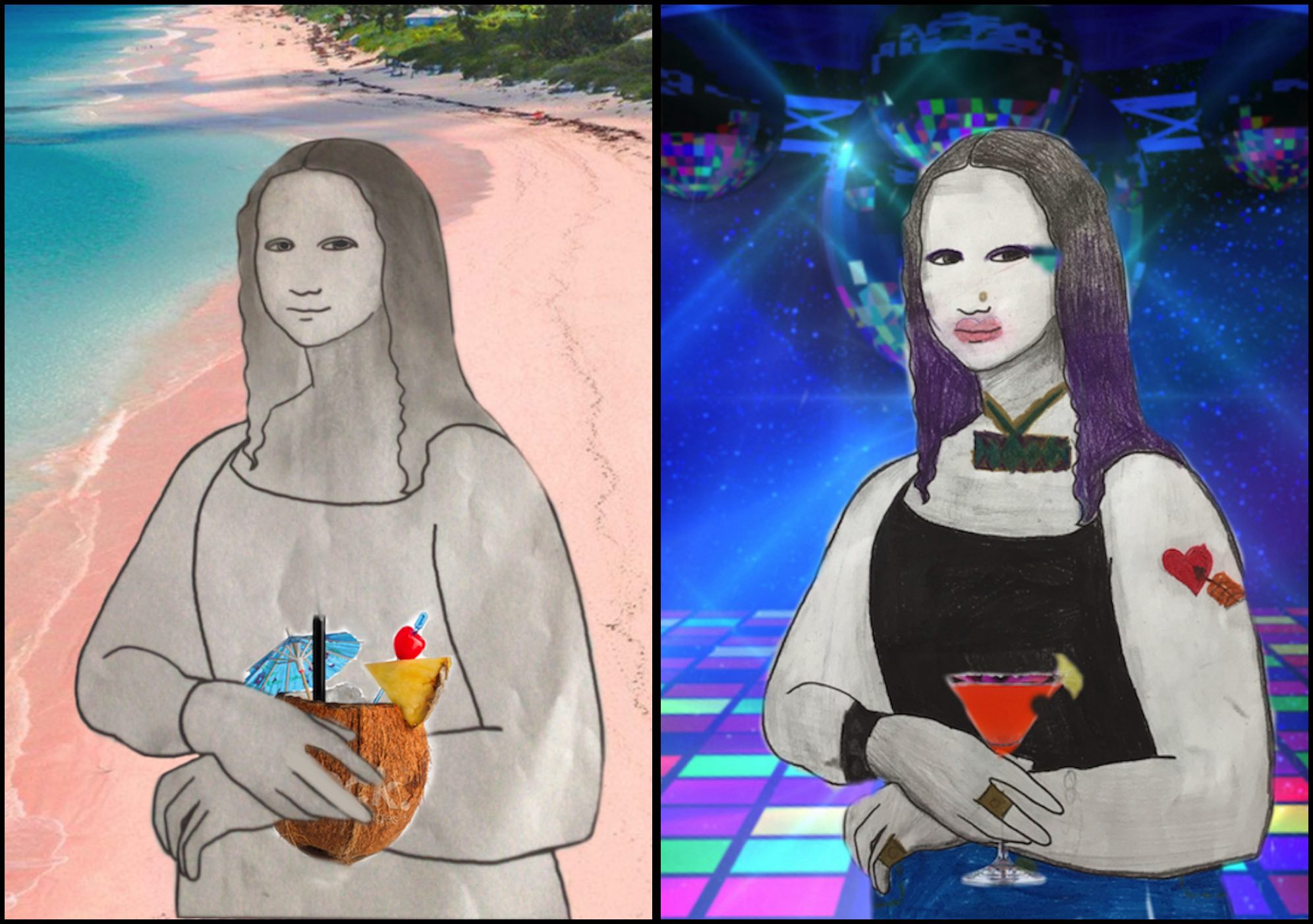
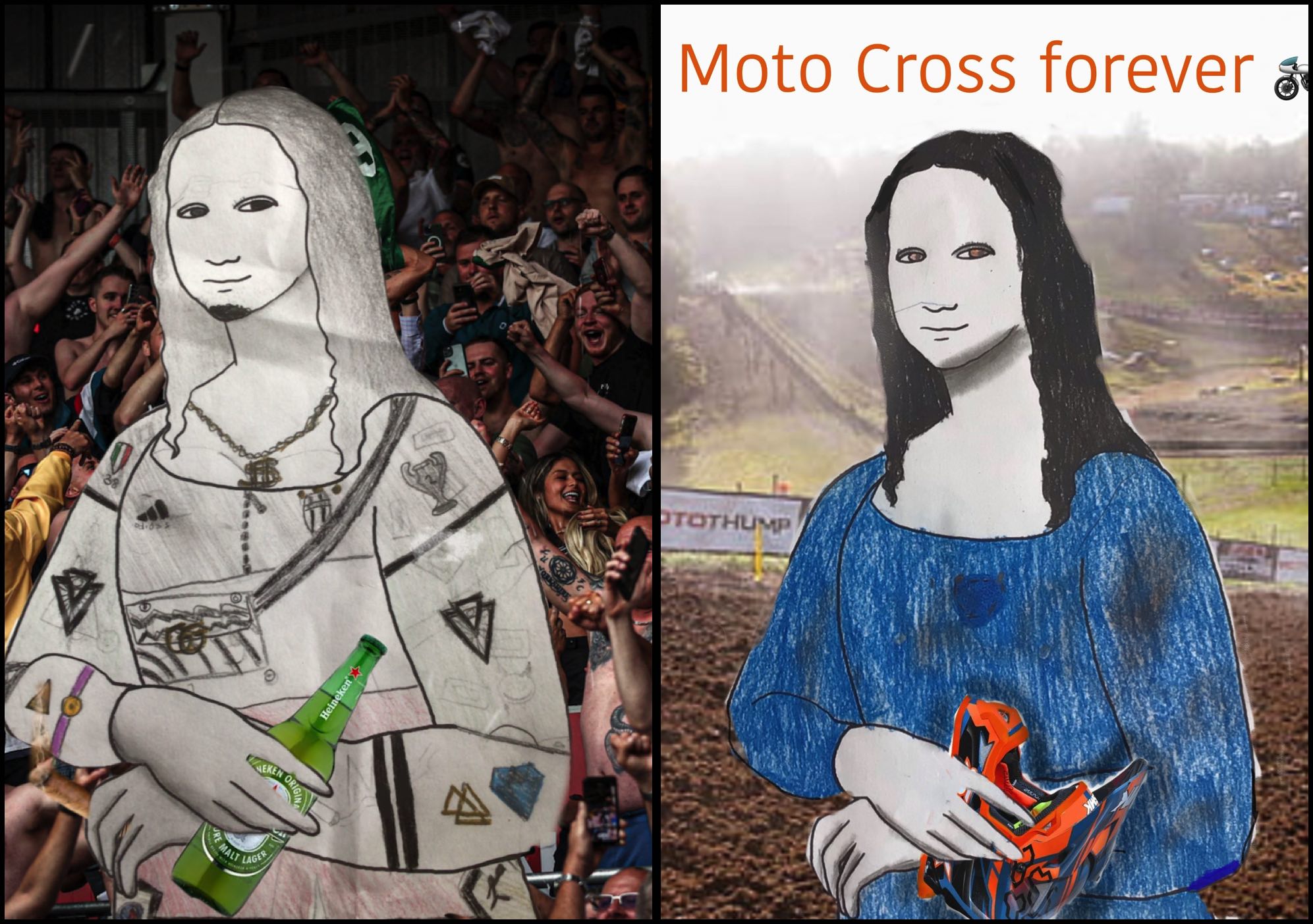
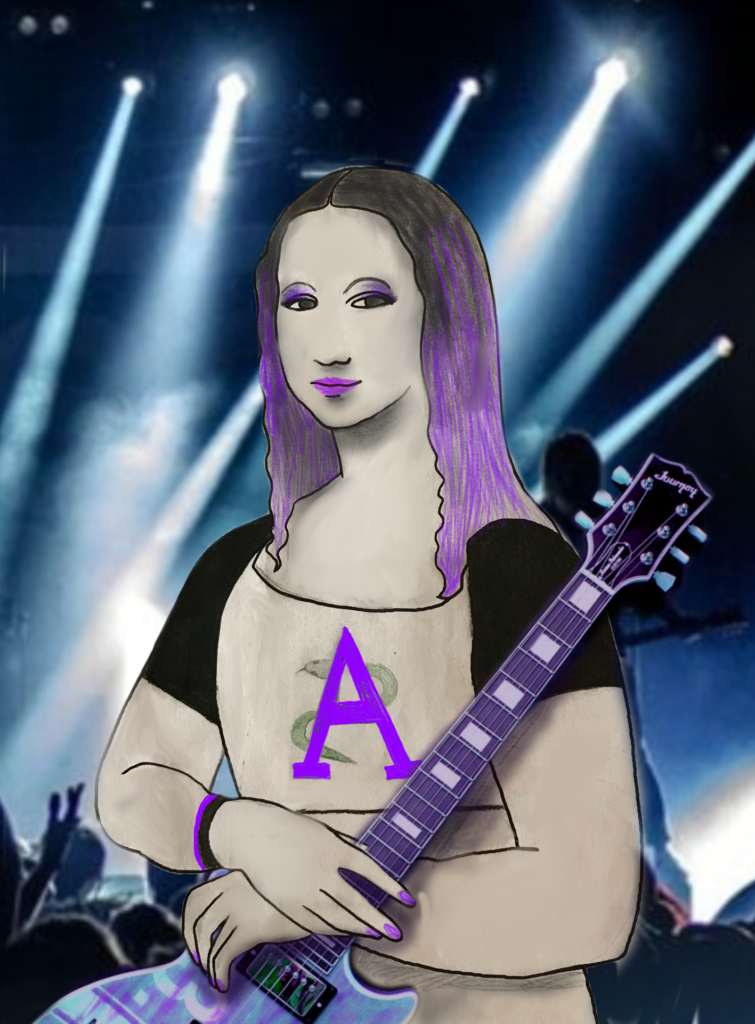
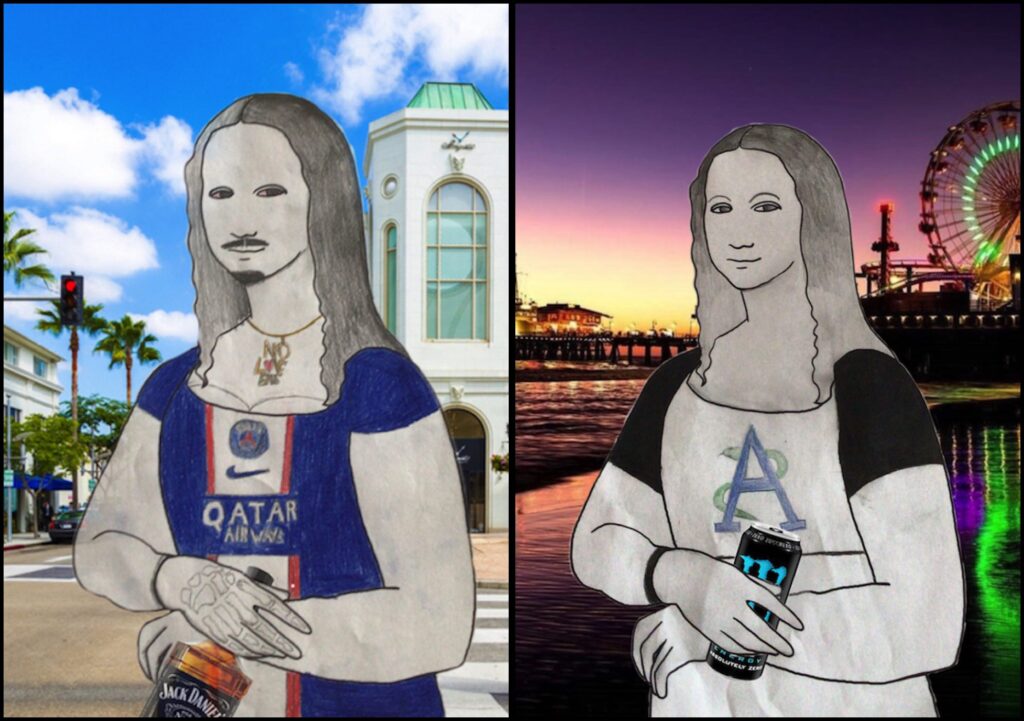
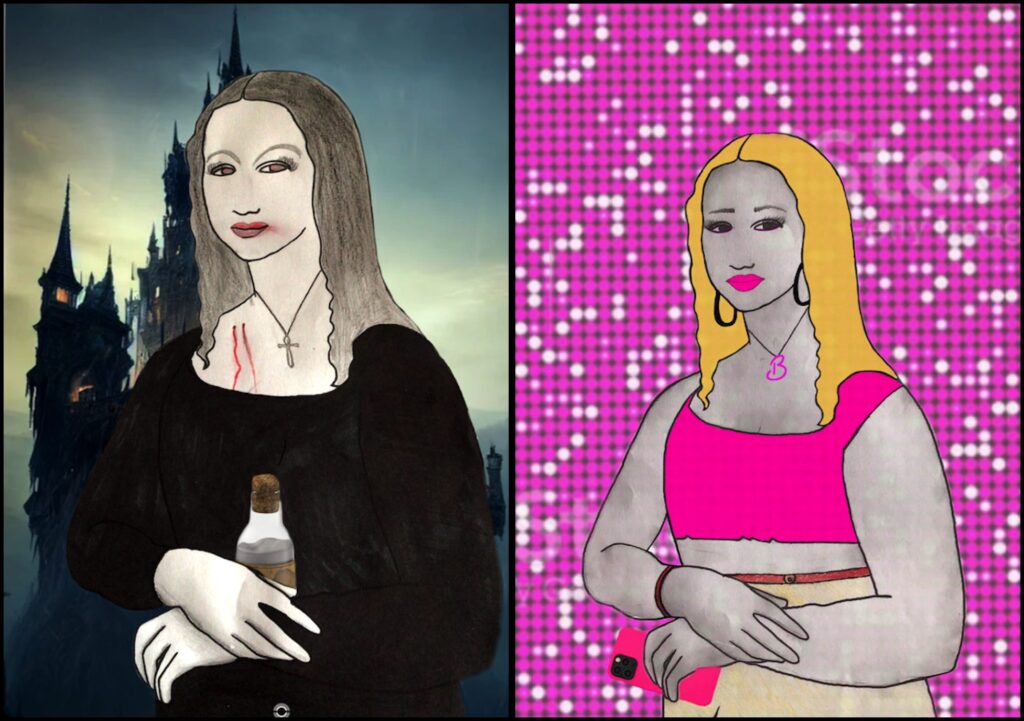
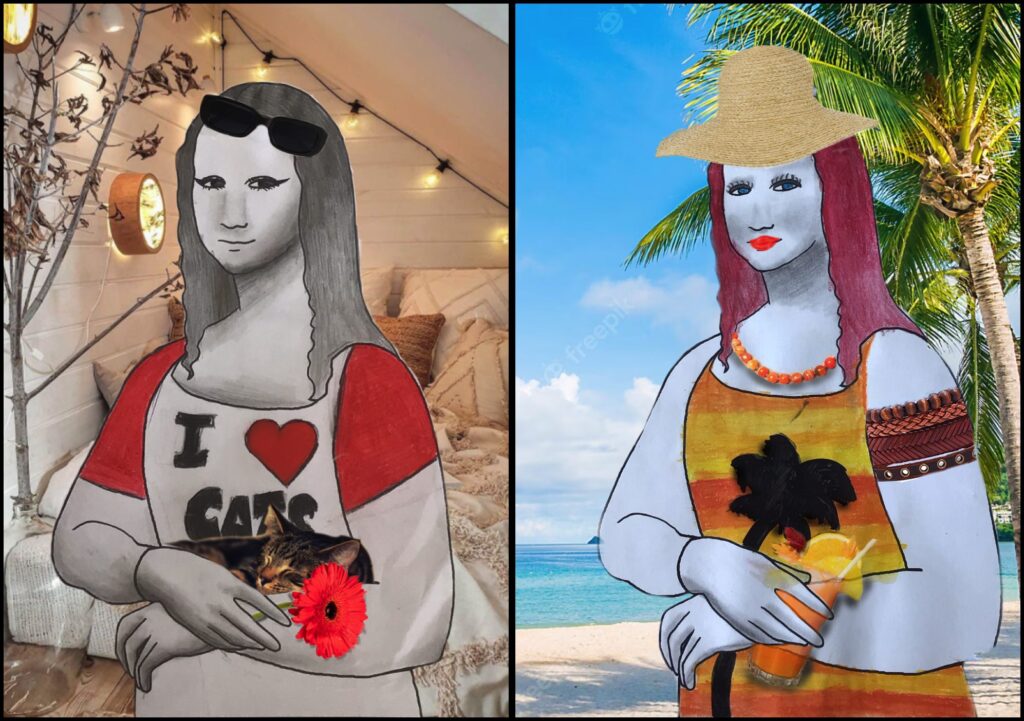
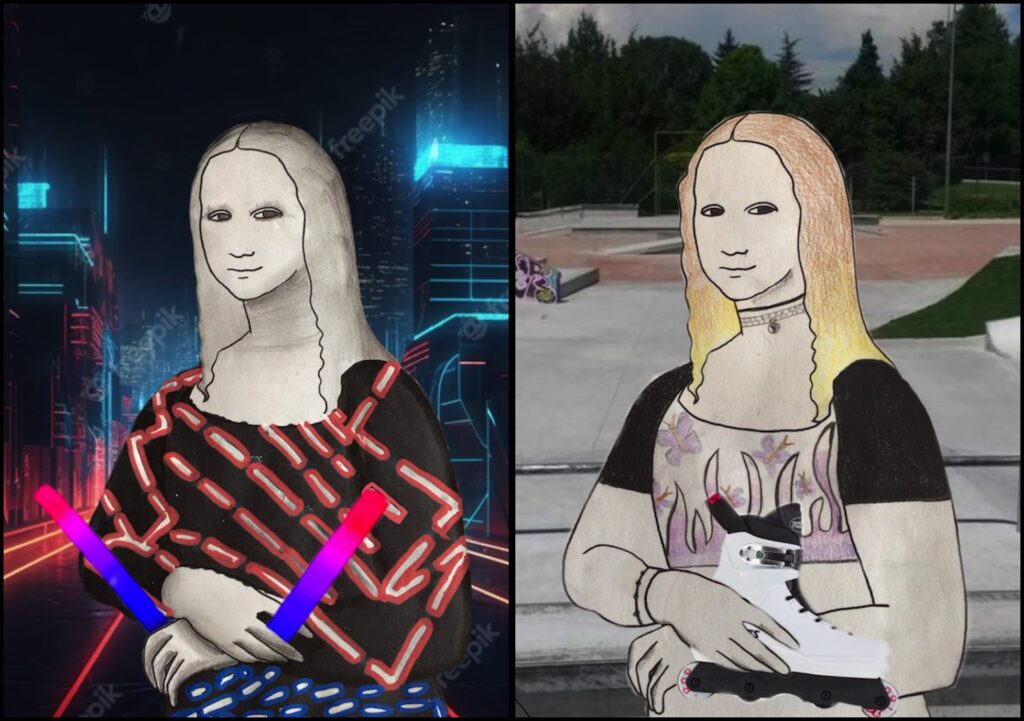
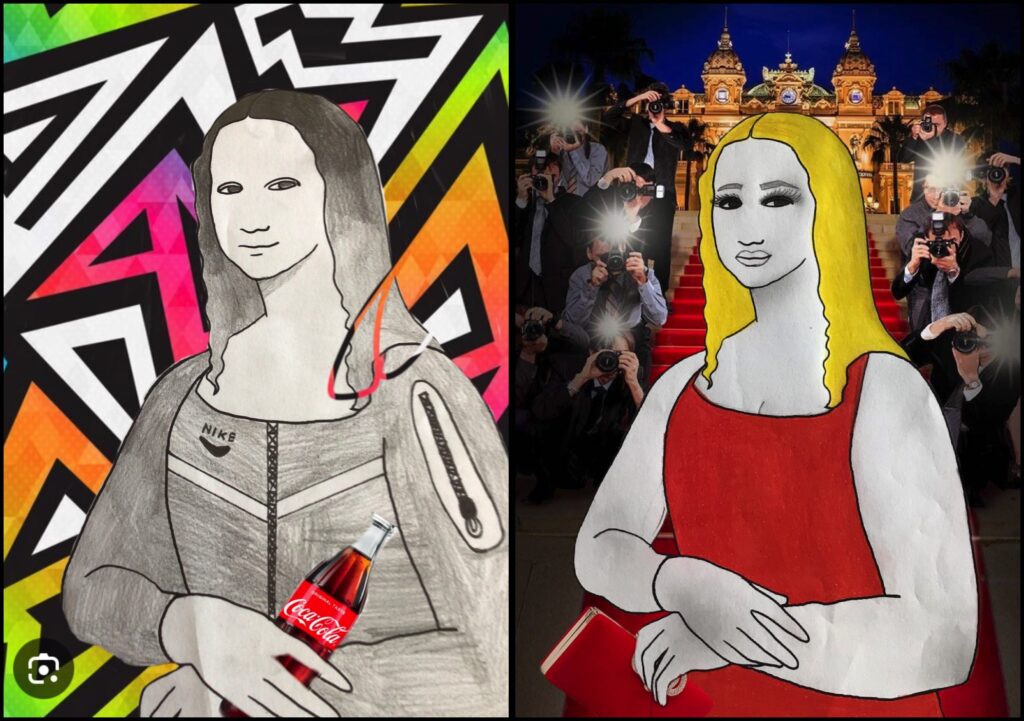
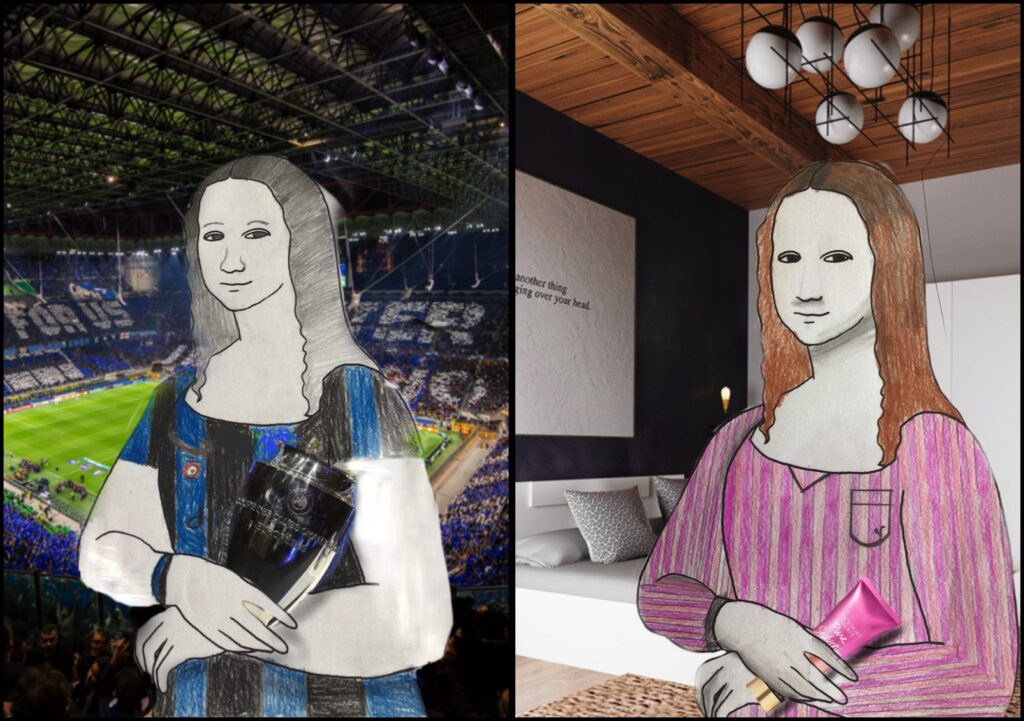
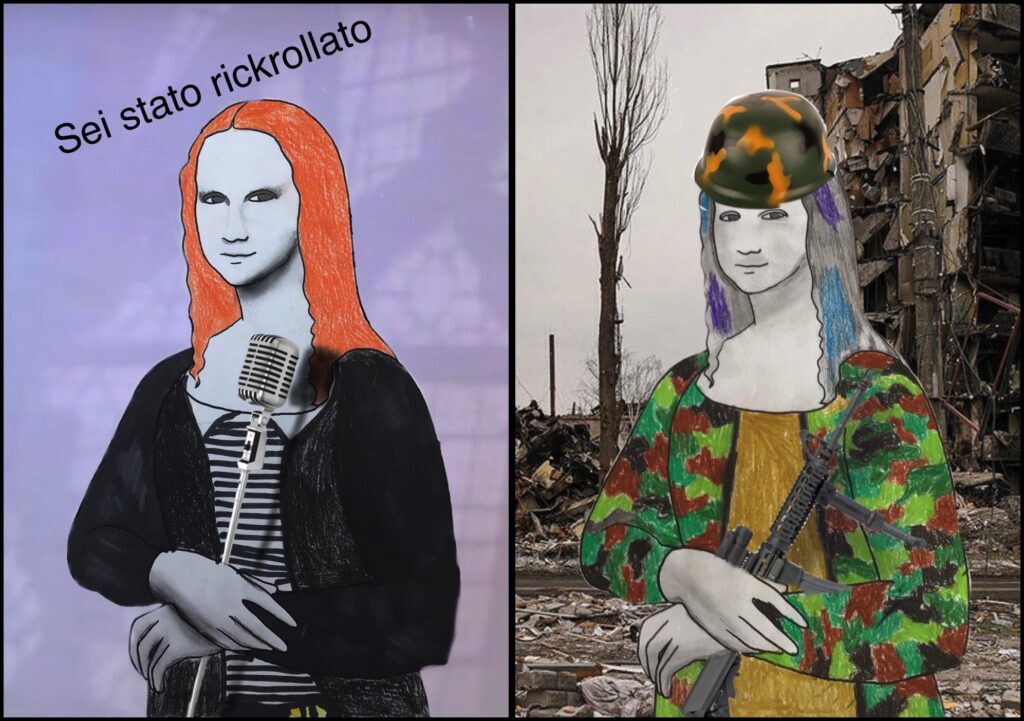
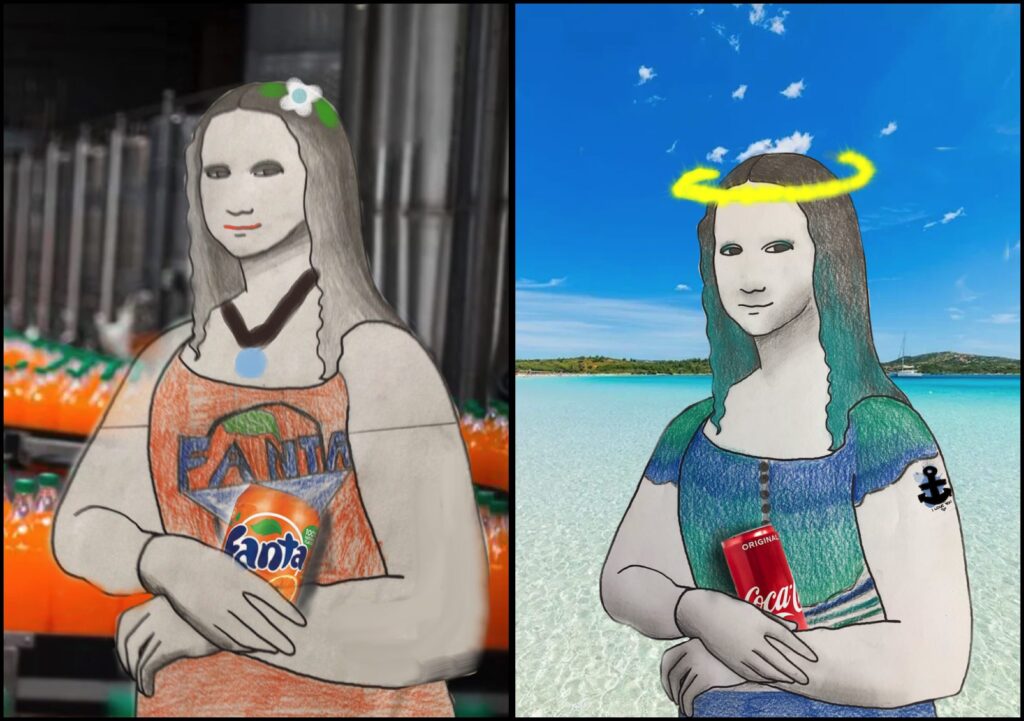
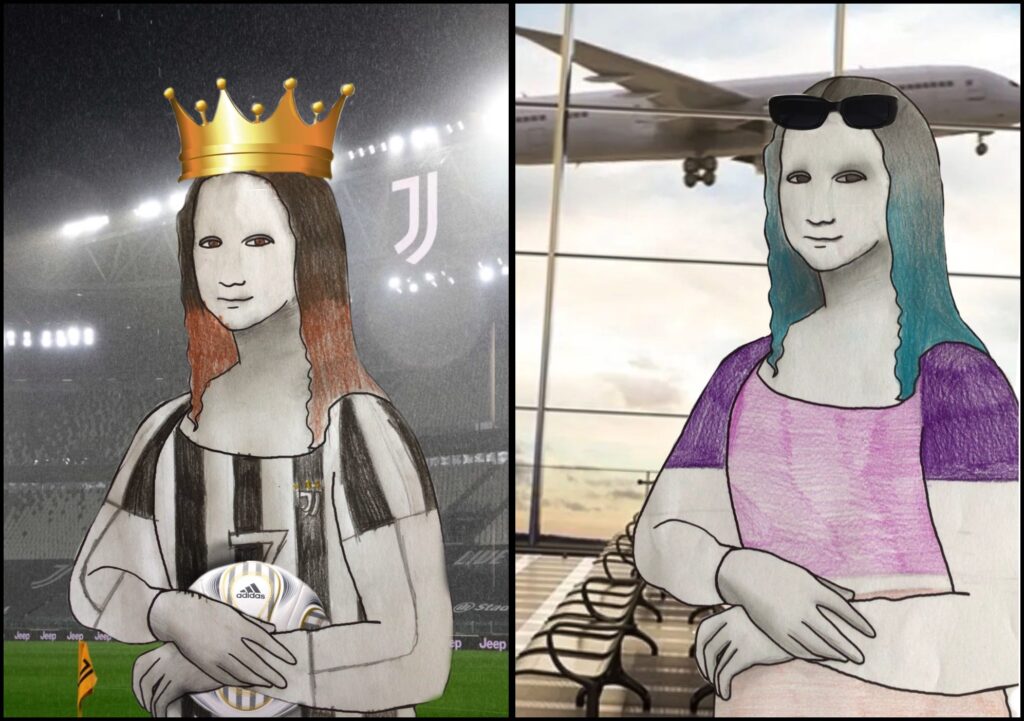
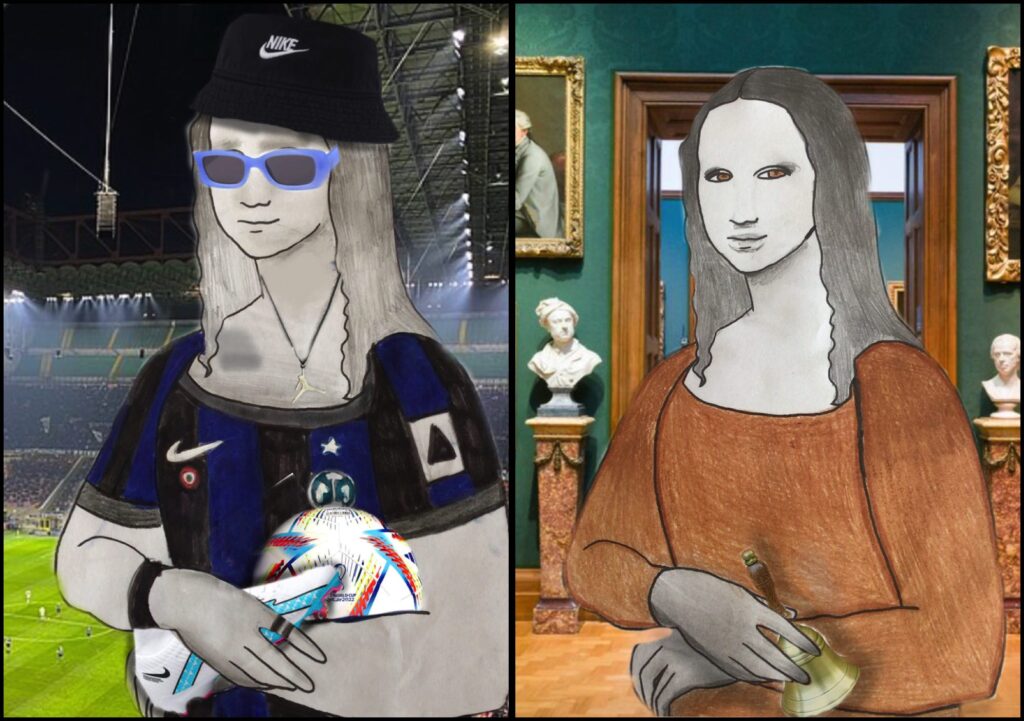
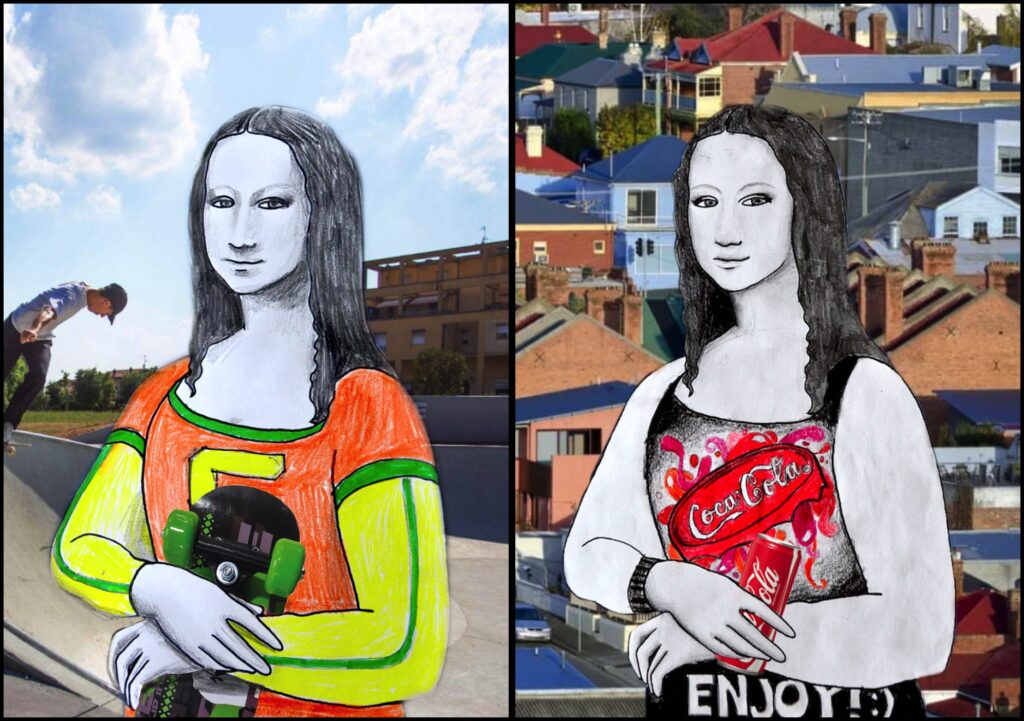
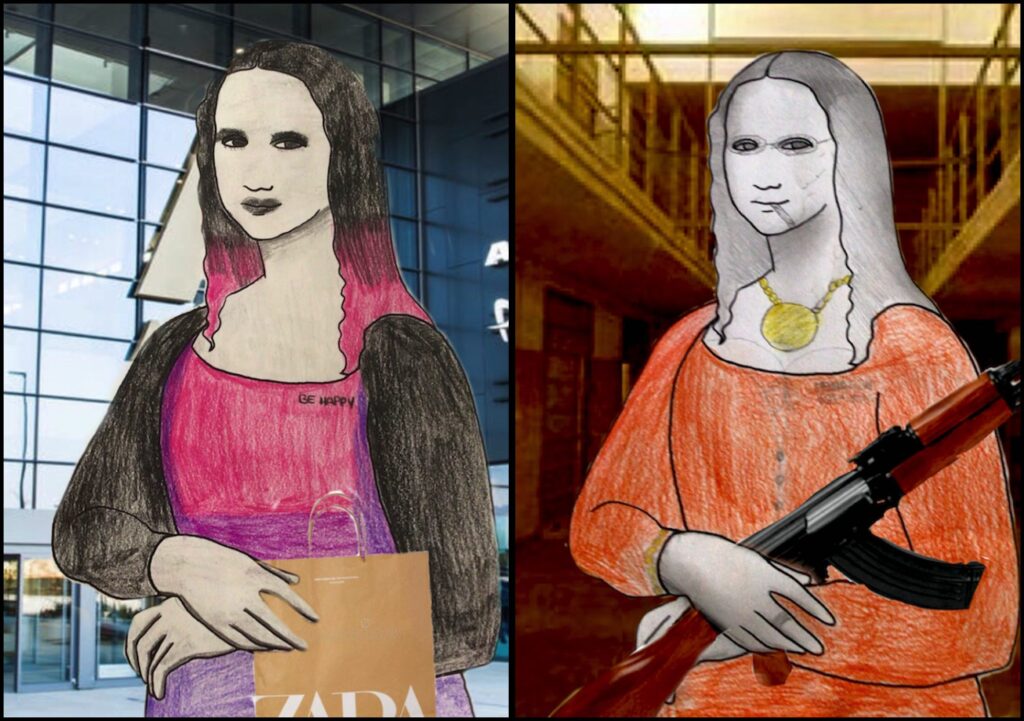
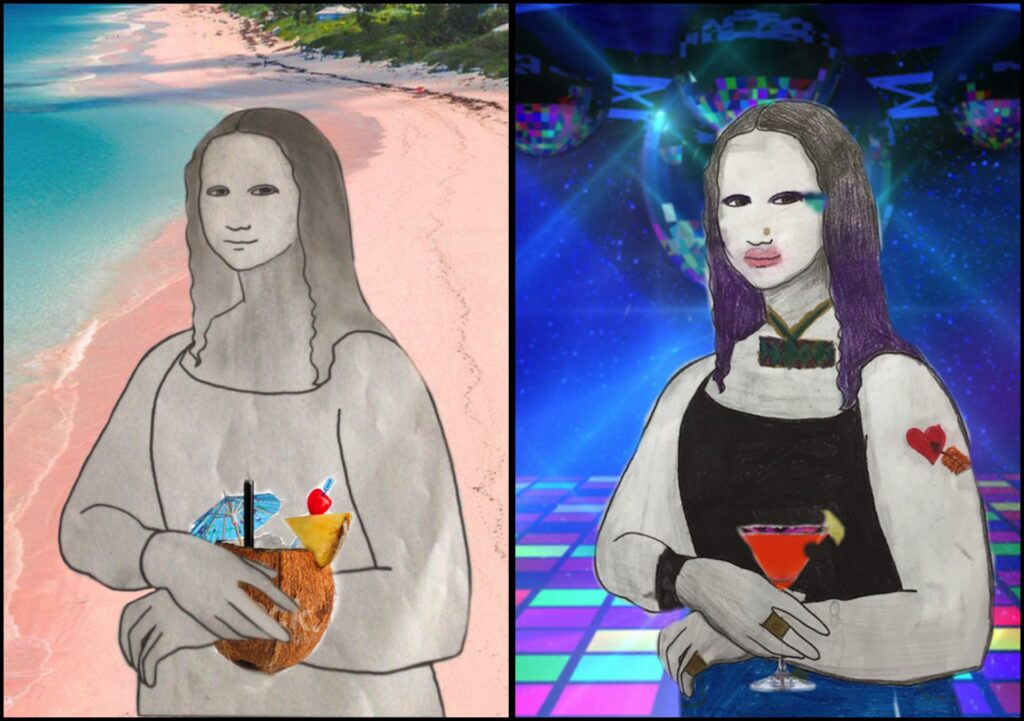
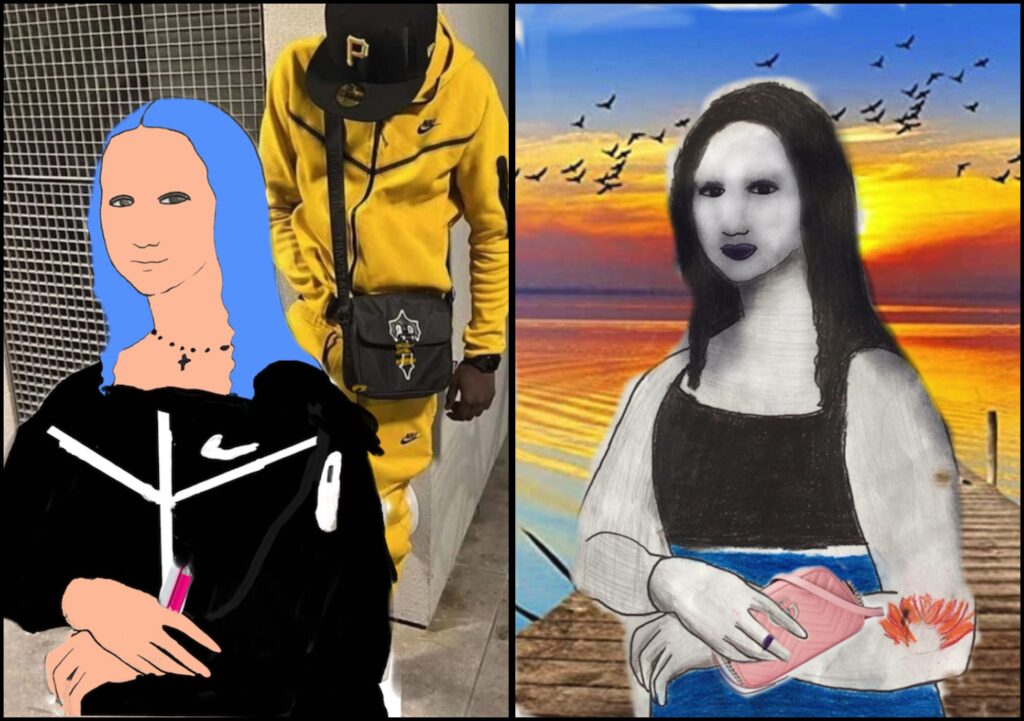
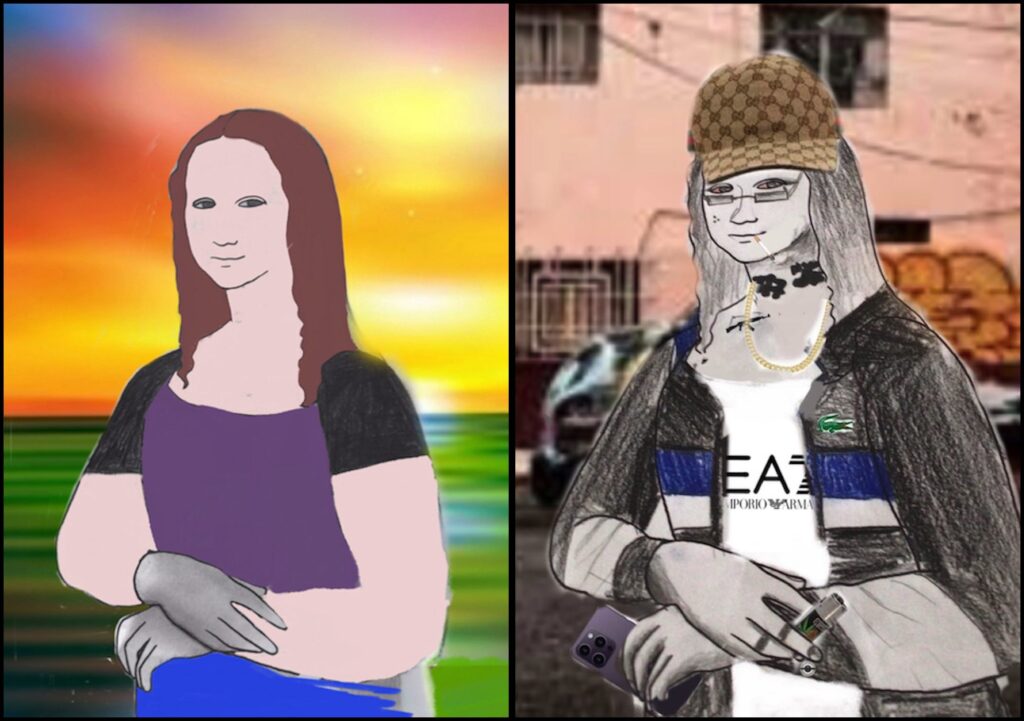
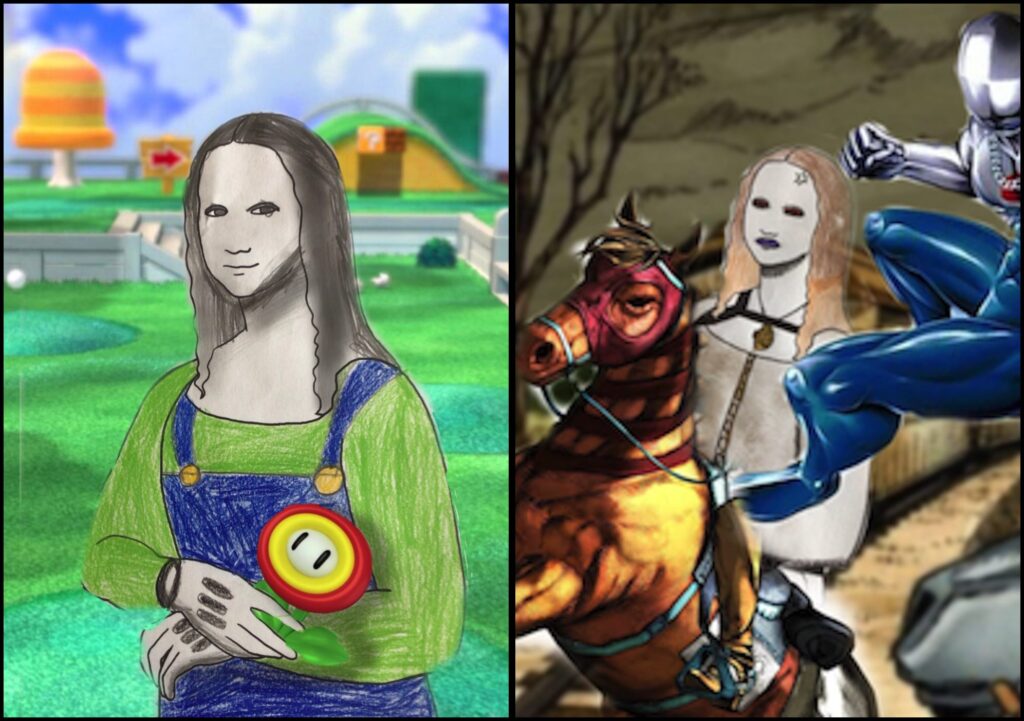
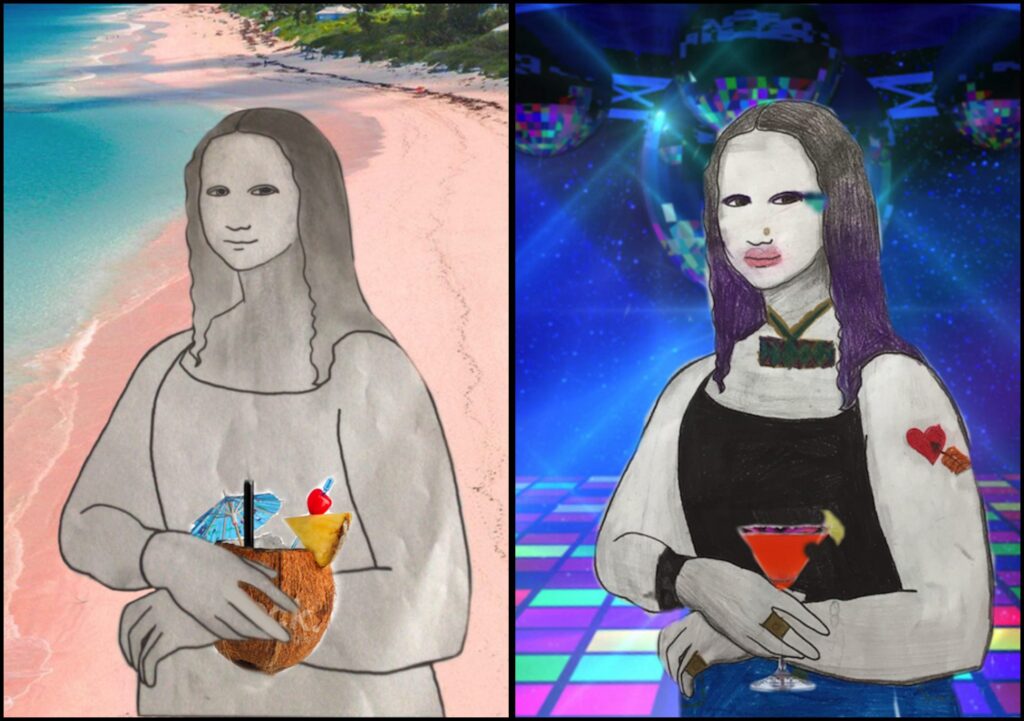
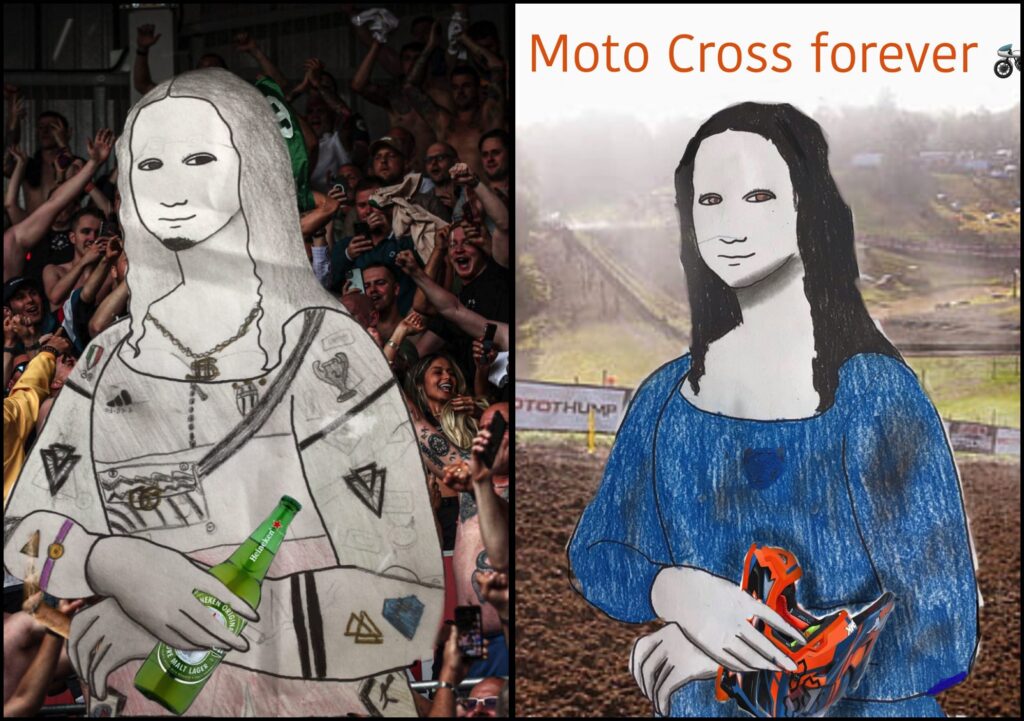
达·芬奇笔下著名的蒙娜丽莎从画中走了出来,来拜访我们!七年级学生一起绘制了自己的蒙娜丽莎,并为她穿上当代服饰,思考哪套穿搭最契合我们的邀请。每位同学都设想了邀请自己的乔孔达前往某处,并为她挑选一件随身携带的物品。
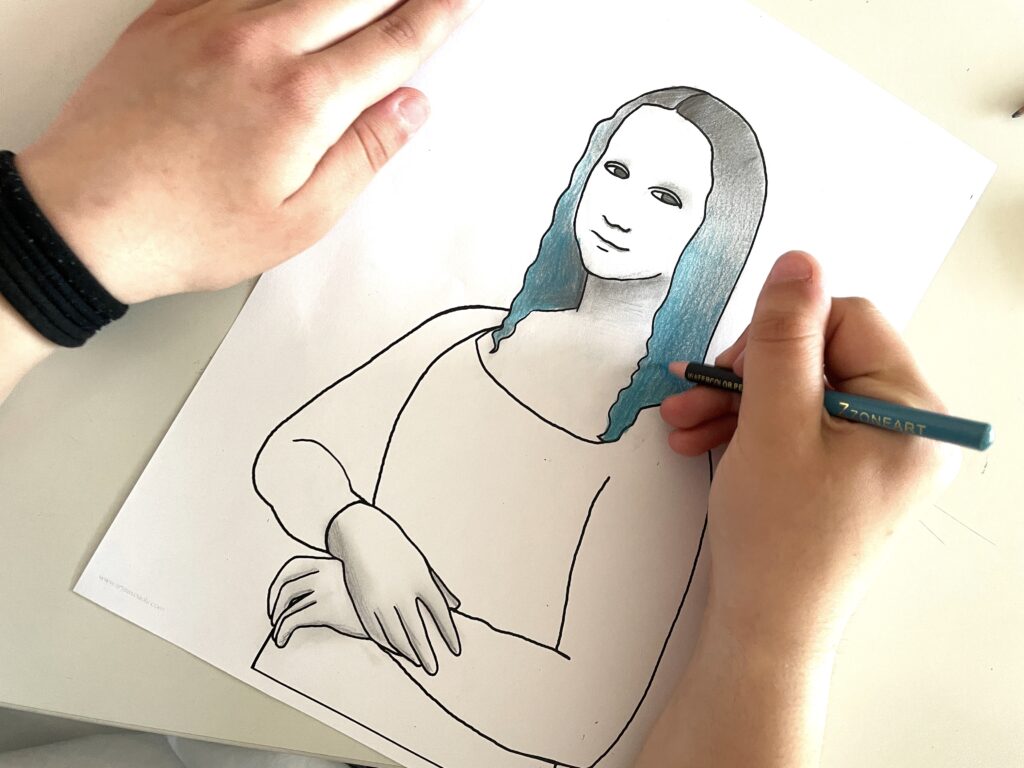
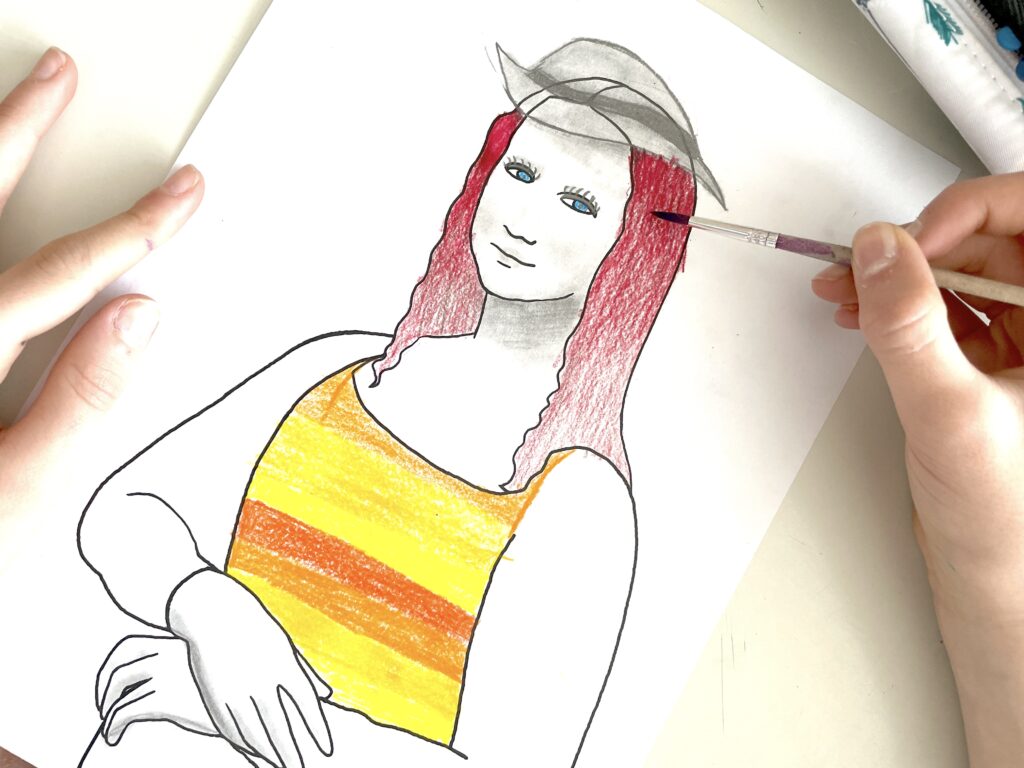
在绘制并上色完成此处可获取的蒙娜丽莎人物图样后,我们从网络选取一处合适的场景,将这幅半身像置入其中。我们构想的是当代环境——可以是城市或自然景观,寻常或特别之处,日常或非凡之地。
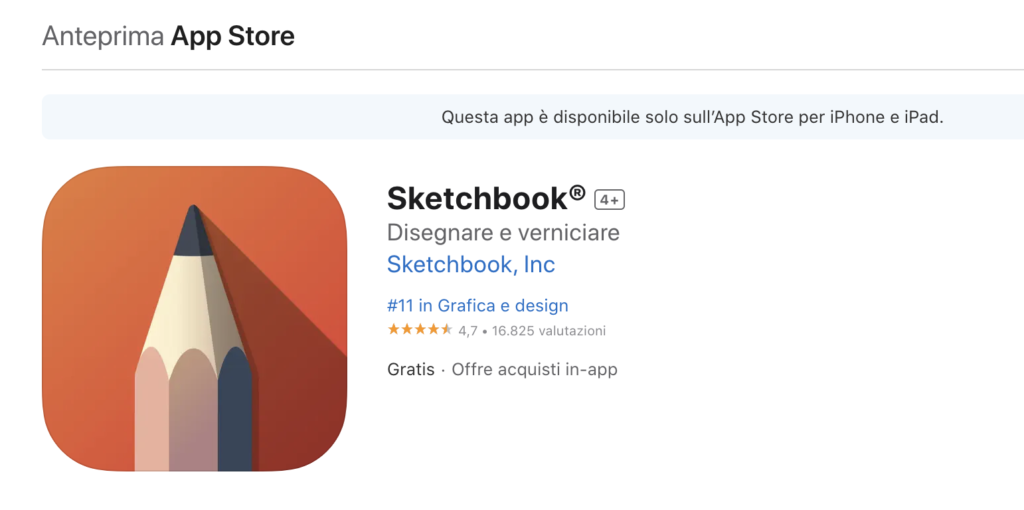
为编辑这些画作,我们使用 iPad 上的 Sketchbook 应用程序。学校配备了这些设备,我们借此探索数字绘画的可能性,并学习如何运用这些工具。
Sketchbook 应用程序可在 iPad 上免费下载,支持创建带图层的绘图,图层具备混合模式与分组功能,并提供丰富多样的画笔及高度灵活的效果选项。整个界面设计简洁、素雅且直观,十分适合初学者开启数字绘画之旅。
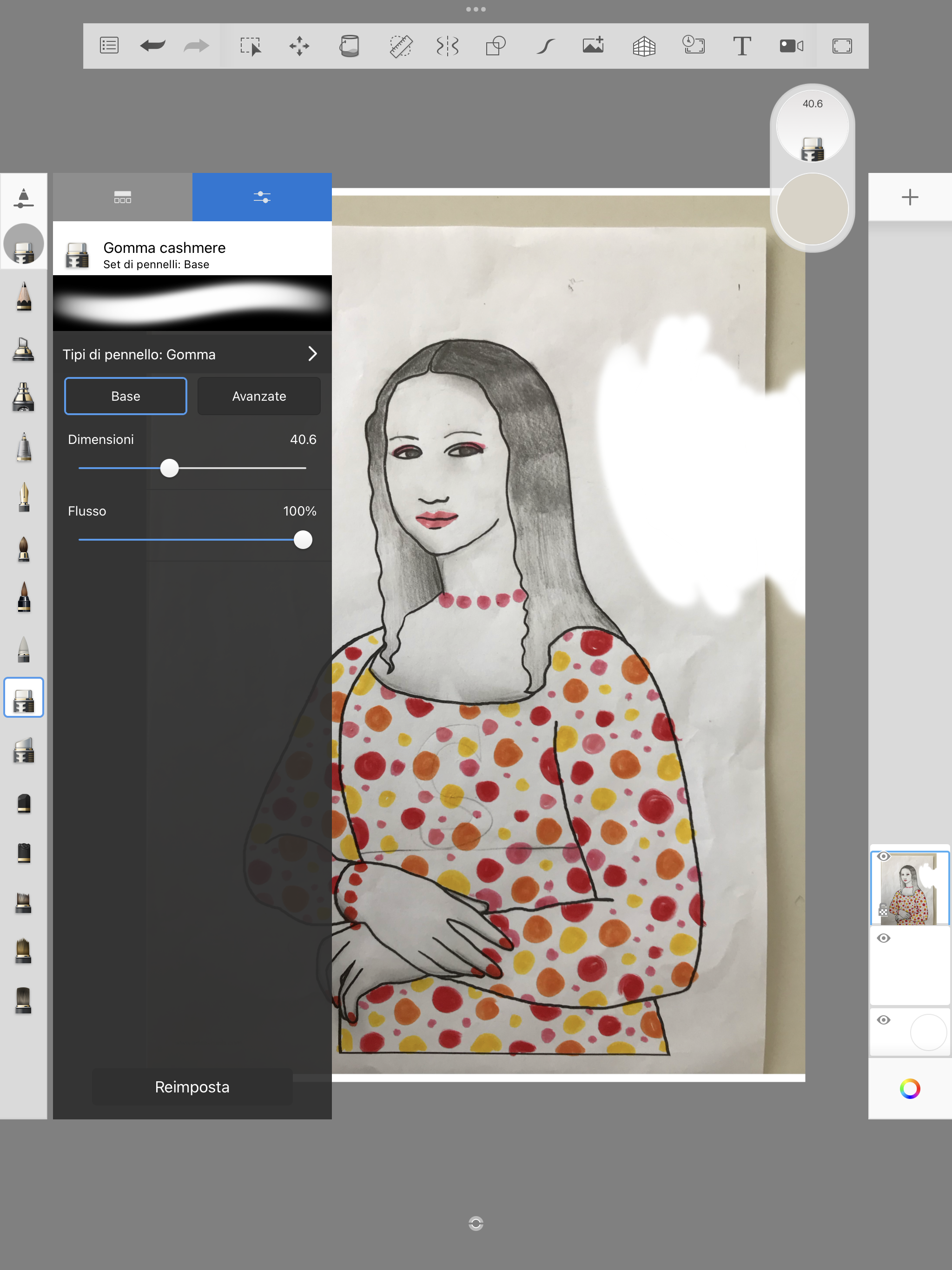
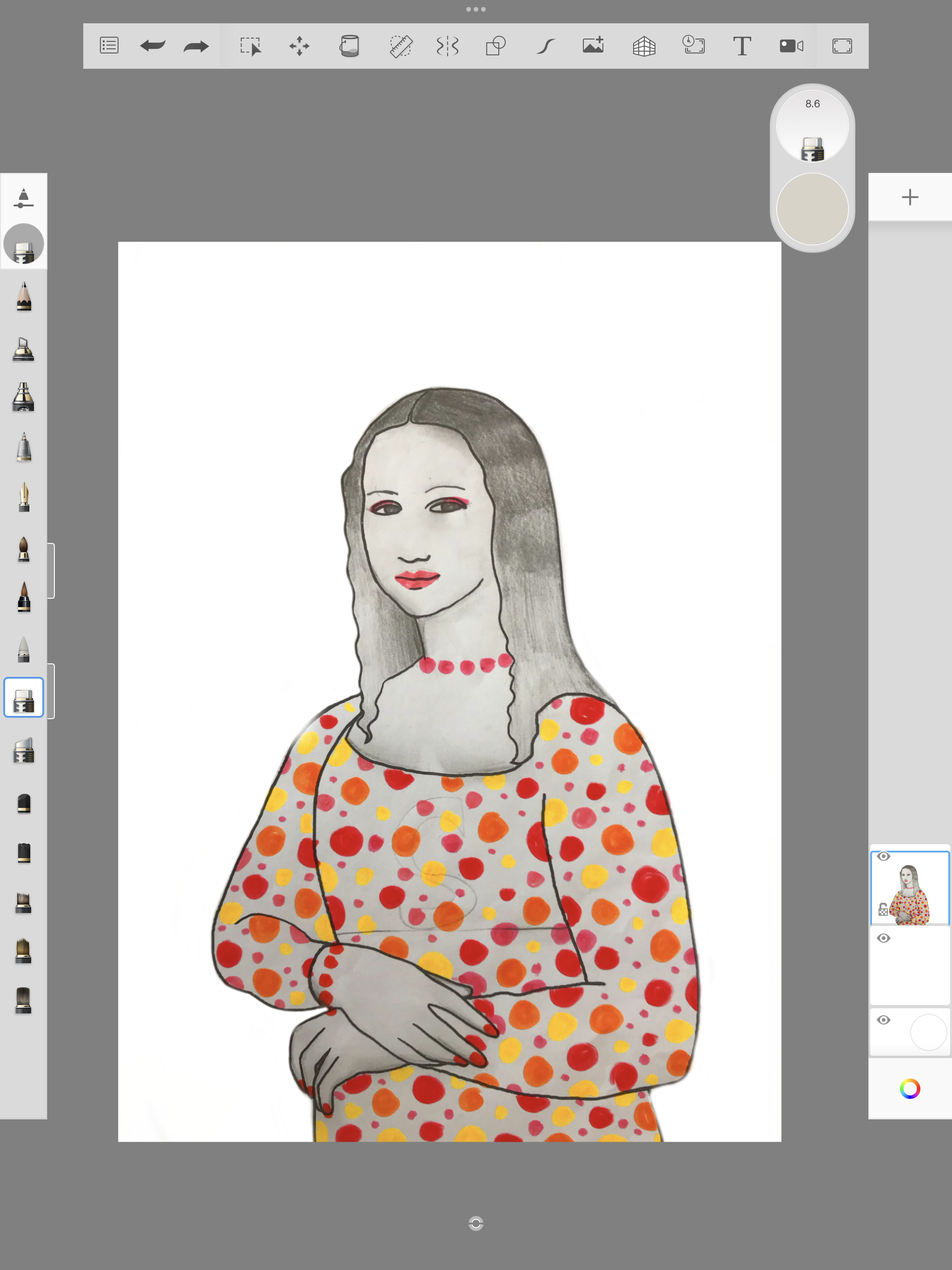
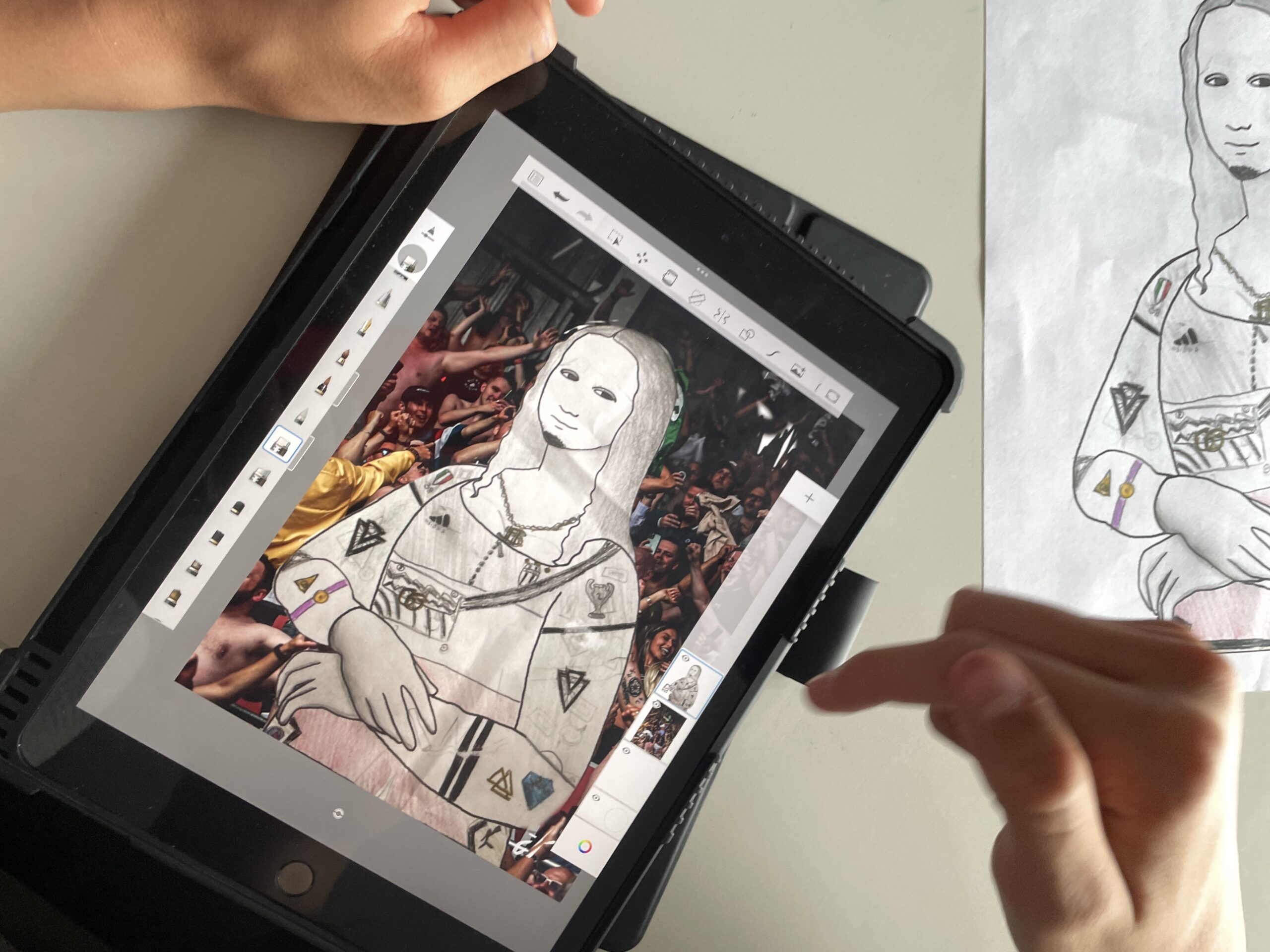
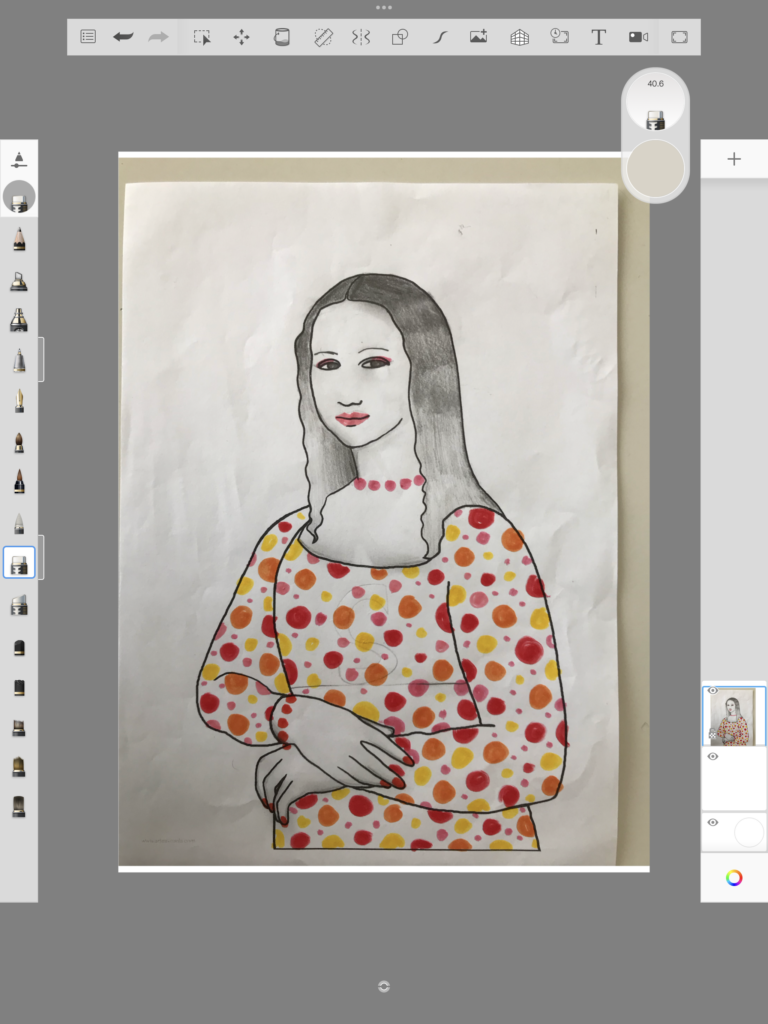
首先,我们用 iPad 拍摄自己手绘的蒙娜丽莎作品照片,并将该照片插入 iPad 版 Sketchbook 应用的一个图层中。接着,我们利用“橡皮擦”功能擦除背景,注意避开人物部分,从而获得完全透明的背景。
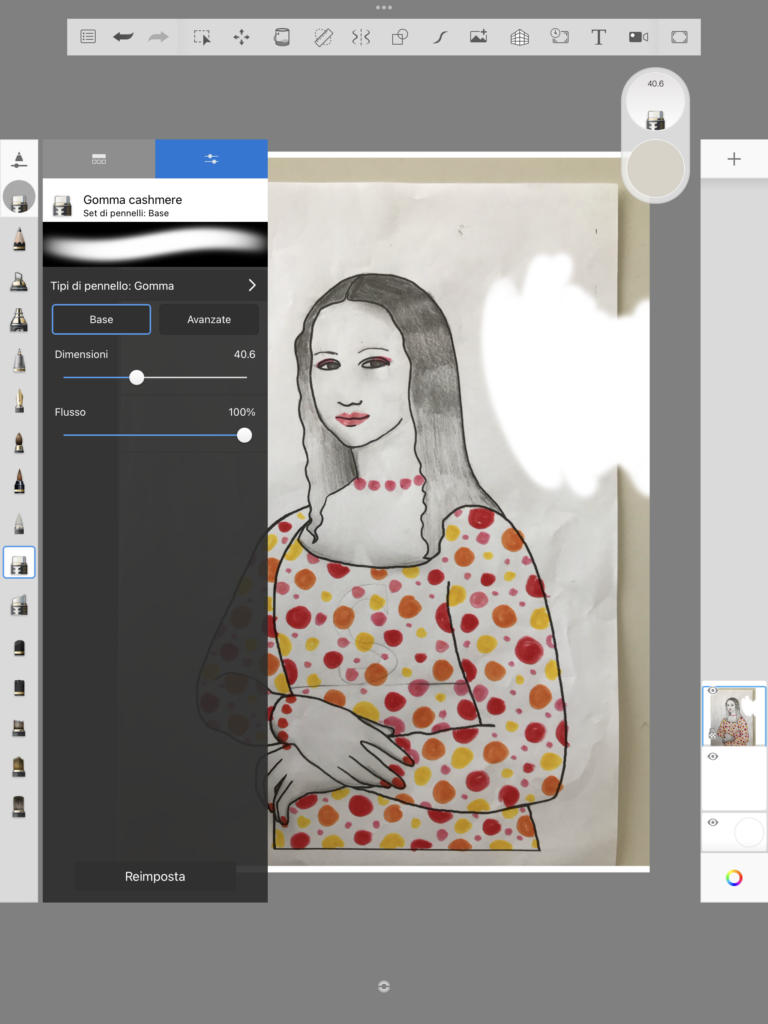
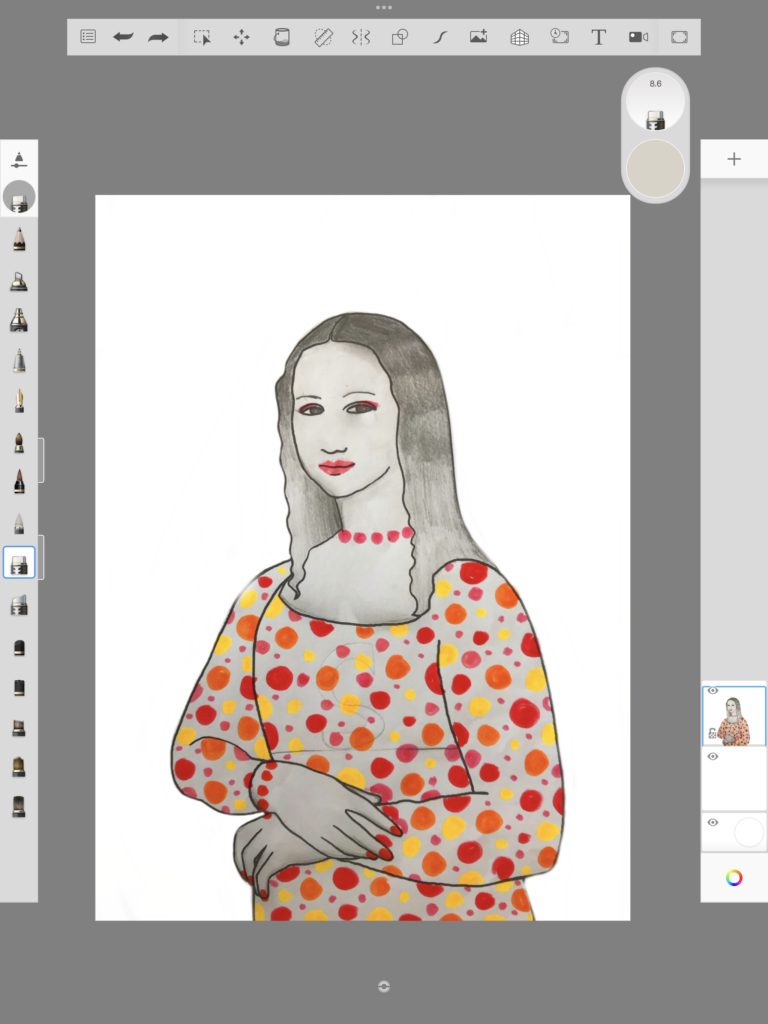
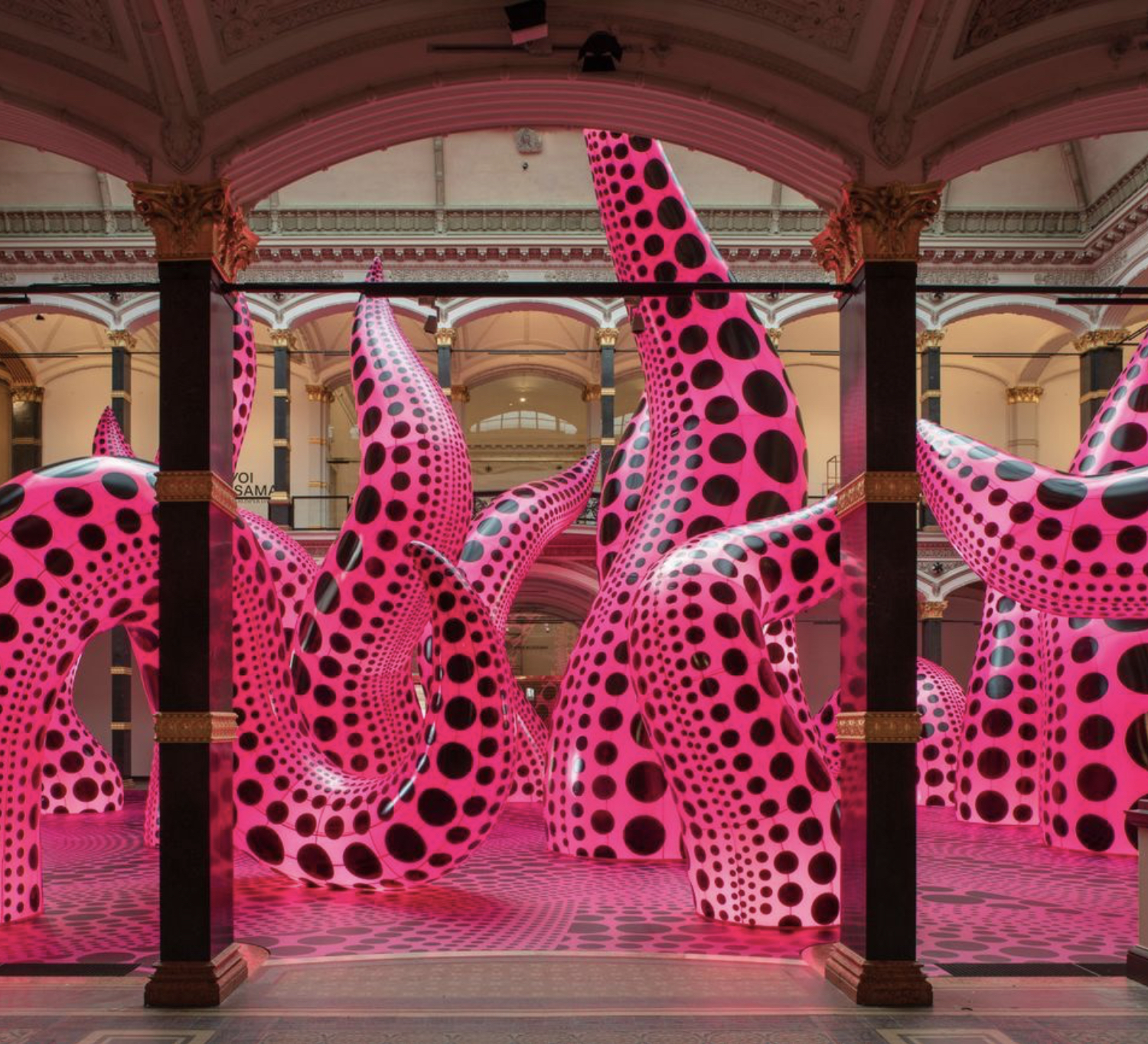
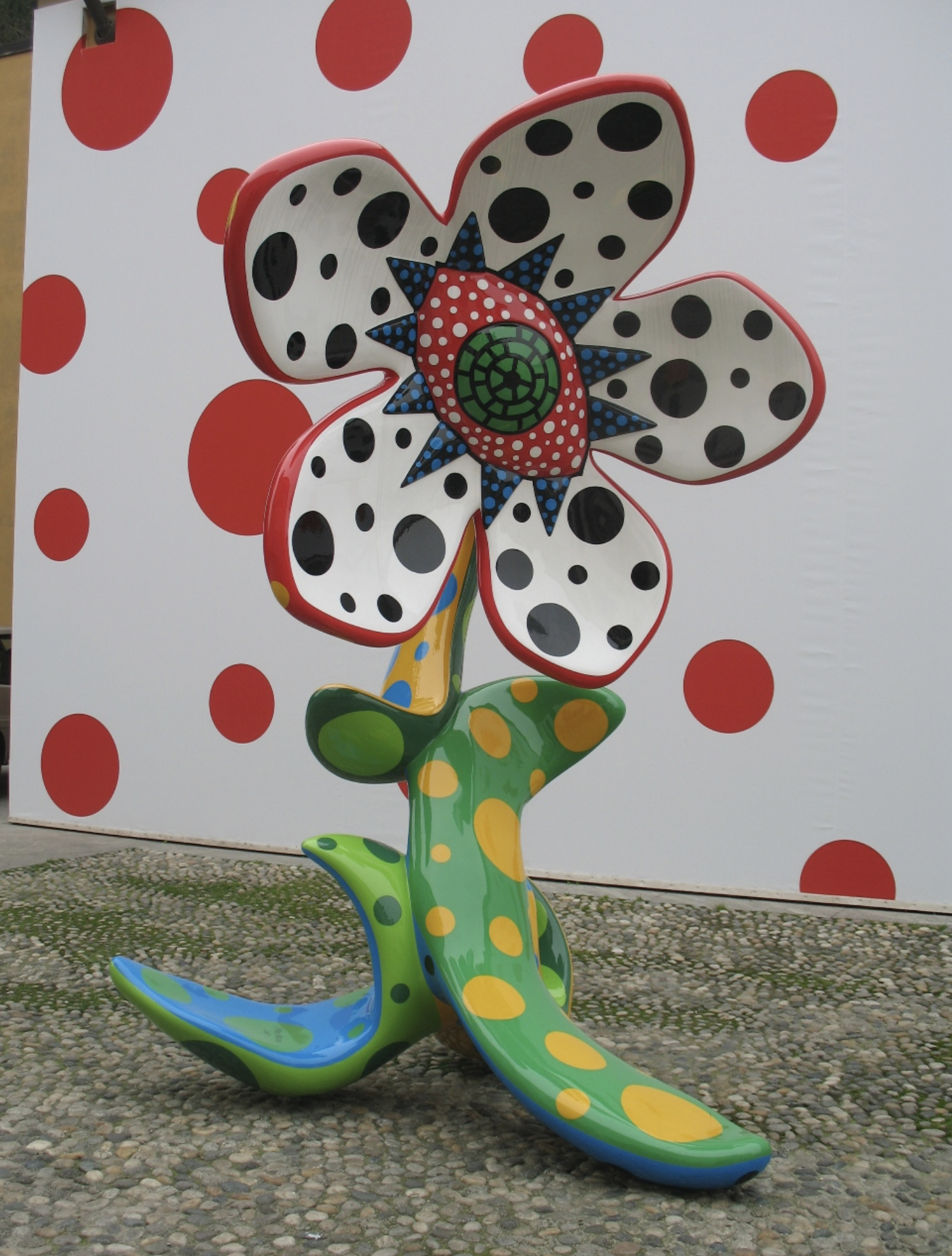
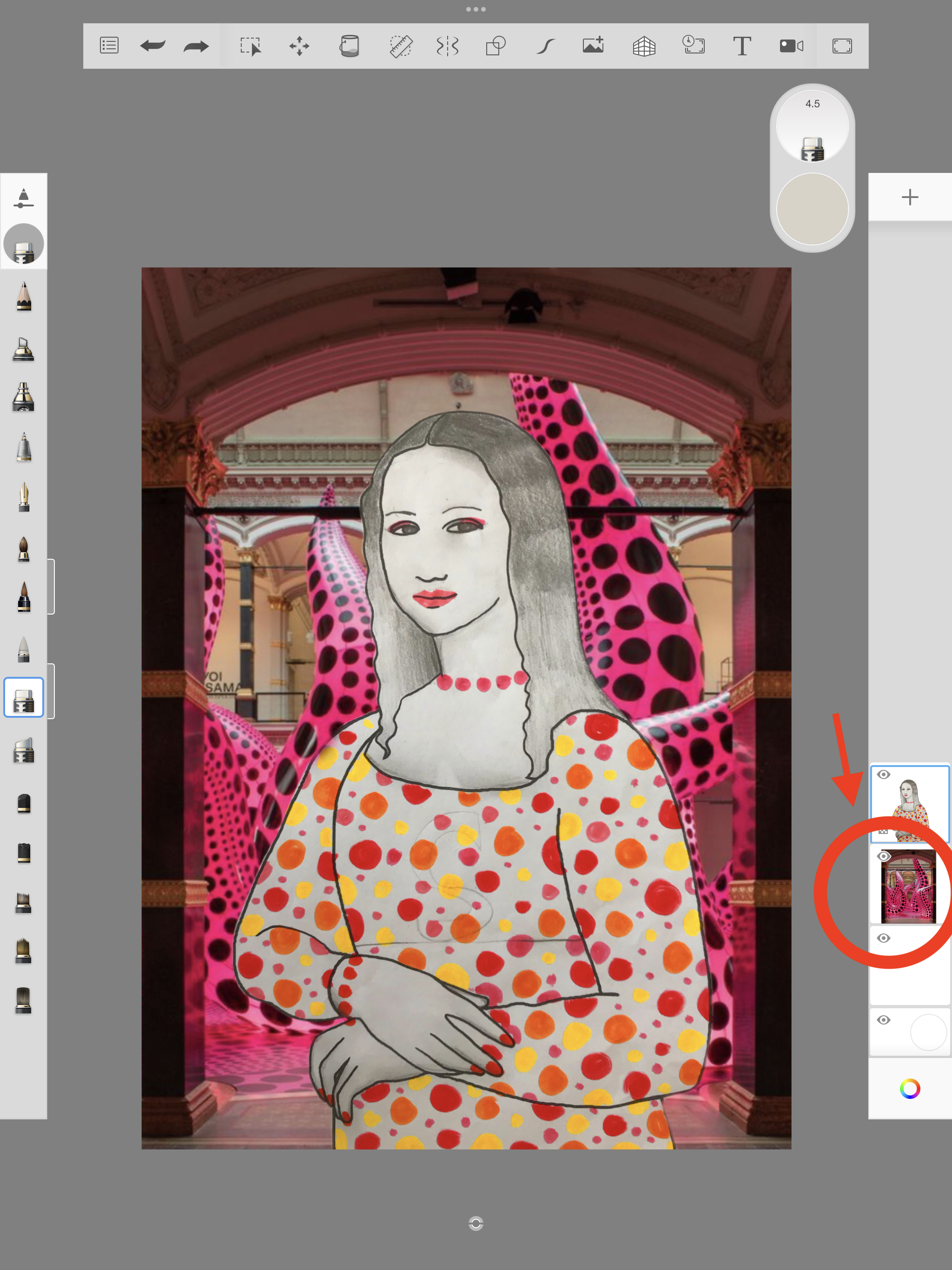
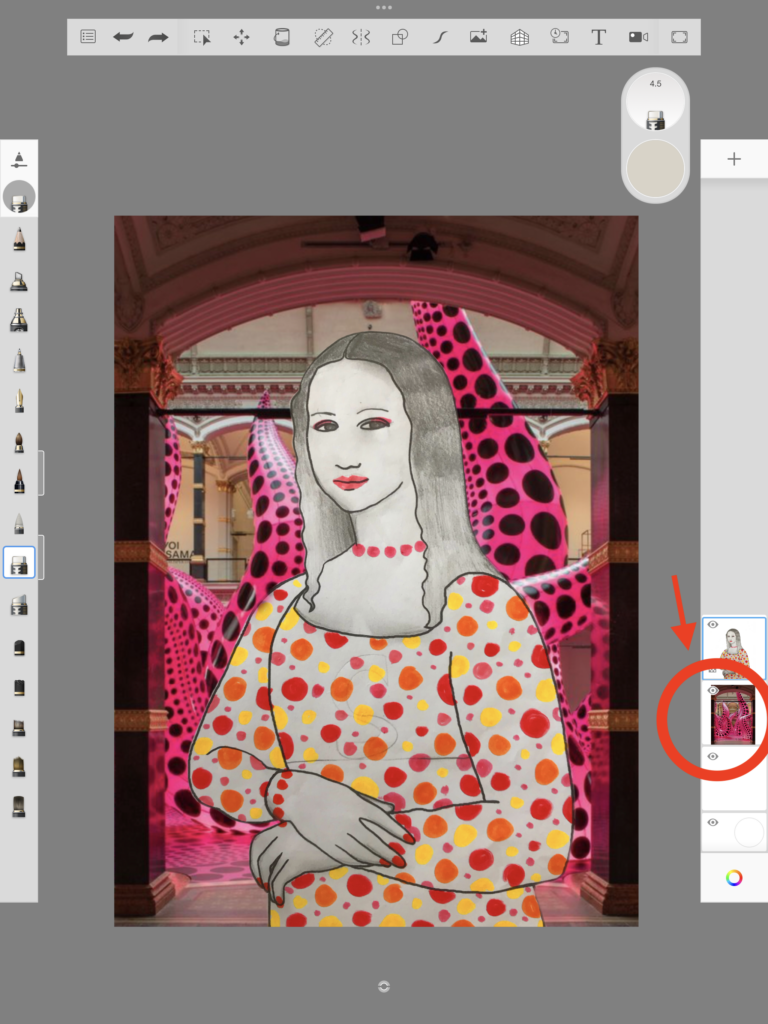
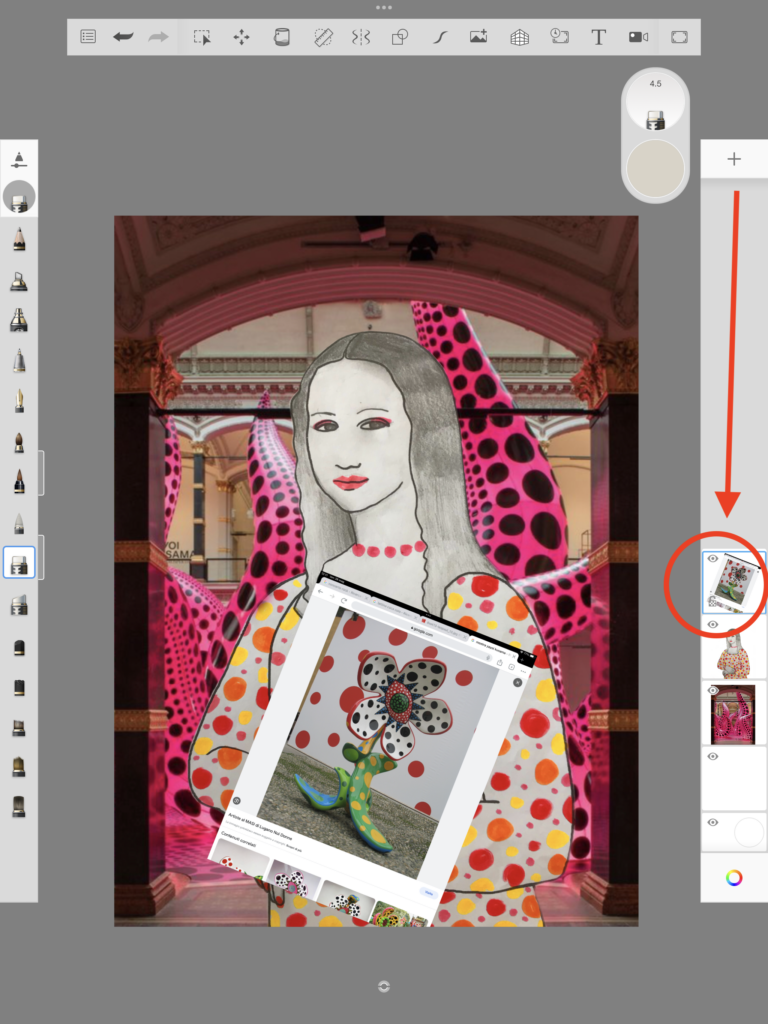
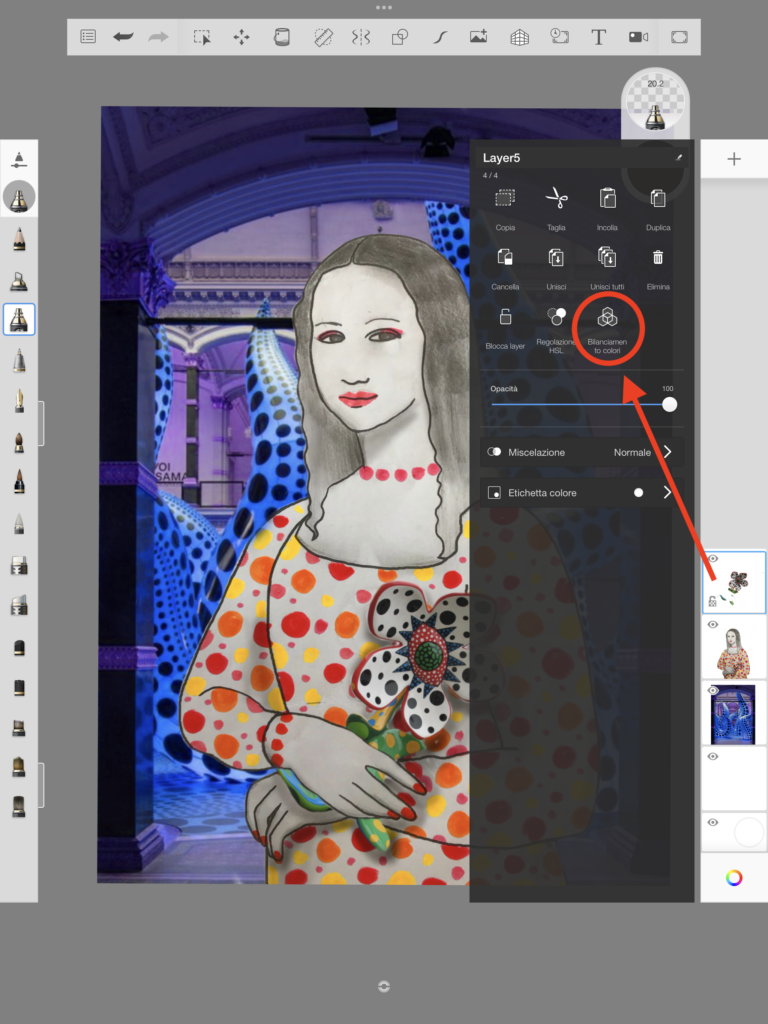
为制作背景,我们点击右侧工具栏的“+”键新建一个图层,并将其拖动至蒙娜丽莎图层的下方(只需用手指在右侧图层面板中拖动即可)。在此阶段,我们确定了要带蒙娜丽莎前往的地点,并上网搜索当代环境的图片(如体育场、迪厅、音乐会现场、城市街景、博物馆等)。与此同时,我们也寻找蒙娜丽莎手中所持的物品图像。这个物品图像同样通过网页截图或直接下载至 iPad 后,插入一个全新图层,且该图层须置于人物图层上方(即在右侧图层面板中将其拖至蒙娜丽莎图层之上)。本范例中,我选择了草间弥生的一场展览及其一件雕塑作品。
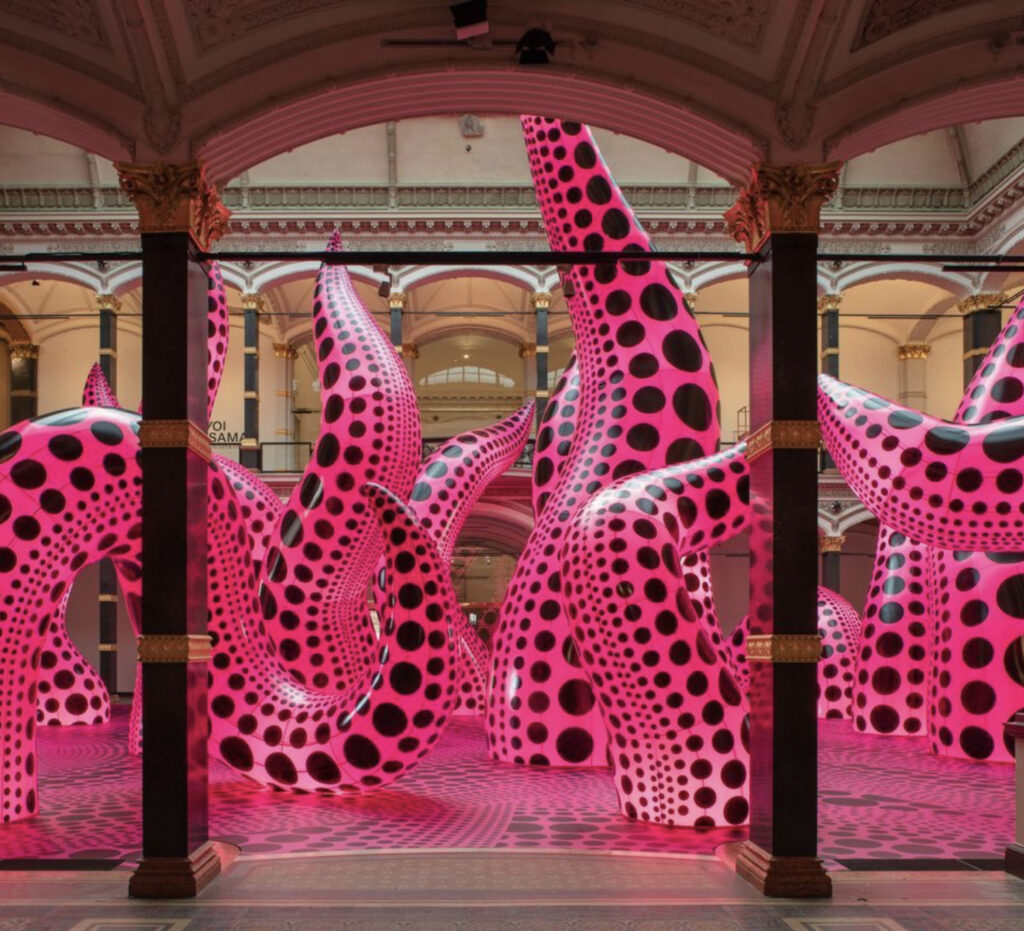
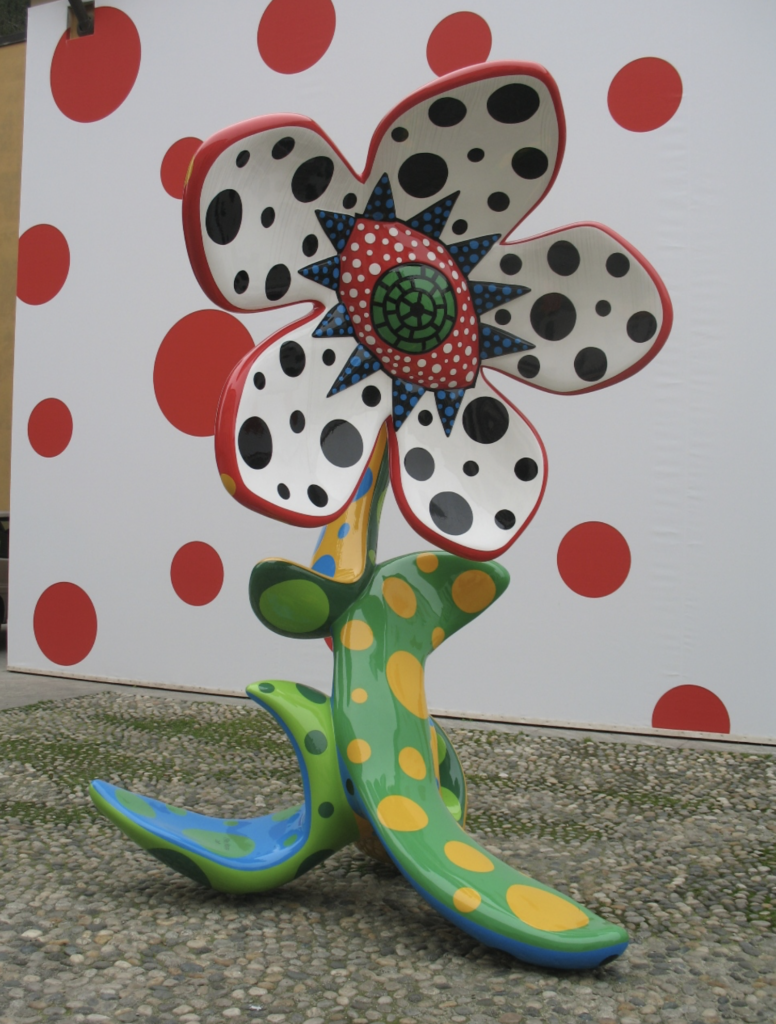
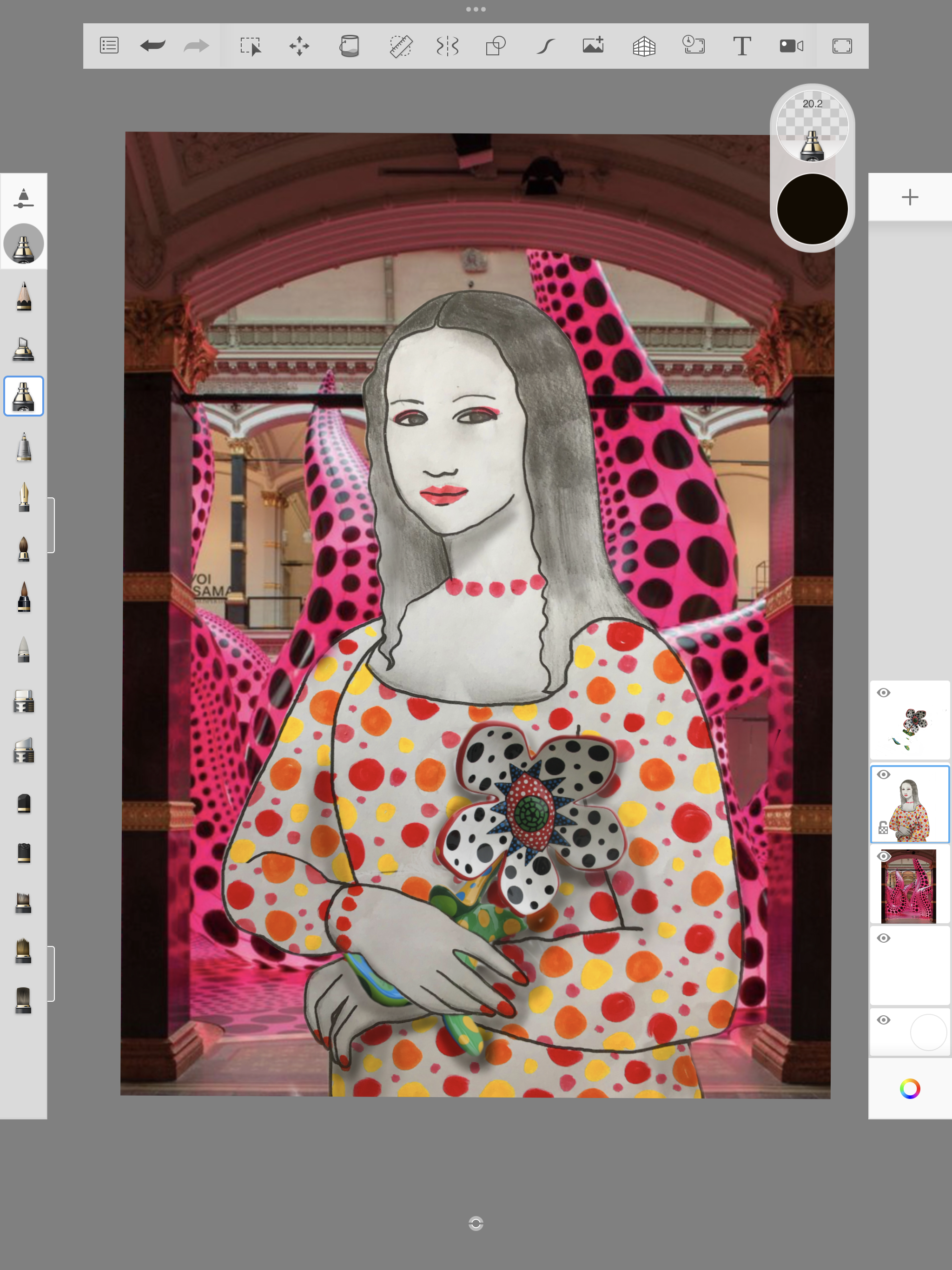
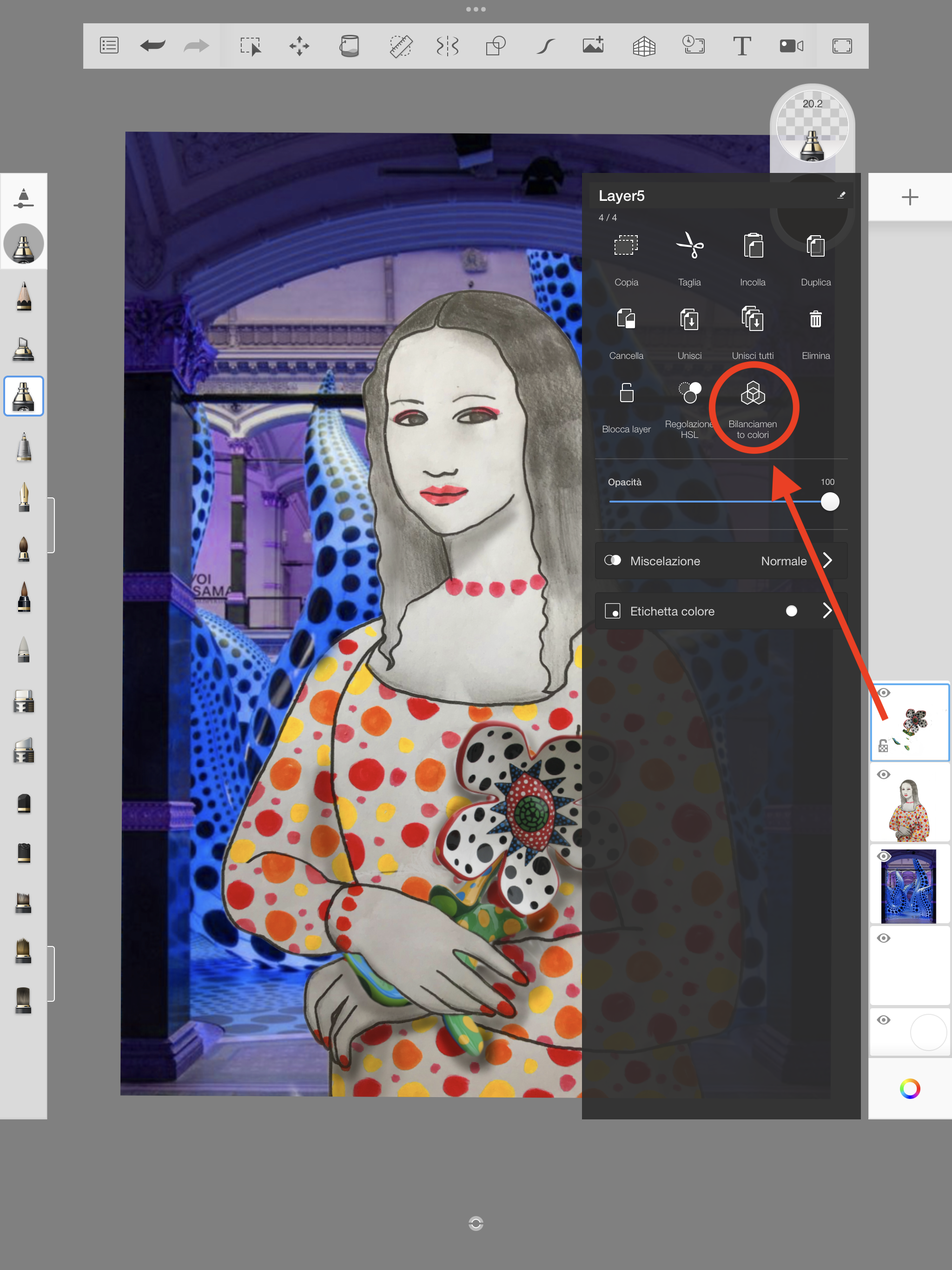
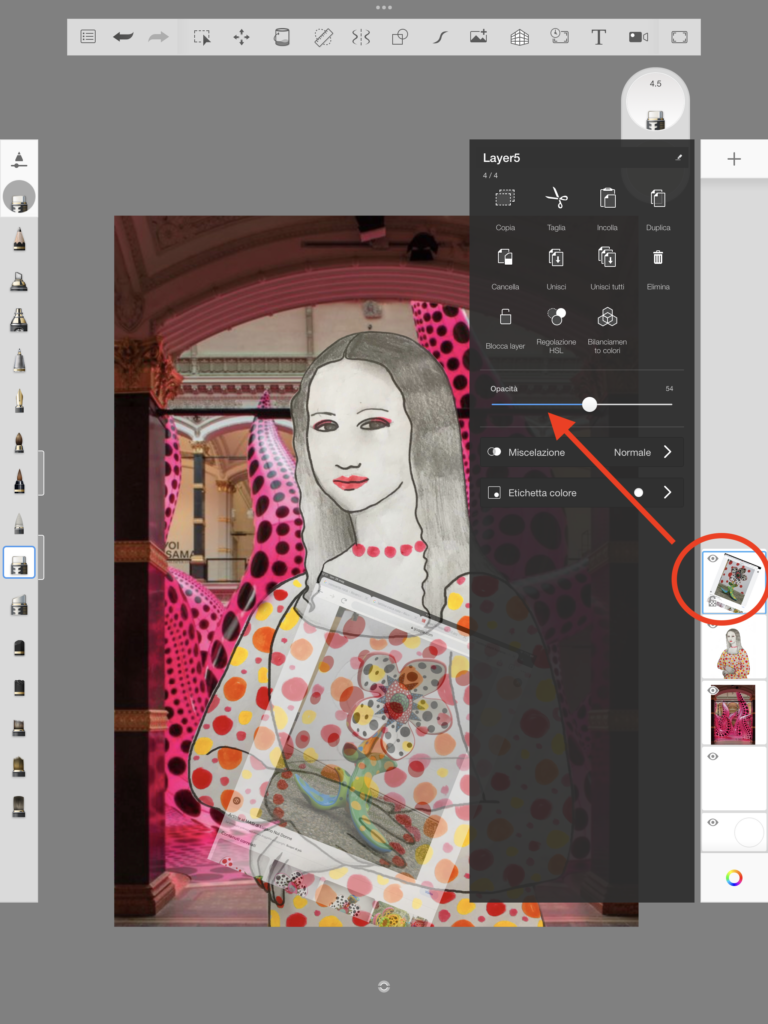
此步骤中,我们调整最前方图层(即载有物品照片的图层)的透明度,以擦除物品中不需要的部分,从而凸显蒙娜丽莎双手持物的效果。点击最前方图层,再通过“不透明度”滑块将其设为约 50% 的半透明状态。这样便能清晰看出需从物品图层中擦除哪些部分,使整体画面更显真实可信。若色彩效果不尽人意,我们还可借助各图层的“色彩平衡”功能进行明暗与色调微调。最后,需将完成的作品通过电子邮件发送给老师。
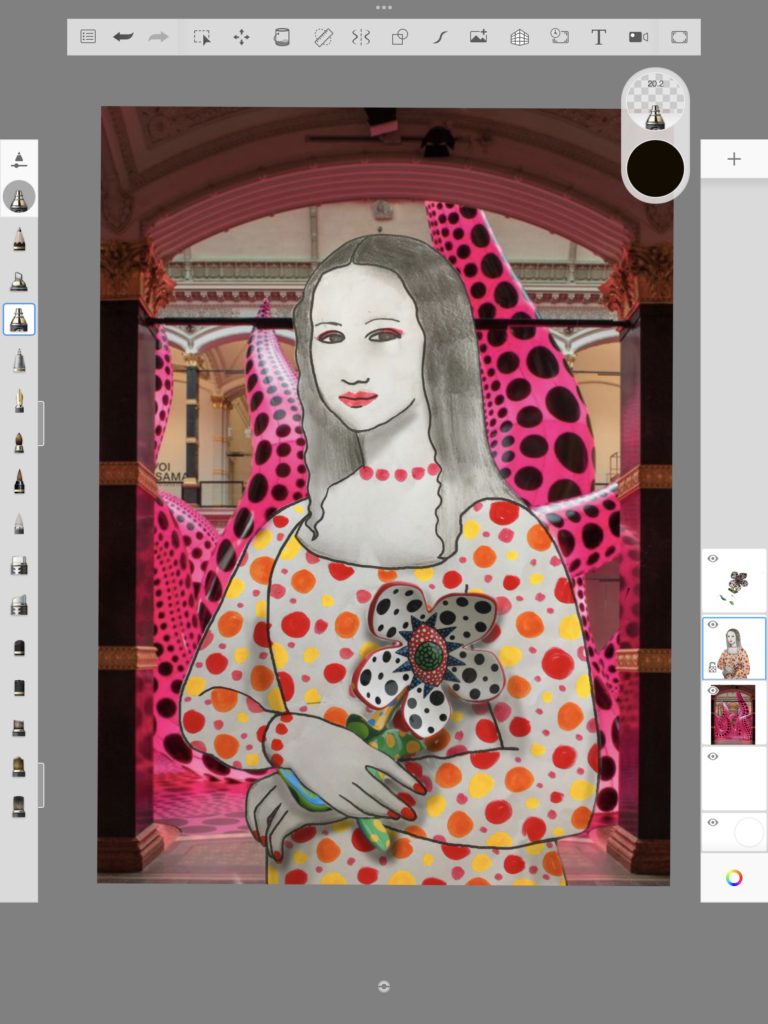
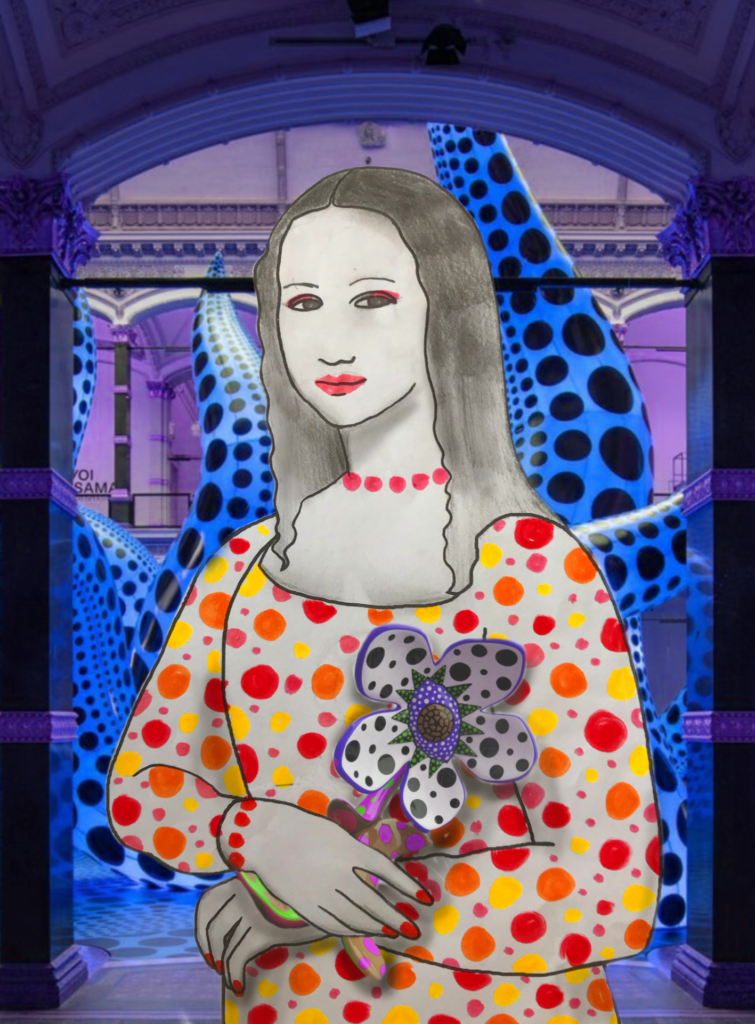
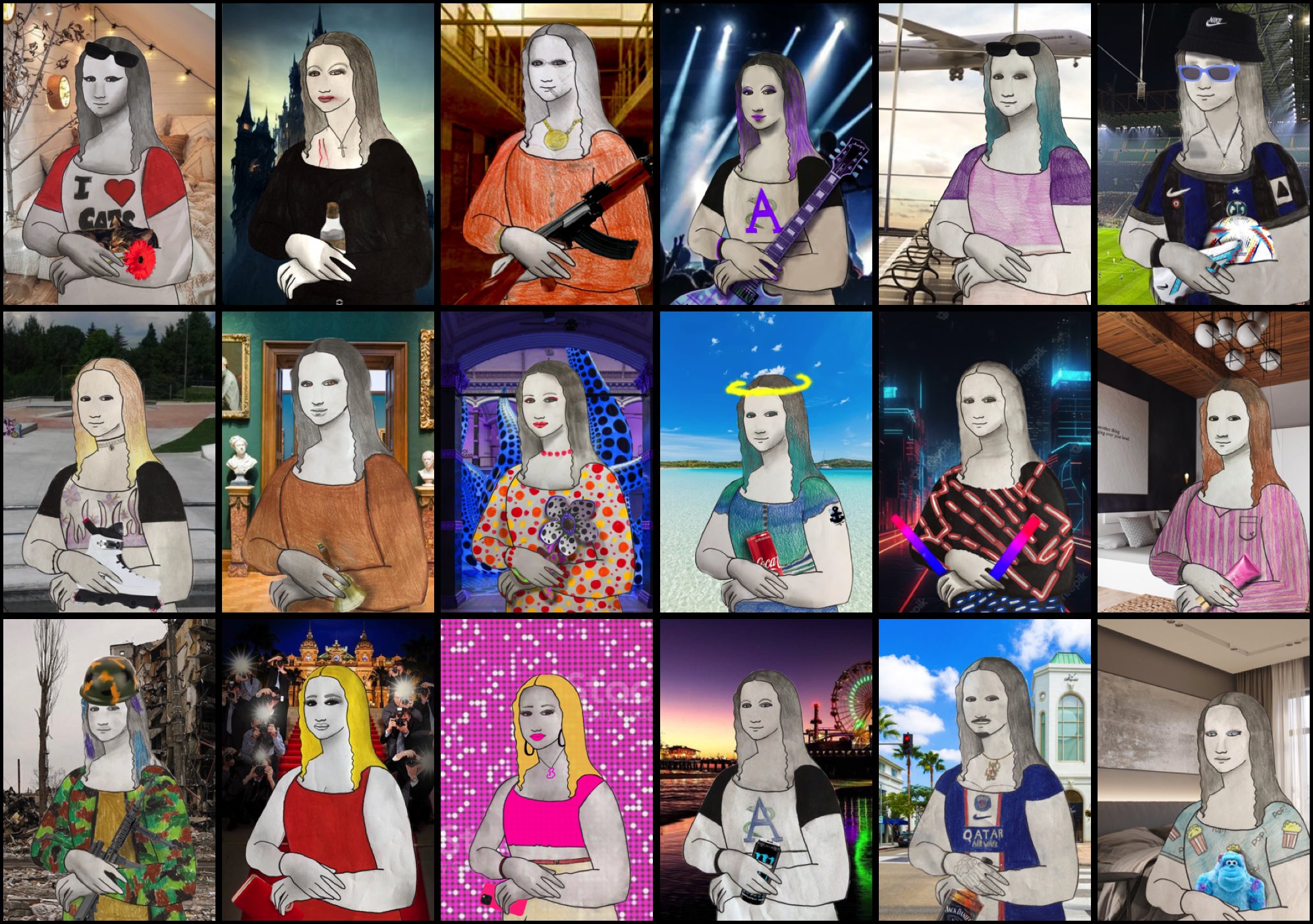
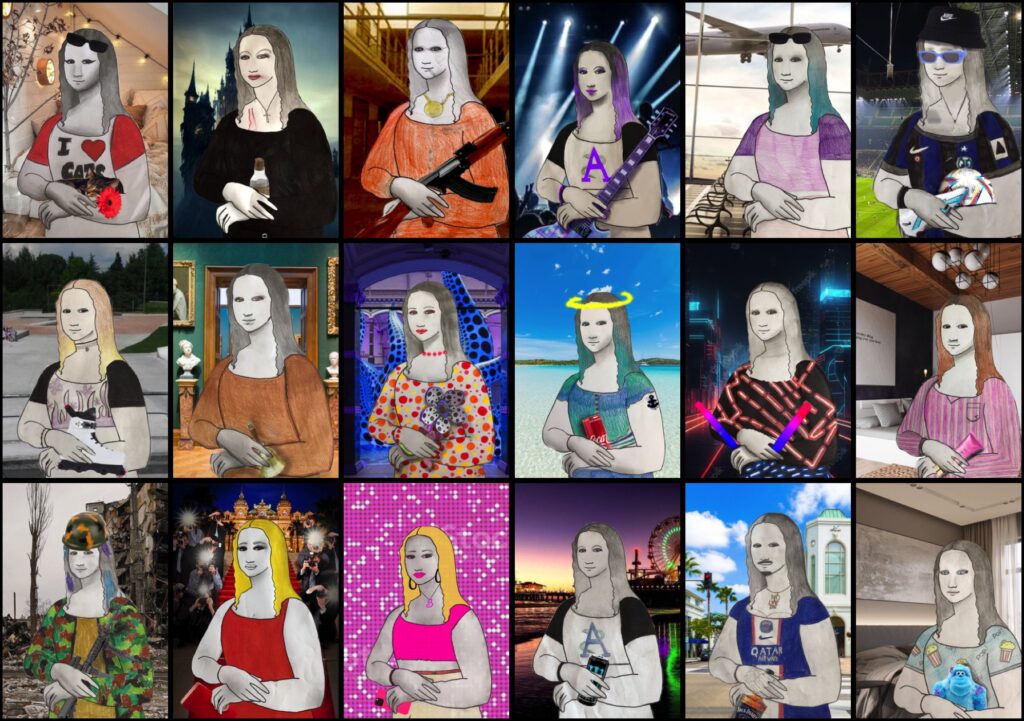
这就是我们的当代版蒙娜丽莎!
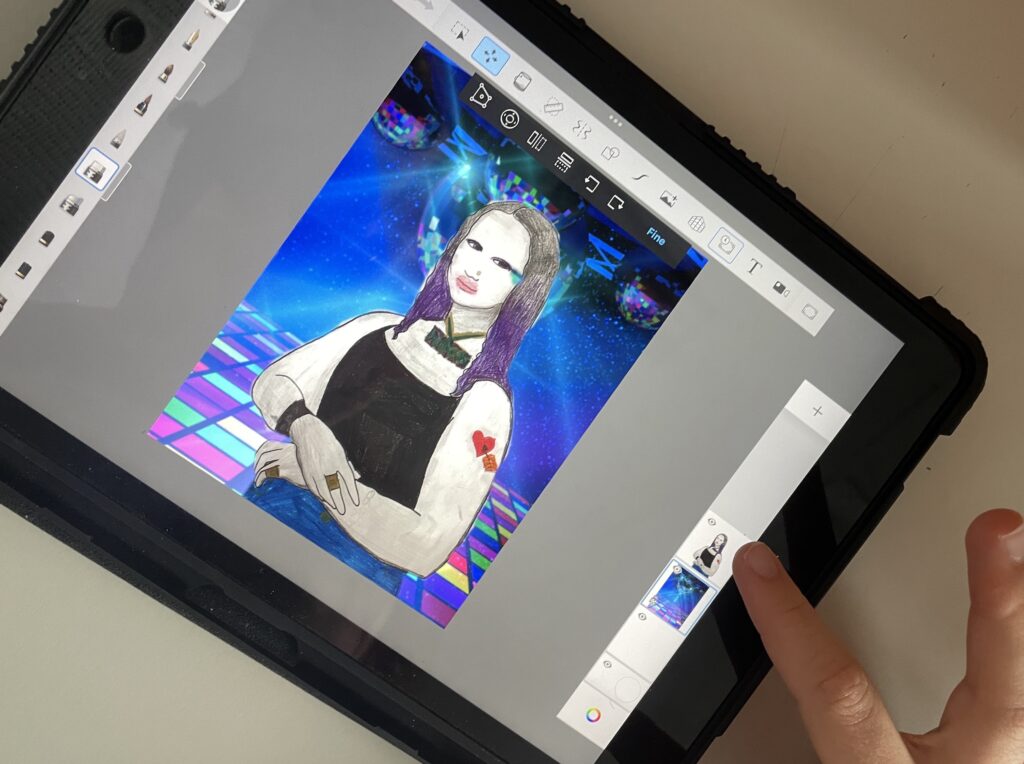
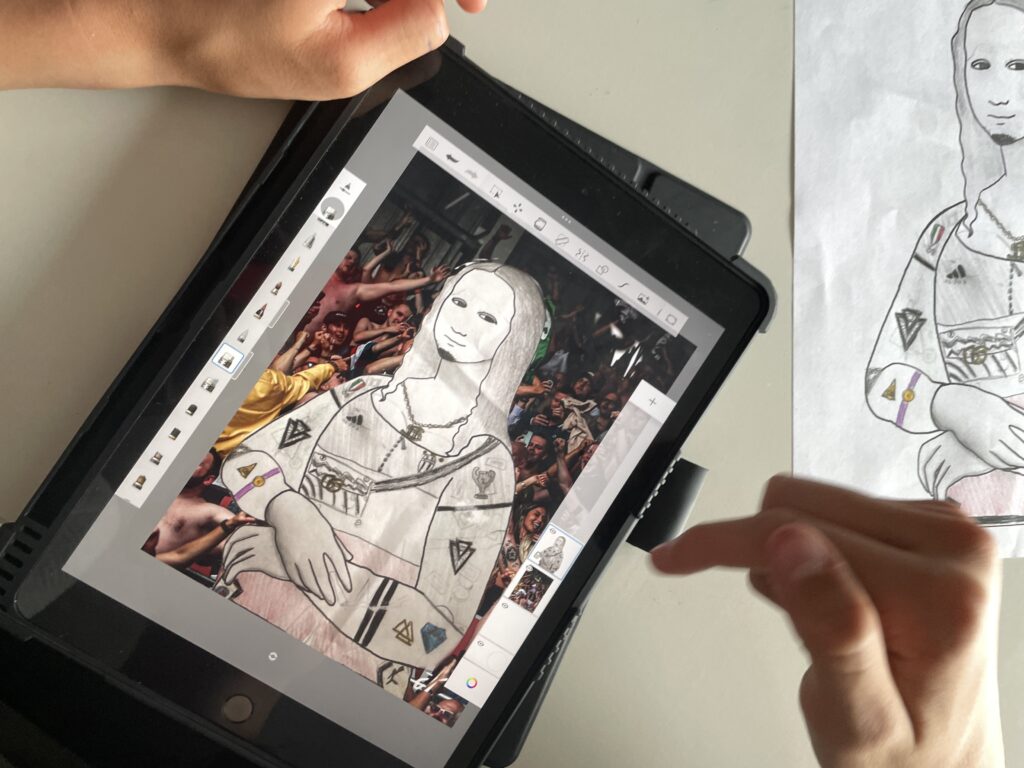
Mona Lisa, I’m taking you to a place…
Leonardo’s famous Mona Lisa came out of his painting to come and visit us! With the 7th grade students we drew our Mona Lisa and dressed her in contemporary clothes, thinking about which outfit would be the most suitable for our invitation. Everyone has thought of inviting their Gioconda in a place, and giving her an object to take with her.
After drawing and coloring the figure of the Mona Lisa that you can find here, we chose a suitable setting from the web to place the half-length figure. We thought of contemporary environments, urban or natural, common or unusual, everyday or extraordinary.
To edit these drwings we used the Sketchbook App on the iPad. We have got these devices at school and we use them to explore the possibilities of digital drawing and learn how to use these tools.
The Sketchbook APP can be downloaded for free on the iPad and allows you to create drawings with layers equipped with blending and grouping modes, and offers a wide range of brushes and highly flexible effects. All with a fairly sober, clean and intuitive interface, suitable for starting the approach to digital drawing.
First, with our iPad we took the picture of our Mona Lisa drawing and we inserted the photo into a layer of the Sketchbook application for iPad. Then we erased the background with the “eraser” function, taking care not to erase the parts of the figure to create a completely transparent background.
To make the background, we inserted a new level with the + key on the right bar, and we positioned it UNDER the Mona Lisa (just drag the levels with your finger in the right column). In this phase we have chosen where to take our Mona Lisa, and we searched the web for the image of a contemporary environment (a stadium, a disco, a concert, a city, a museum…). Together with the background setting, we also looked for the object our Mona Lisa hold in her hands. Also this second image of an OBJECT is taken from the web with a screenshot or downloaded to the iPad, and it is inserted in a NEW LEVEL which must be positioned ABOVE the figure in the right level bar. In this sample I chose an exhibition and a sculpture by Yayoi Kusama.
In this step we worked on the transparency of the first level, to ERASE the parts from the object that didn’t interest us and to bring out the Mona Lisa’s hands holding the object. The first level, the one in front of all the others with the photo of the object, is clicked and is made semi-transparent with the OPACITY lever (about 50%). This way we see WHAT TO DELETE from the object layer to make the image believable. Then if the colors don’t convince us, we can also adjust the shades with the “color balance” function for the various levels. Finally, it is necessary to share the created image with the teacher via email.
Here are our contemporary Mona Lisa!