数字绘画:对称机器人
在六年级美术课上,我们学习了多种对称类型,区分了轴对称(双边对称)、辐射对称与模块化对称。今年,学校配备了一台装有小型笔记本电脑的移动设备推车,我们得以借助谷歌绘图(Google Drawings)应用程序开展数字绘画活动——该程序内置于 G Suite 云盘中。其操作界面简洁直观,功能与普通 PowerPoint 或 Google 幻灯片(Google Slides)类似。
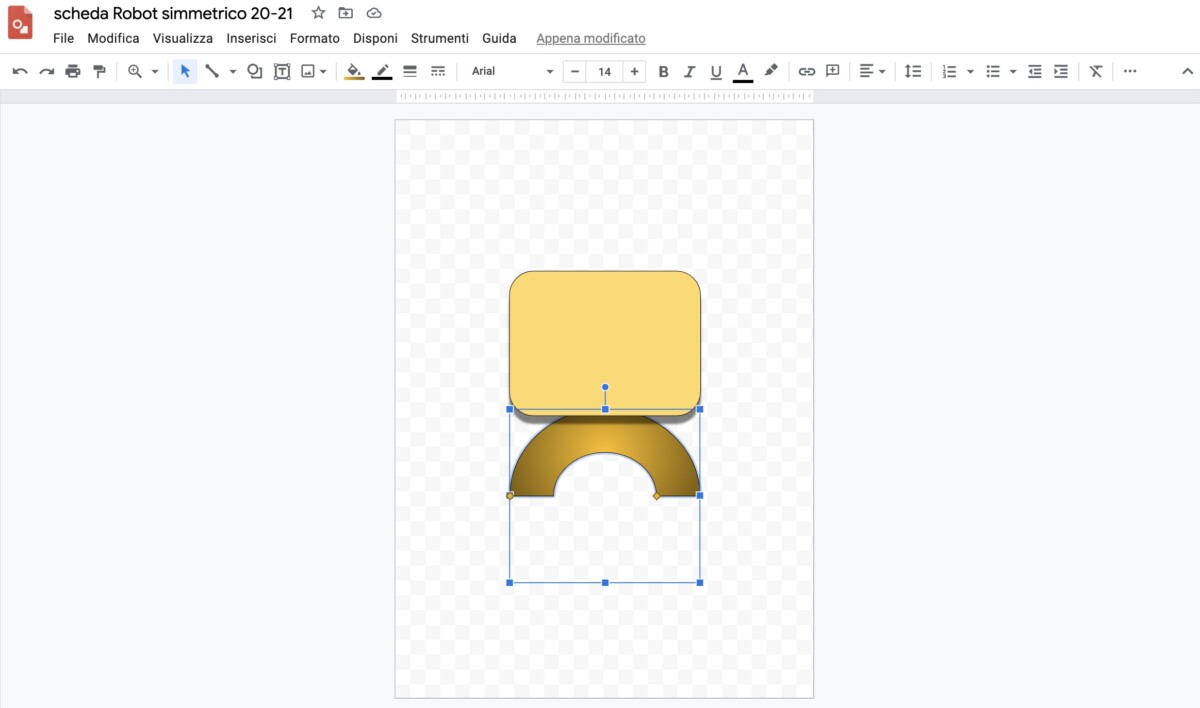
首先,创建一张 A4 尺寸的谷歌绘图页面,或将其共享给学生使用。
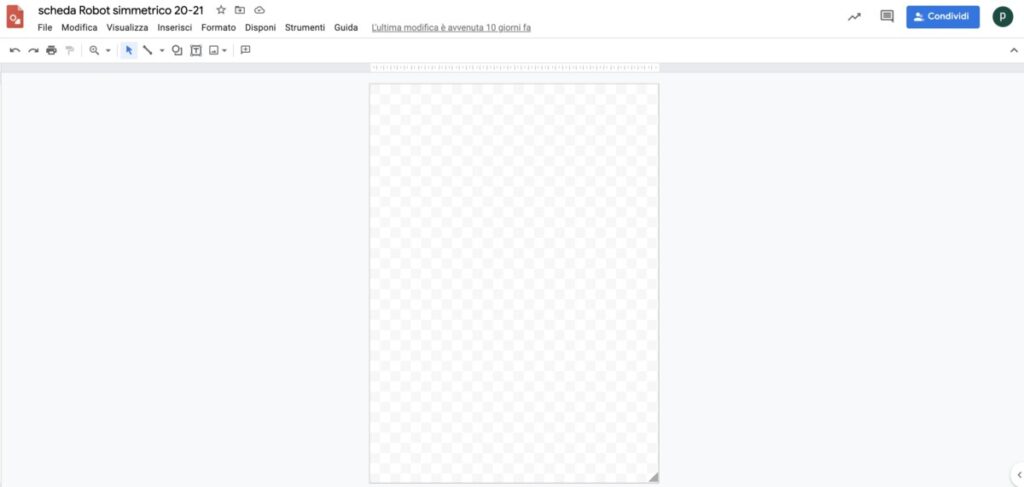
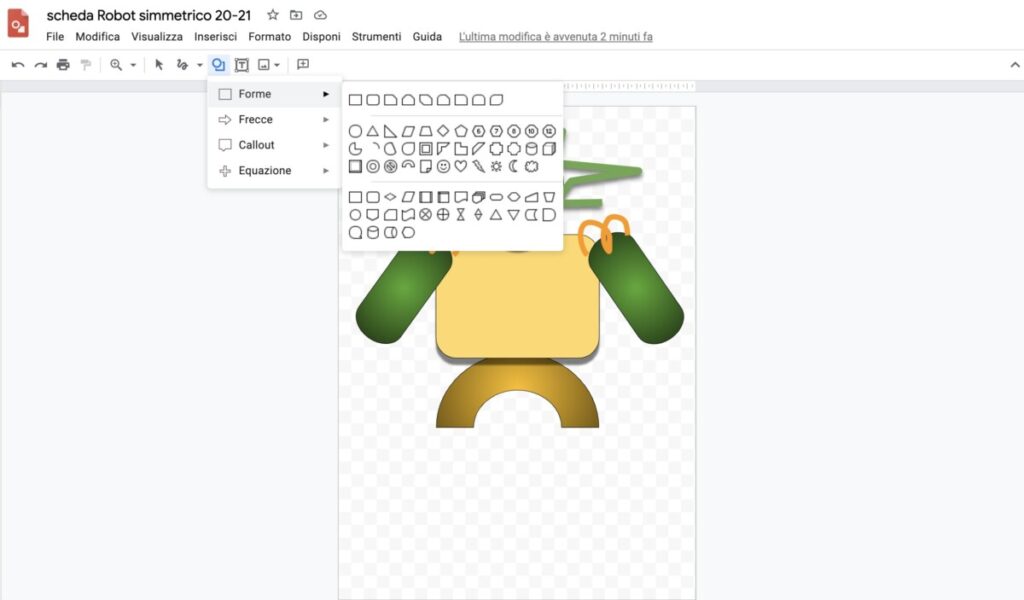
可用工具位于顶部工具栏:我们可先插入「形状」,再调整其颜色与边框;通过「格式选项」,还可添加阴影与倒影效果。
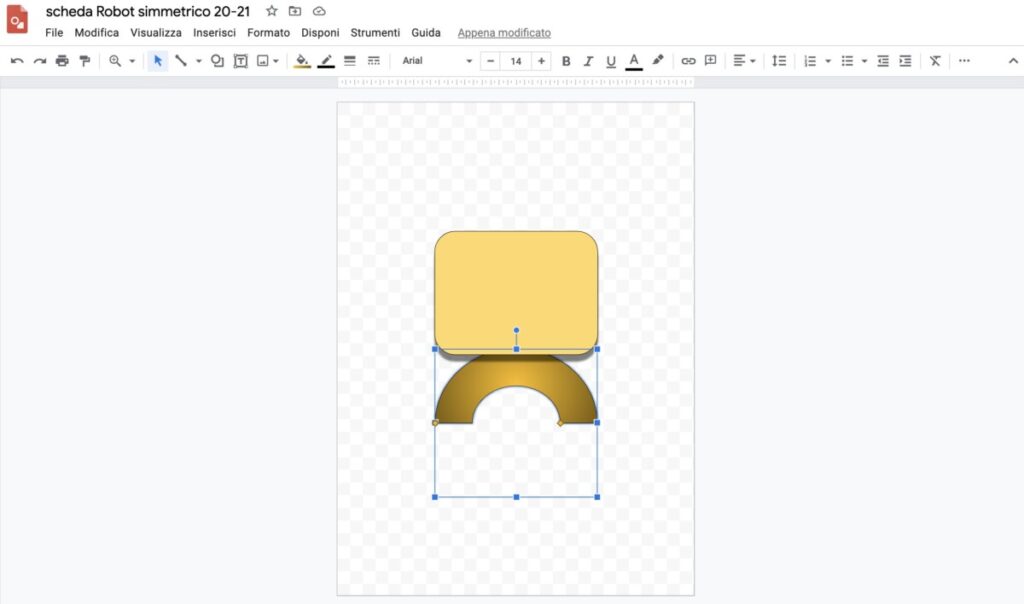
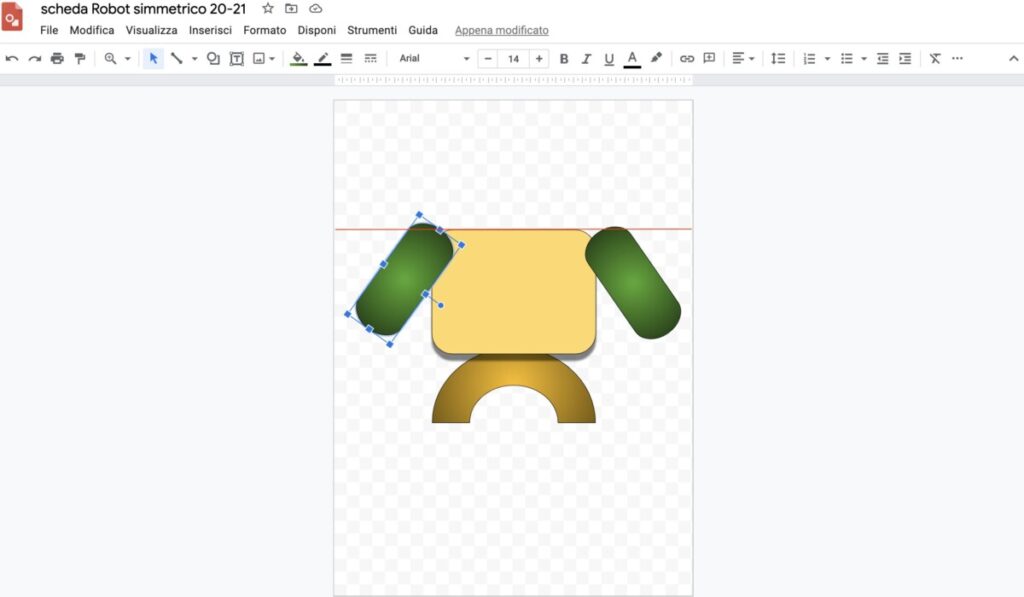
本课作业以「对称」为核心。我要求学生通过复制粘贴的方式,组合机器人的各部件(如眼睛、手臂、腿部),并以画面中央的对称轴为基准,呈镜像方式布置所有元素。当图形居中或对齐时,自动浮现的红色参考线有助于我们精准完成构图。
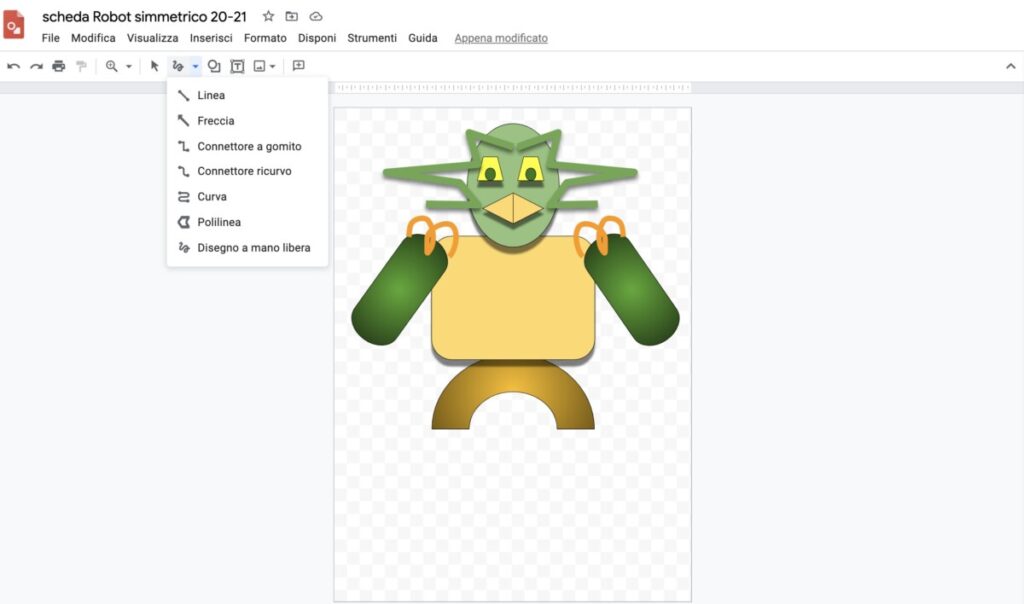
我们还可手绘自由线条或折线;所有形状、线宽与色彩选项均持续显示于顶部工具栏中。
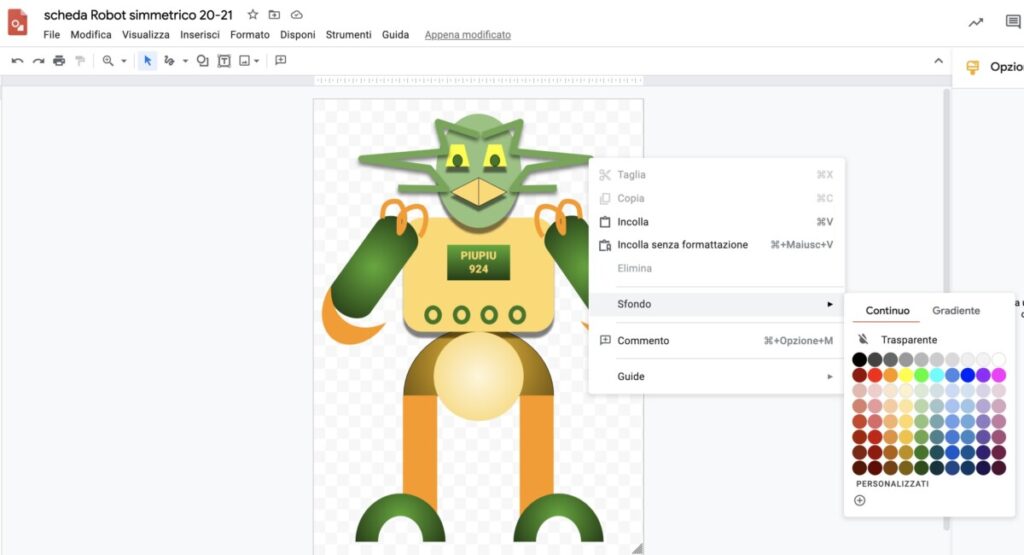
待添加完细节、轮廓线、文字、阴影等一切所需元素,使我们的对称机器人富于个性后,即可右键单击画布空白处,为背景选择填充颜色与填充类型。
以下是一段简明视频教程,介绍谷歌绘图的基本功能:
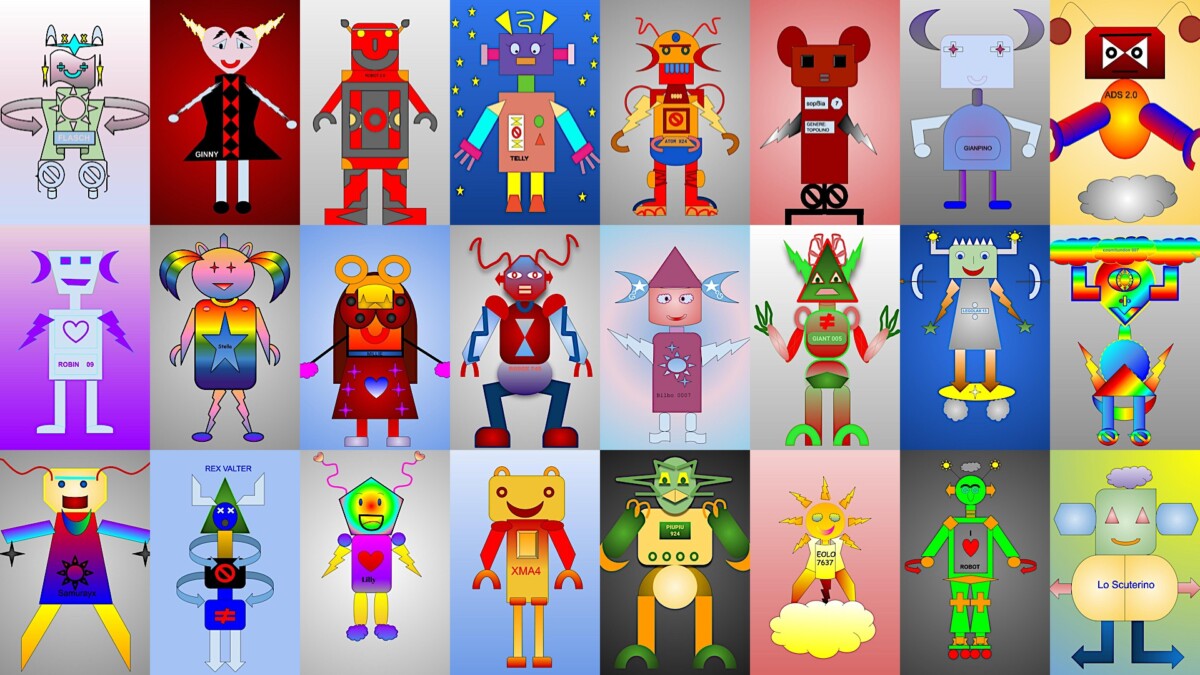
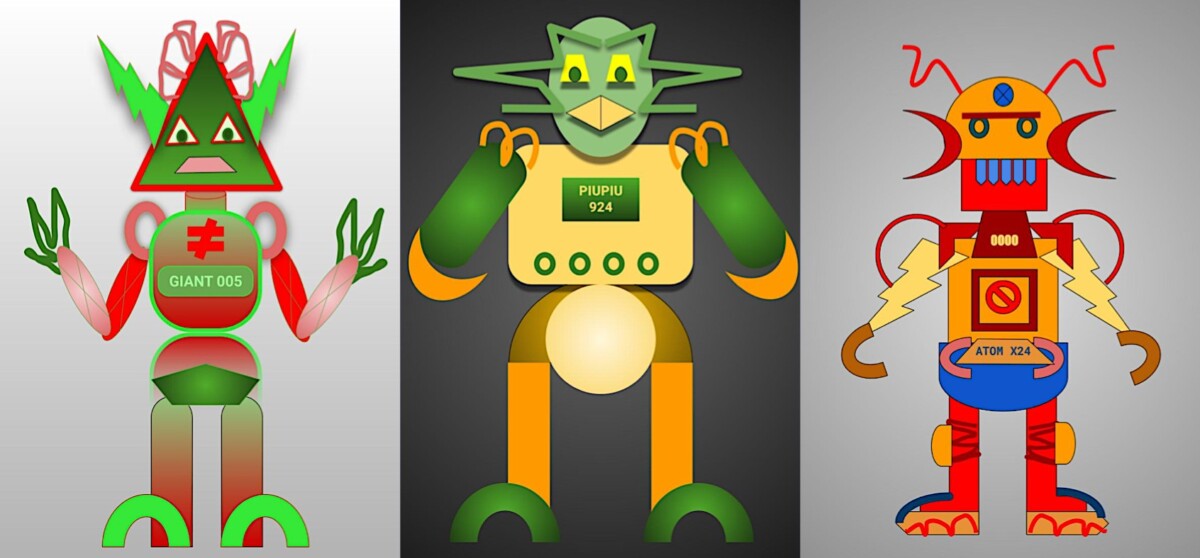
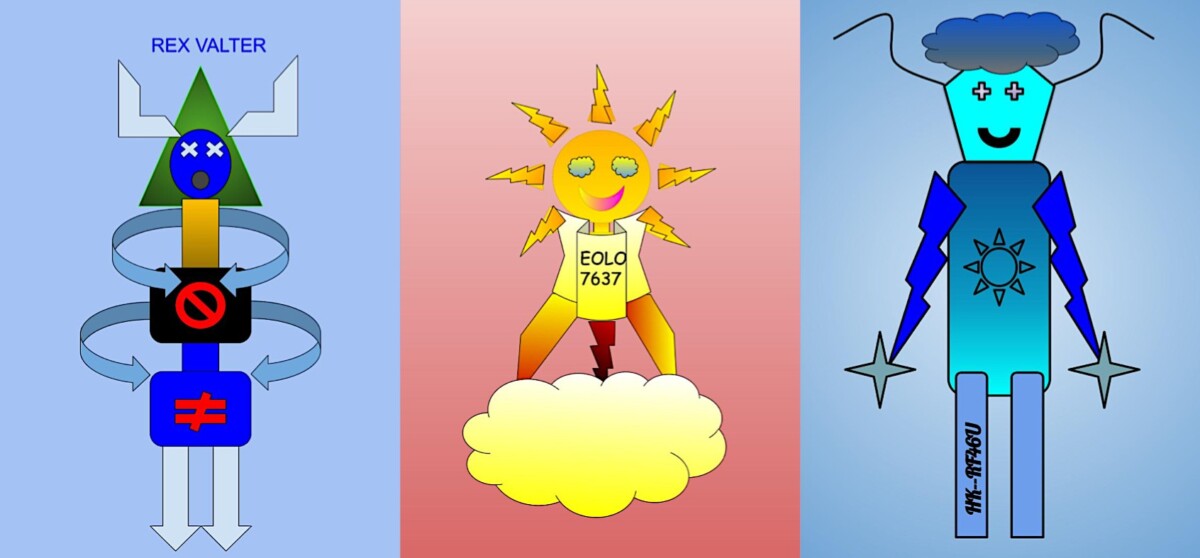
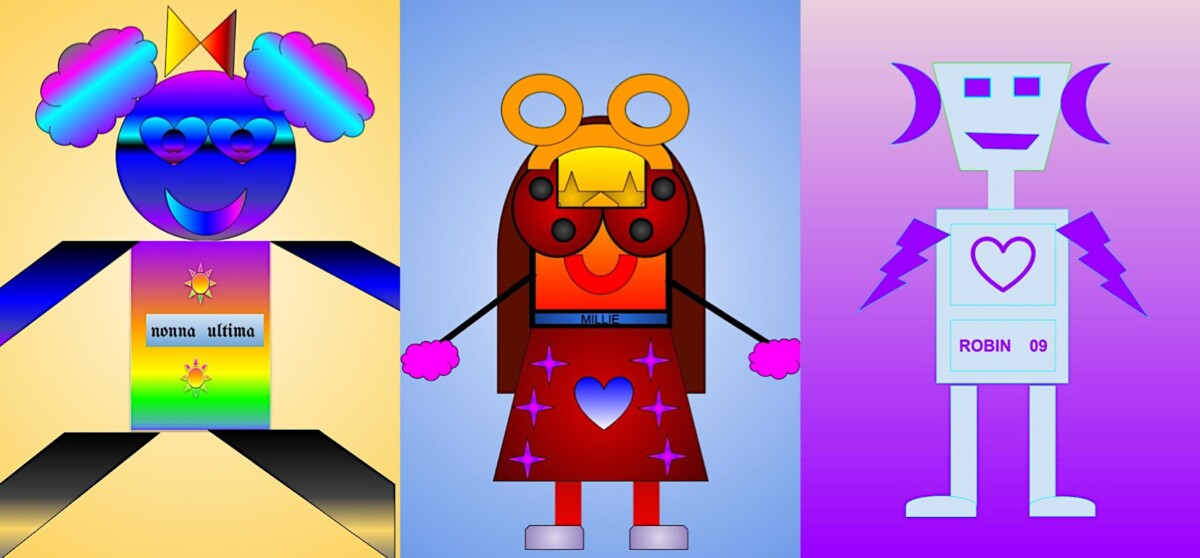
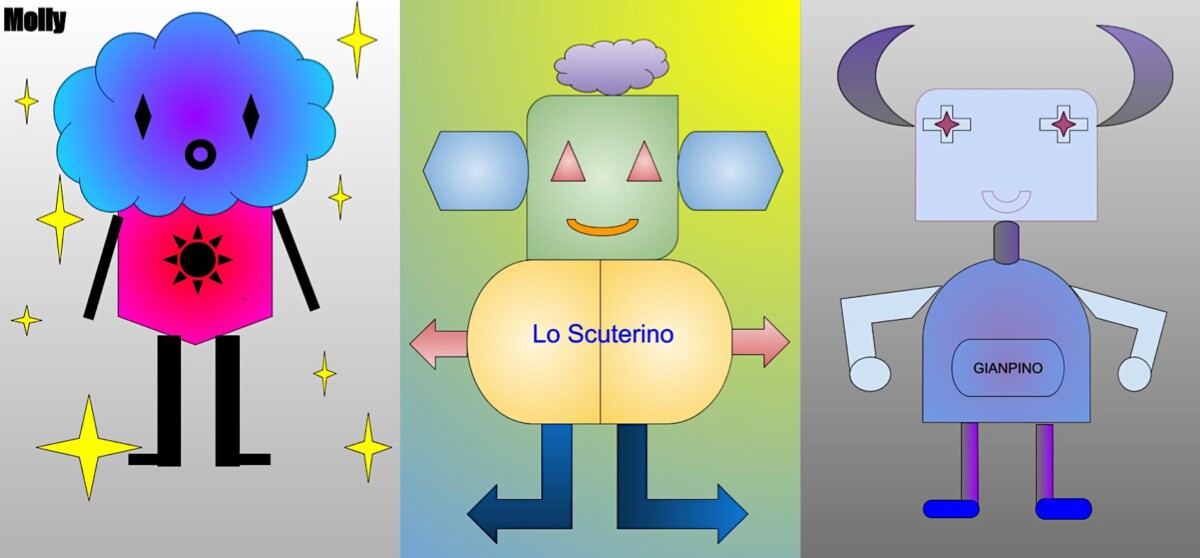
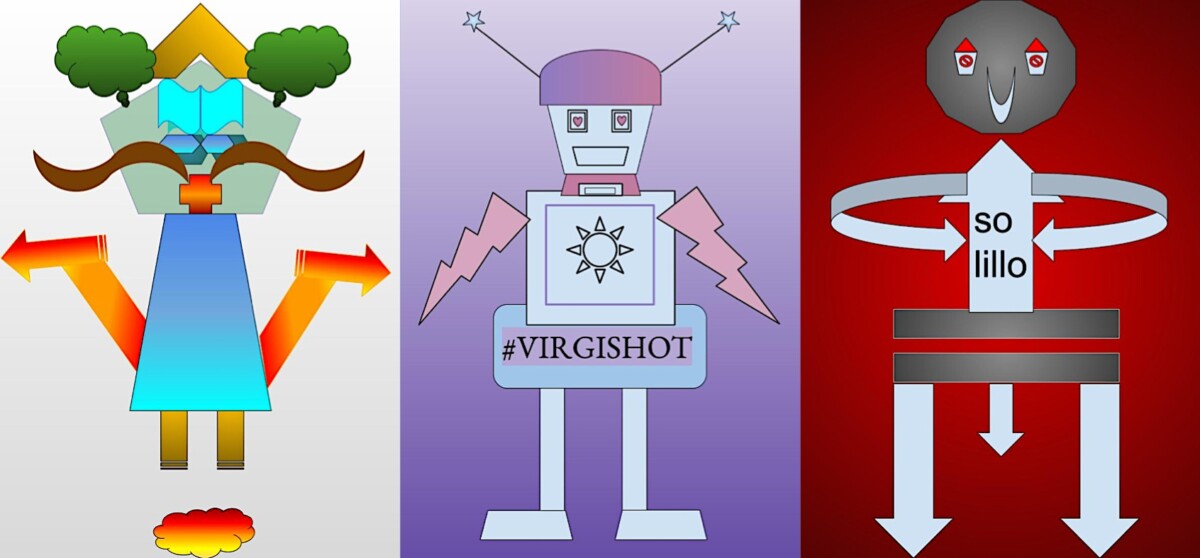
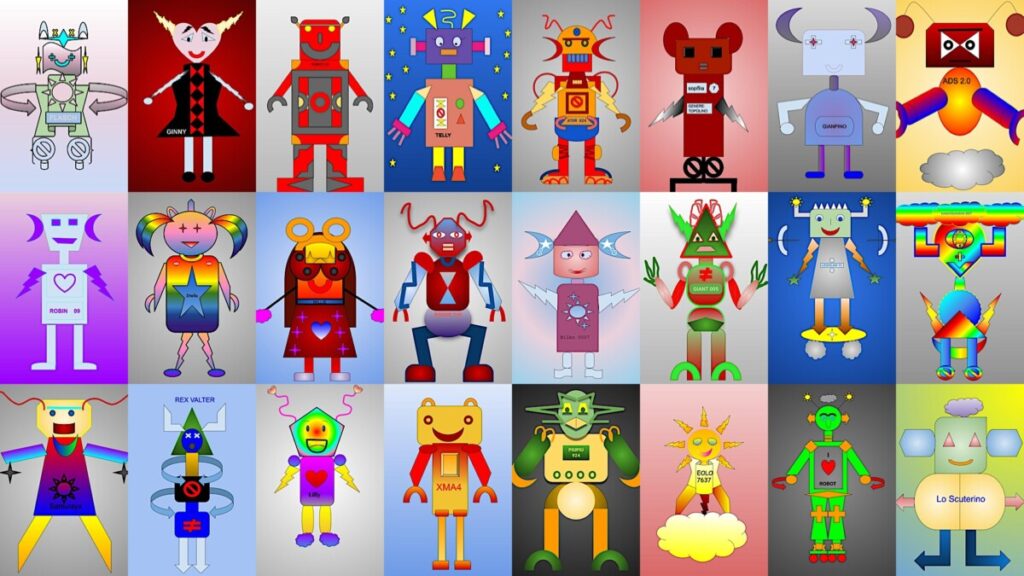
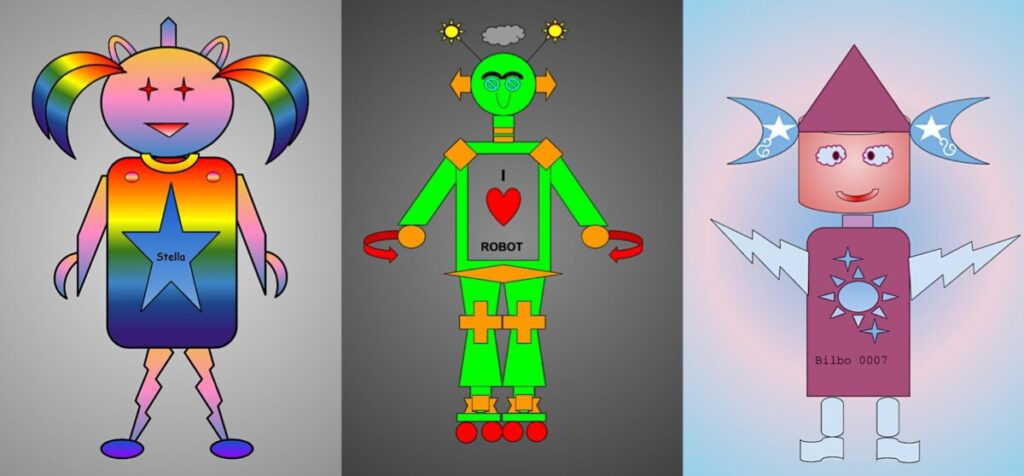
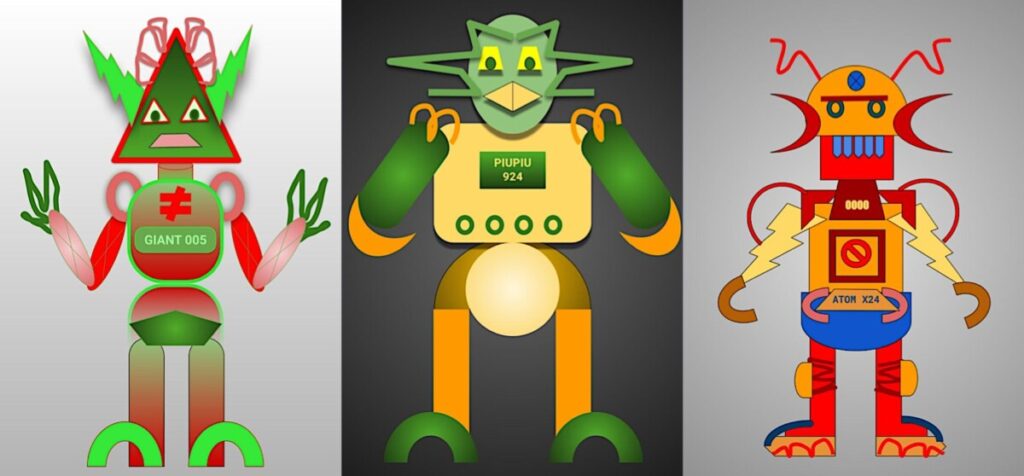
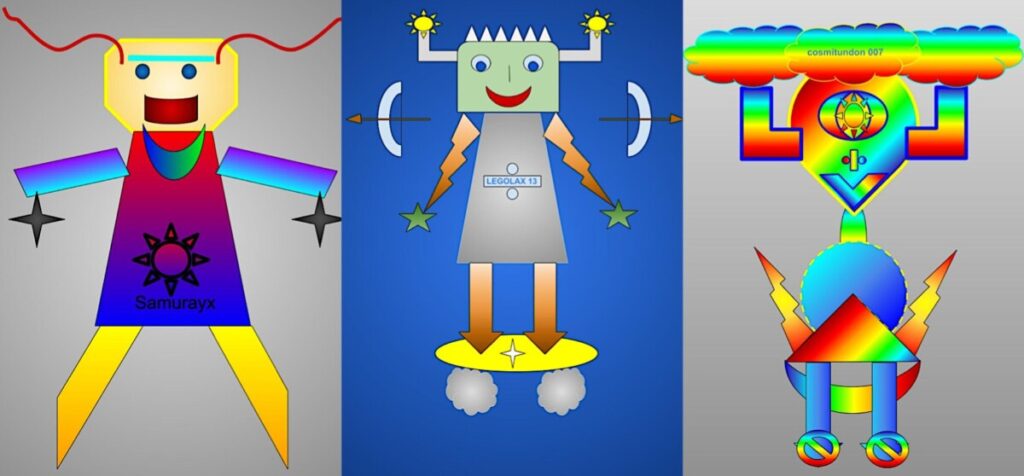
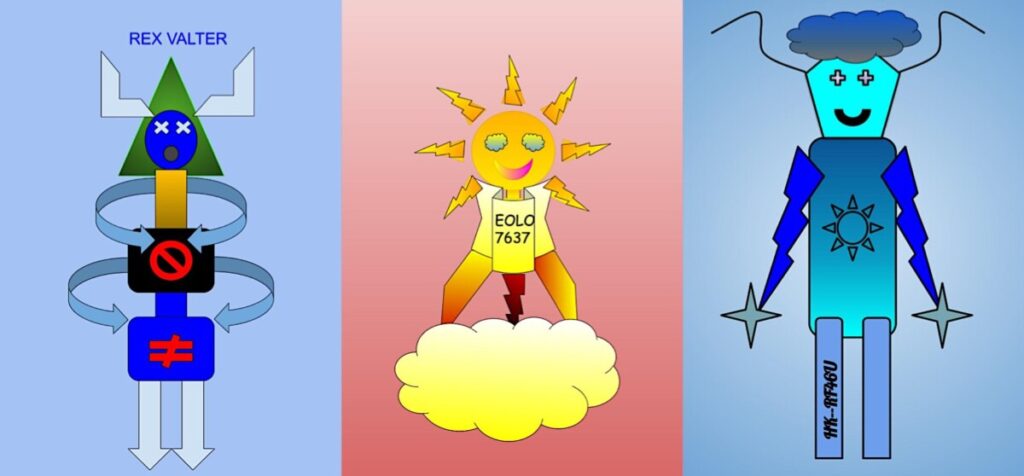
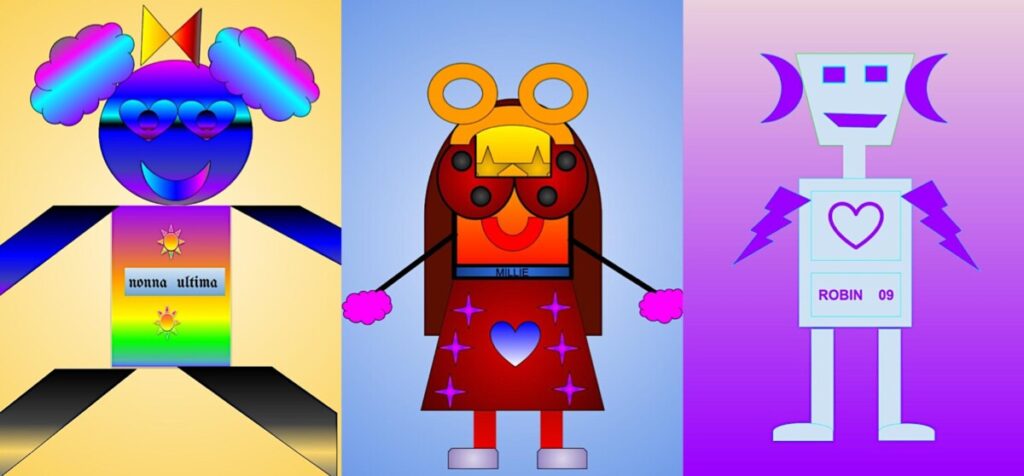
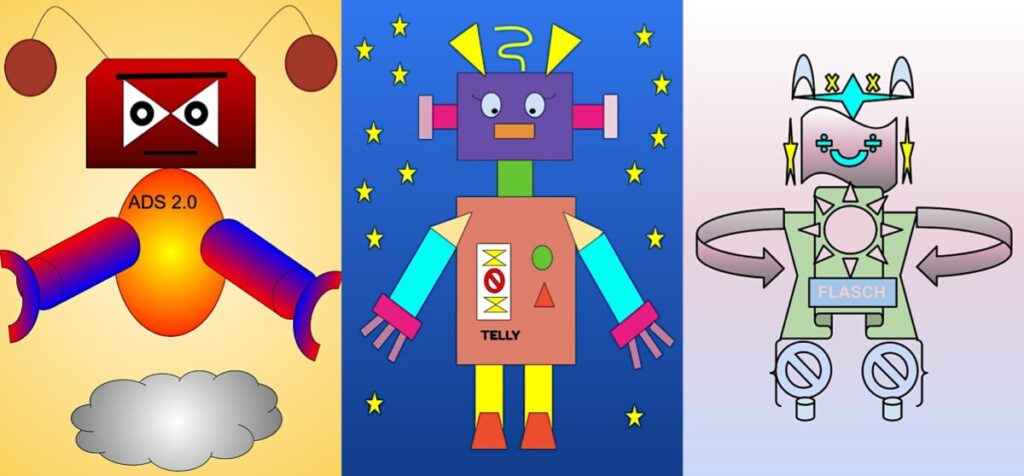
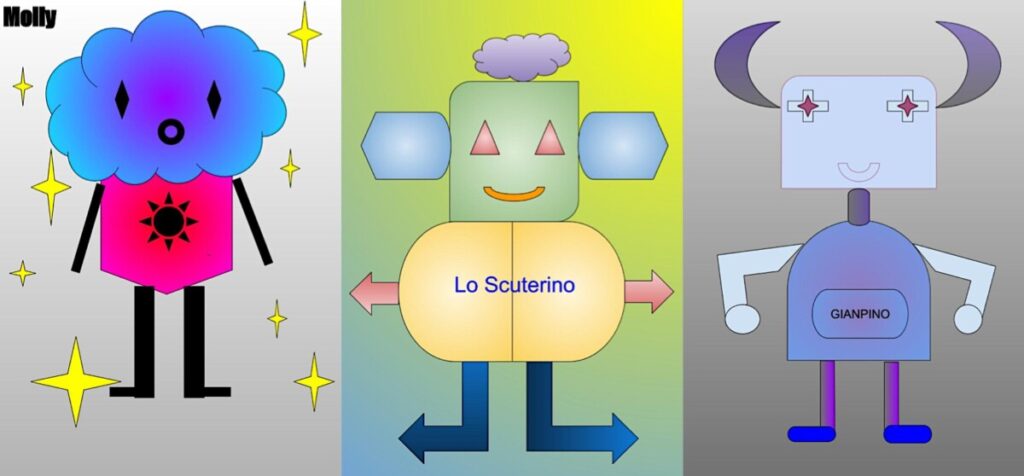
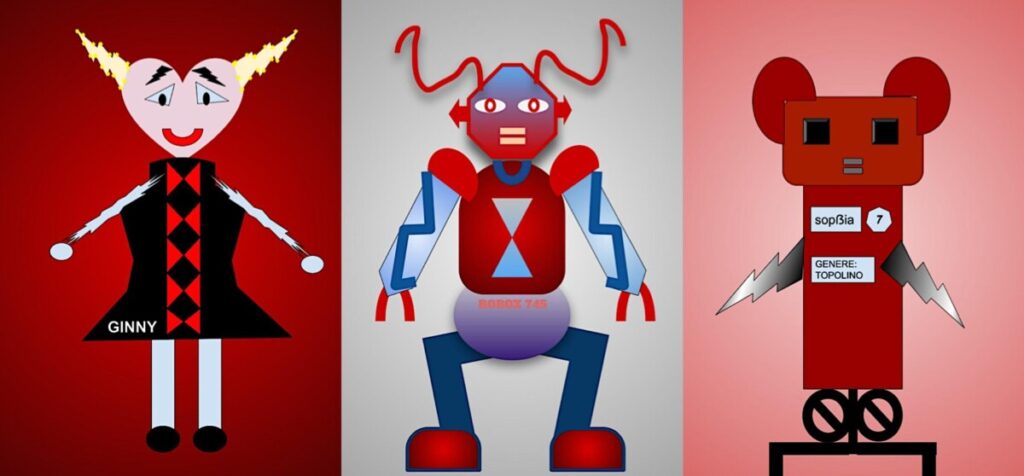
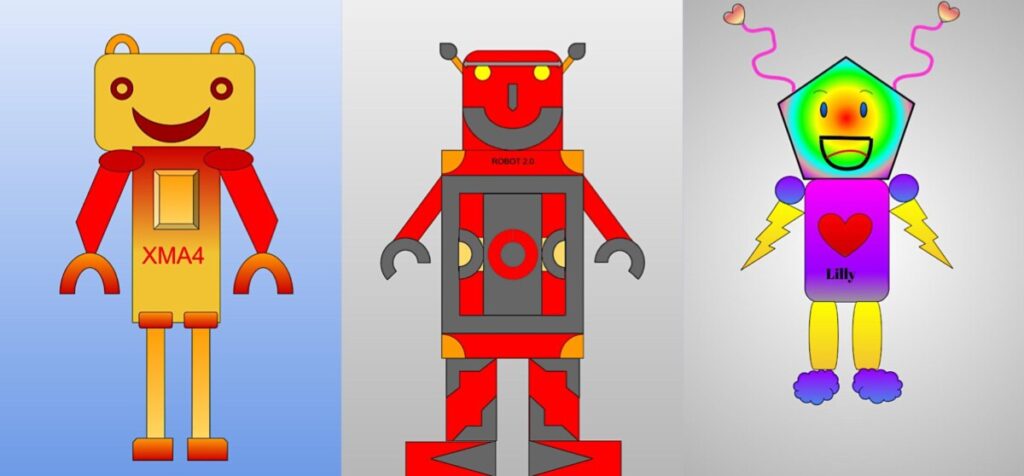
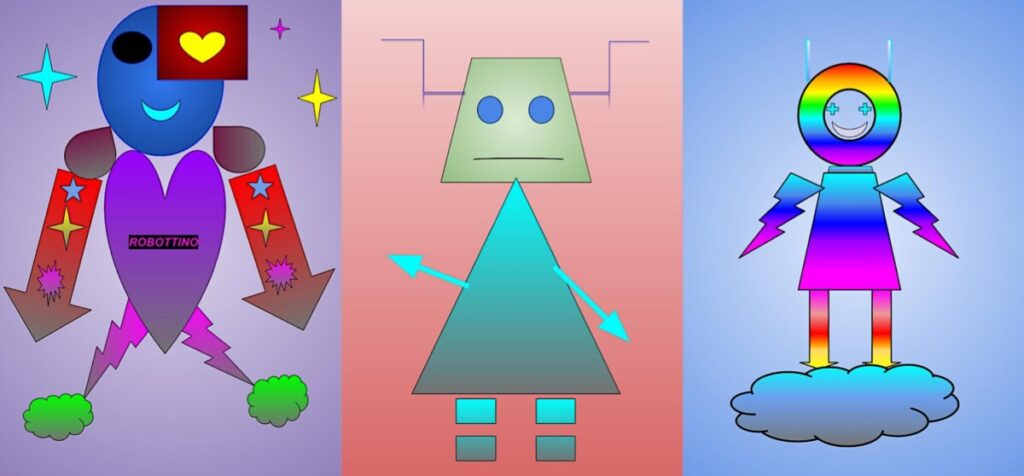
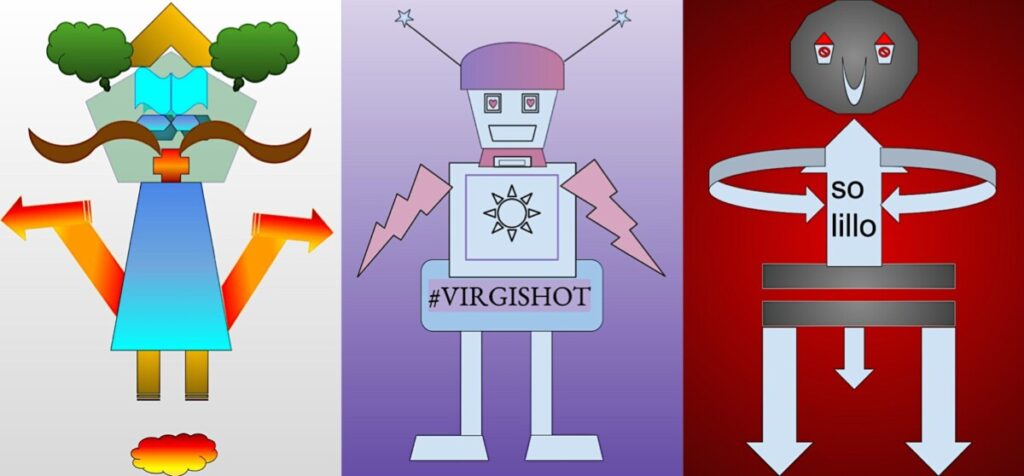
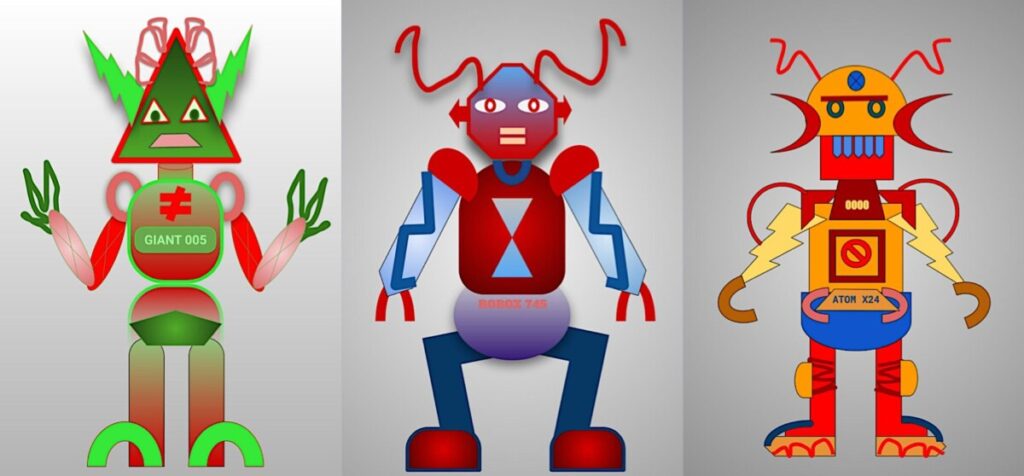
以下是学生们的作品:整项活动耗时约 80 分钟,在课堂中趣味盎然;该课程亦完全适用于线上教学场景。
Digital drawing: Symmetrycal Robot
With 6th Grade students, we studied the various types of SYMMETRY distinguishing between bilateral, radial, and modular-type symmetry. This year we have a cart of small laptops and we were able to create a digital drawing using the GOOGLE DRAWINGS app which is available in the GSuite Drive. The functions are very simple and similar to those that we can find in a normal Power point or in Google presentations.
Let’s start by creating or sharing with students an A4-size page of Google Drawings
the tools that we can use are in the upper bar: we can start introducing SHAPES and then change the color, the border and with Format Options, we can add shadows and reflections.
The work is based on SYMMETRY and I asked students to create a symmetrical robot by copying and pasting the elements of the figure such as eyes, arms, legs, and to position them in a mirror way, with respect to the central symmetry axis. The RED GUIDELINES that appear when the shapes are centered or aligned help us in the composition of the design.
Possiamo anche aggiungere linee a mano libera o linee spezzate, tutte le possibilità di forme, spessori e colori sono sempre disponibili nella barra superiore
Once we have added details, lines, writings, shadows, and everything we need to make our symmetrical robot original, we add the background by clicking with the right mouse button on the empty space of the page and choosing the color and the type of fill for the background.
Here is a simple video tutorial with the basic functions of Google Drawings
Here are the students’ works: the activity took place in about 80 minutes of lessons in which they had fun and it is also suitable for online learning and teaching.