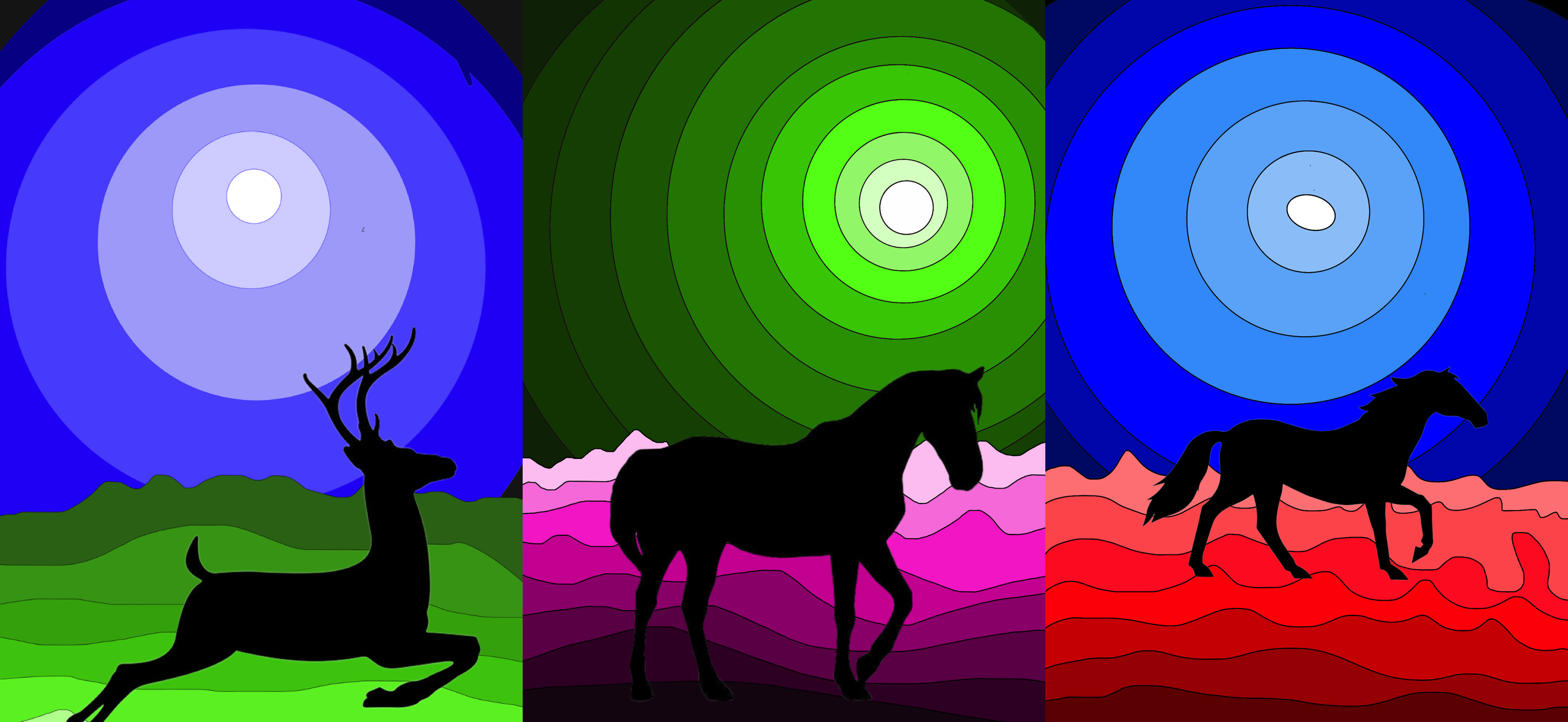
基于明度阶调的数字绘画
为完成这些数字绘画,我们使用了 iPad 上的 Sketchbook 应用程序。我们很幸运能使用学校提供的这些设备,从而探索数字绘画的可能性,并学习如何运用这些工具。
Sketchbook 应用程序可免费下载至 iPad,支持带混合模式与图层分组功能的多图层绘画,提供丰富多样的画笔及高度灵活的效果选项。整个界面简洁、干净且直观,非常适合初学者入门数字绘画。
你也可以直接用手指在屏幕上轻松作画。
六年级学生学习了“明度阶调”(即色彩的明度序列)这一主题:为尝试数字调色板及其功能,我们绘制了奇幻风景画。
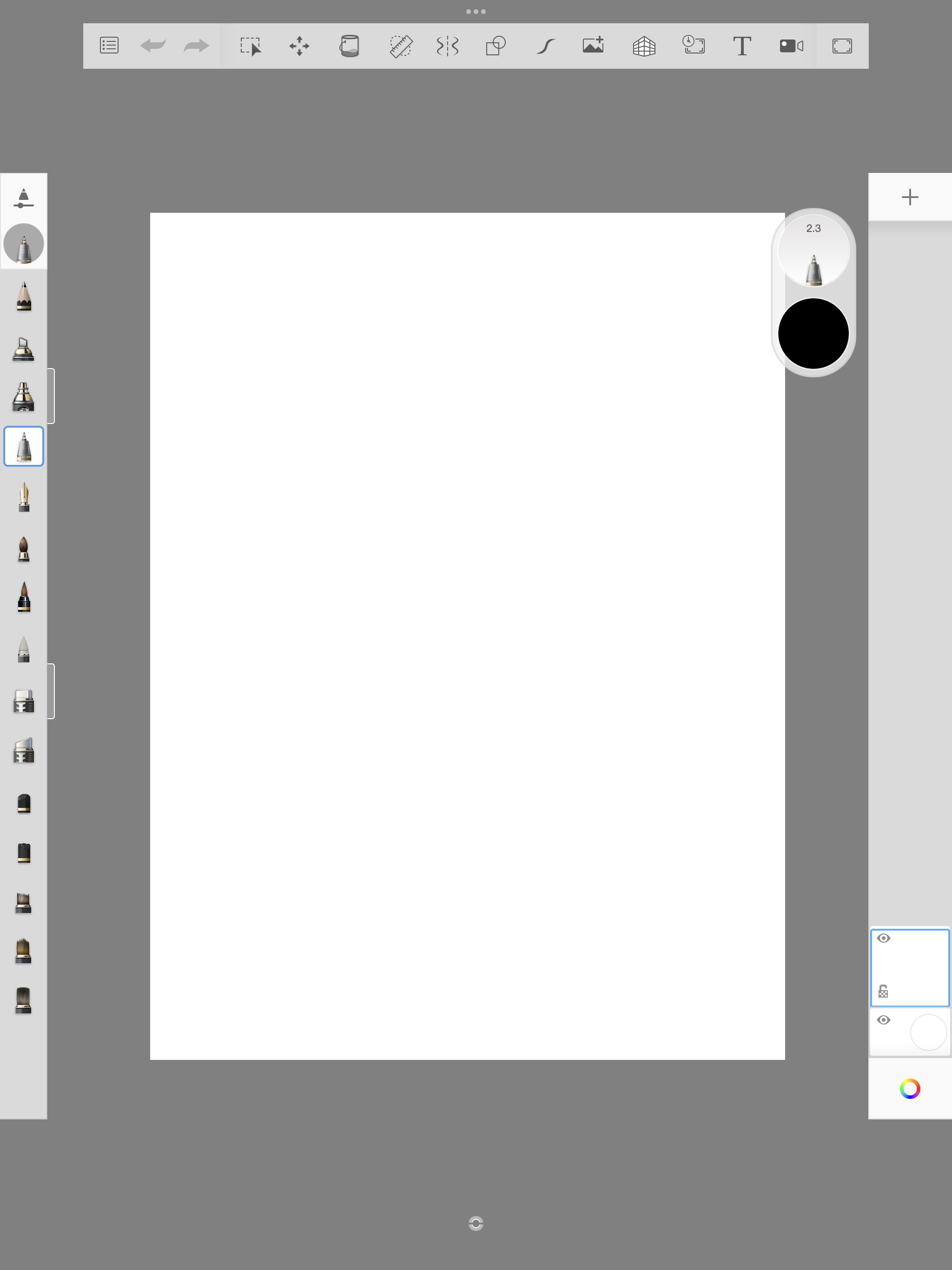
首先,我们新建一幅竖构图的矩形画布(即屏幕尺寸)。
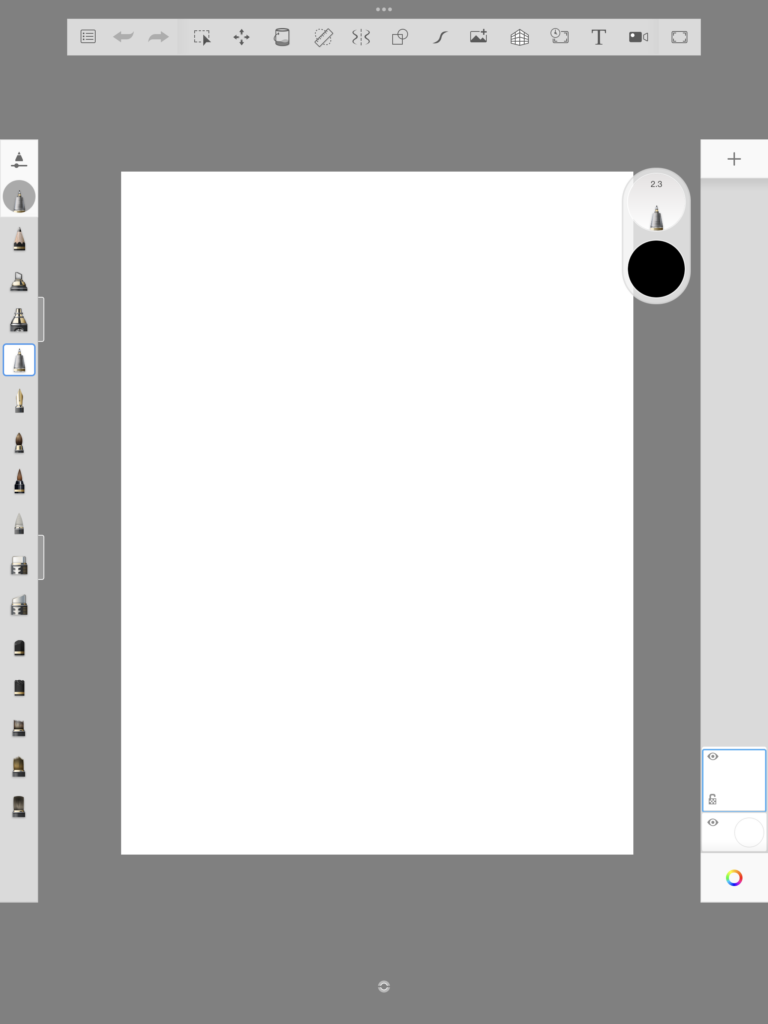
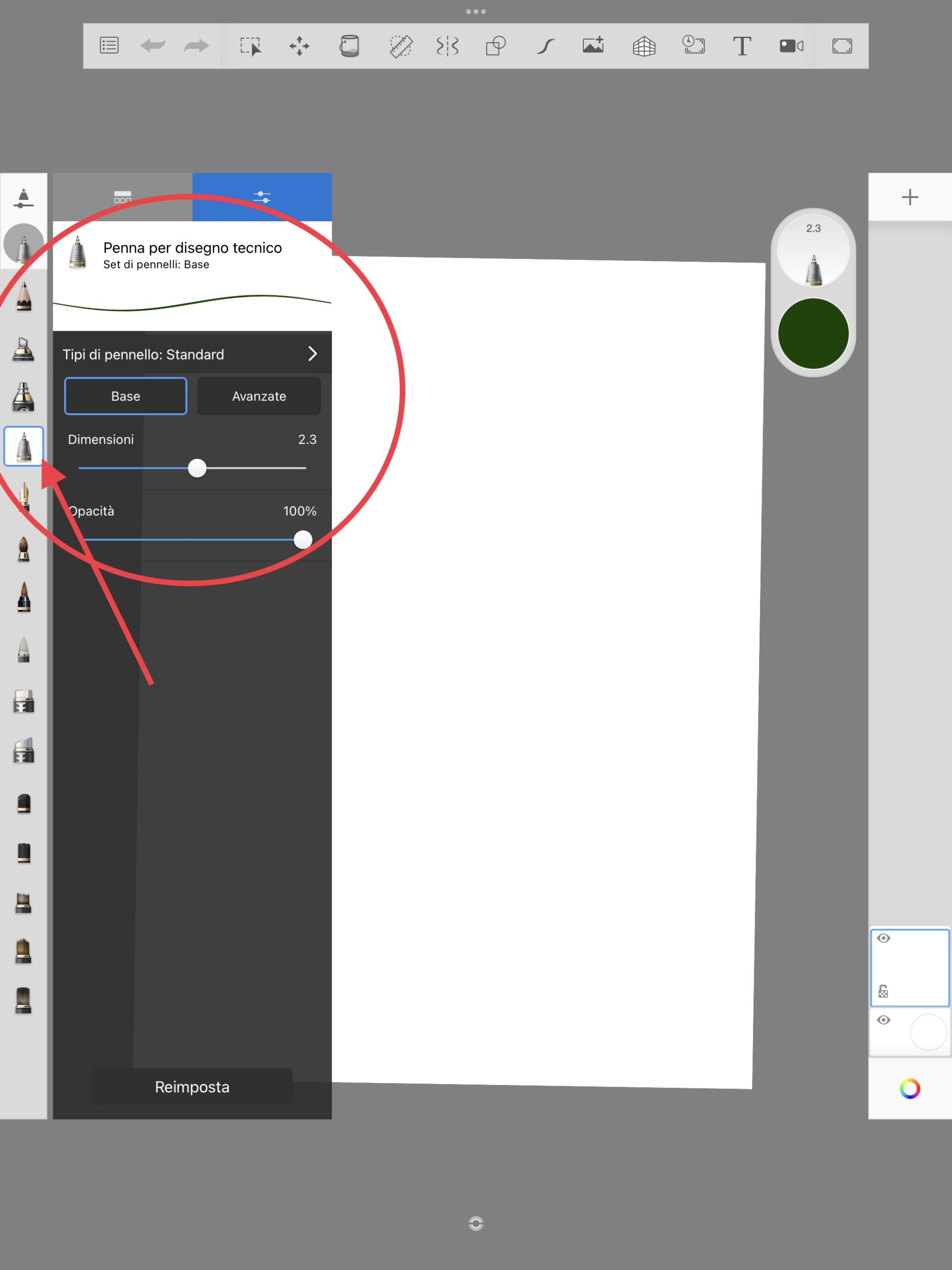
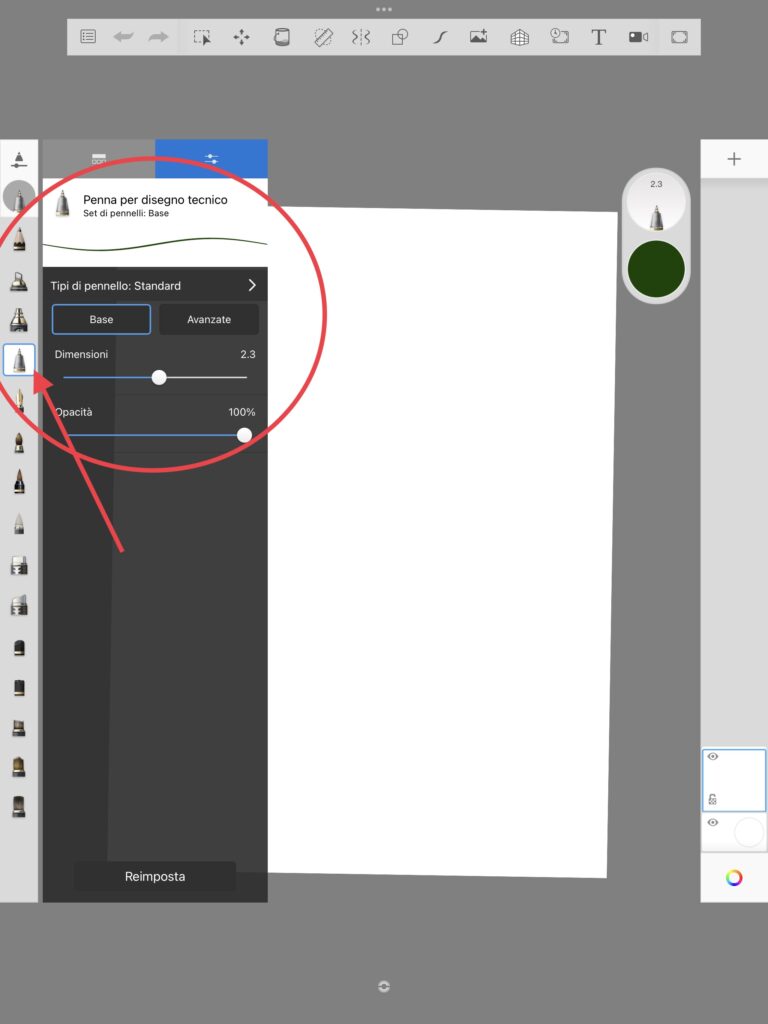
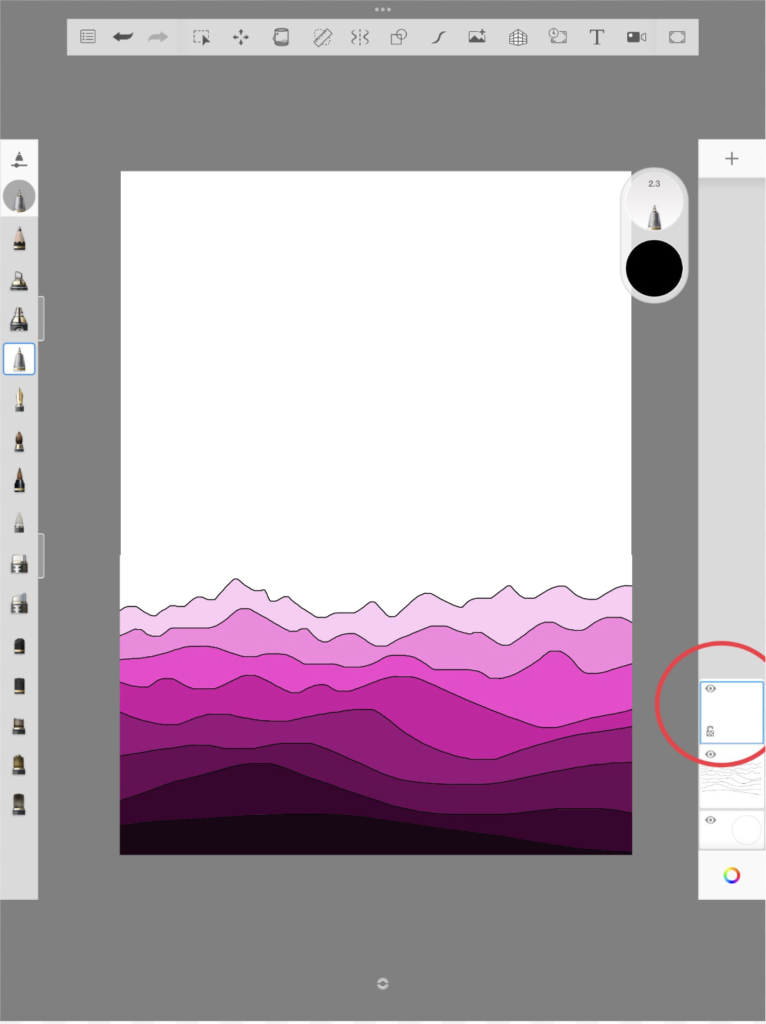
我们在第一图层上,选用技术绘图笔(尺寸 2.3,黑色),勾勒远景中的山丘与山脉。
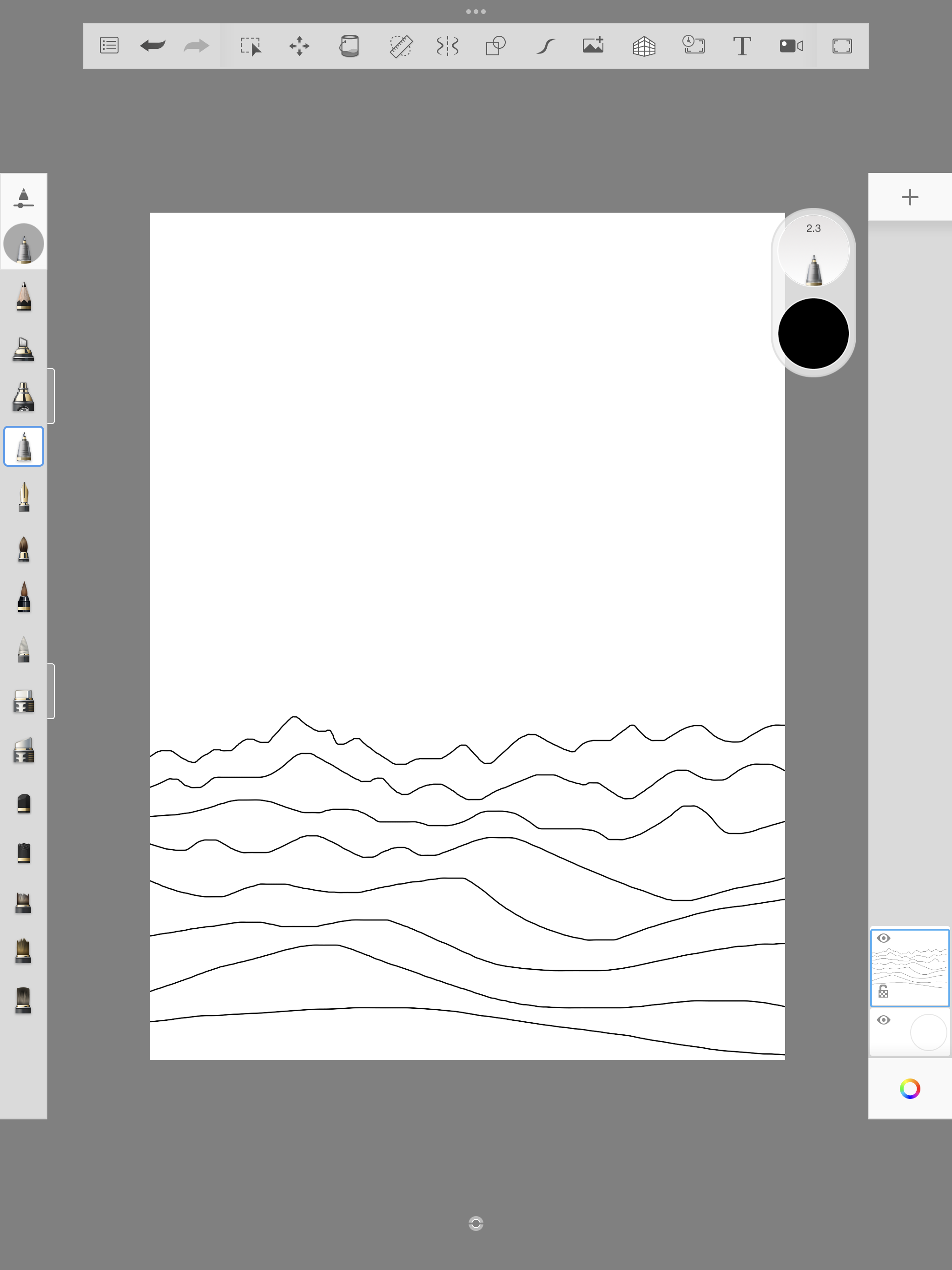
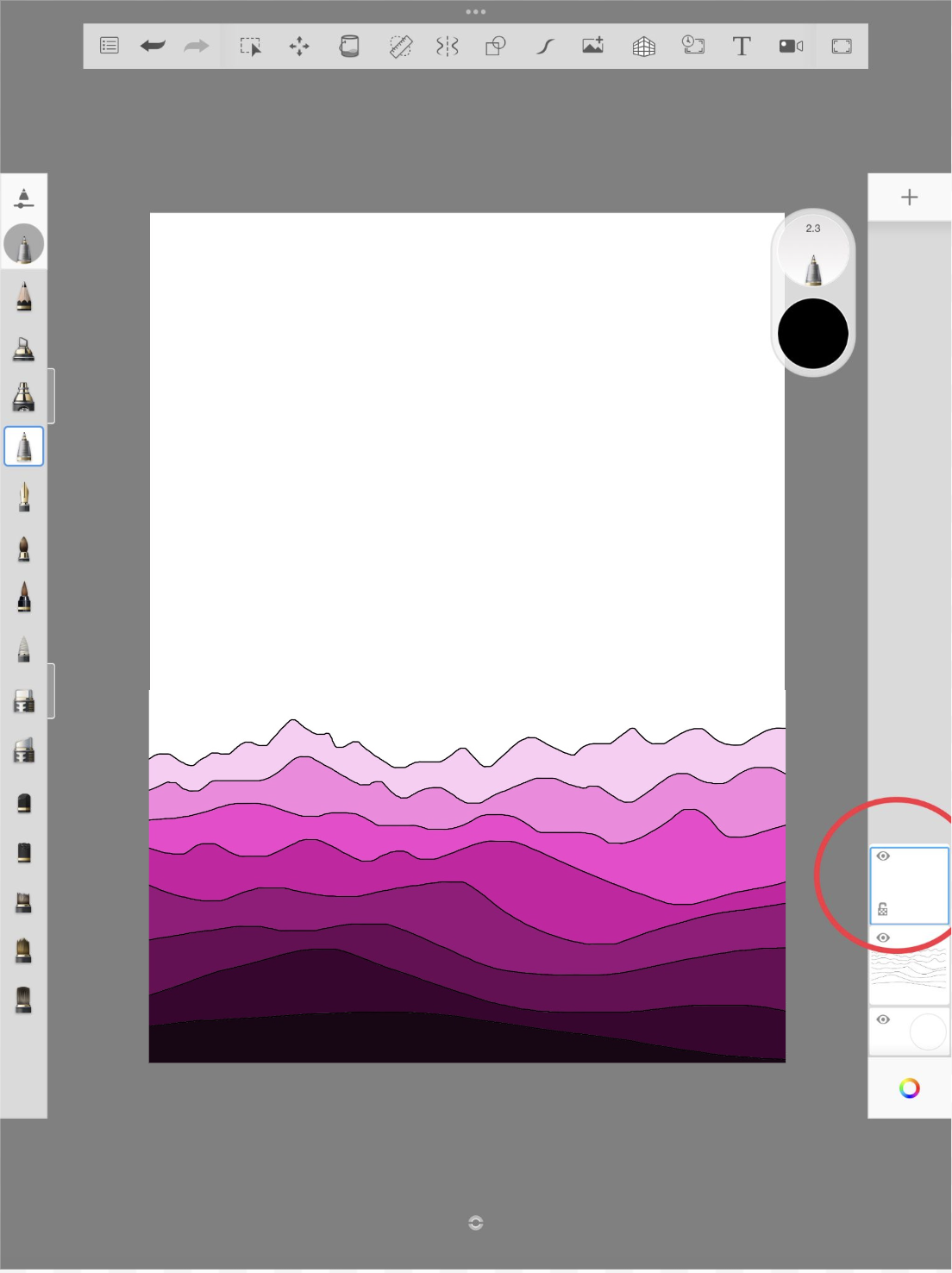
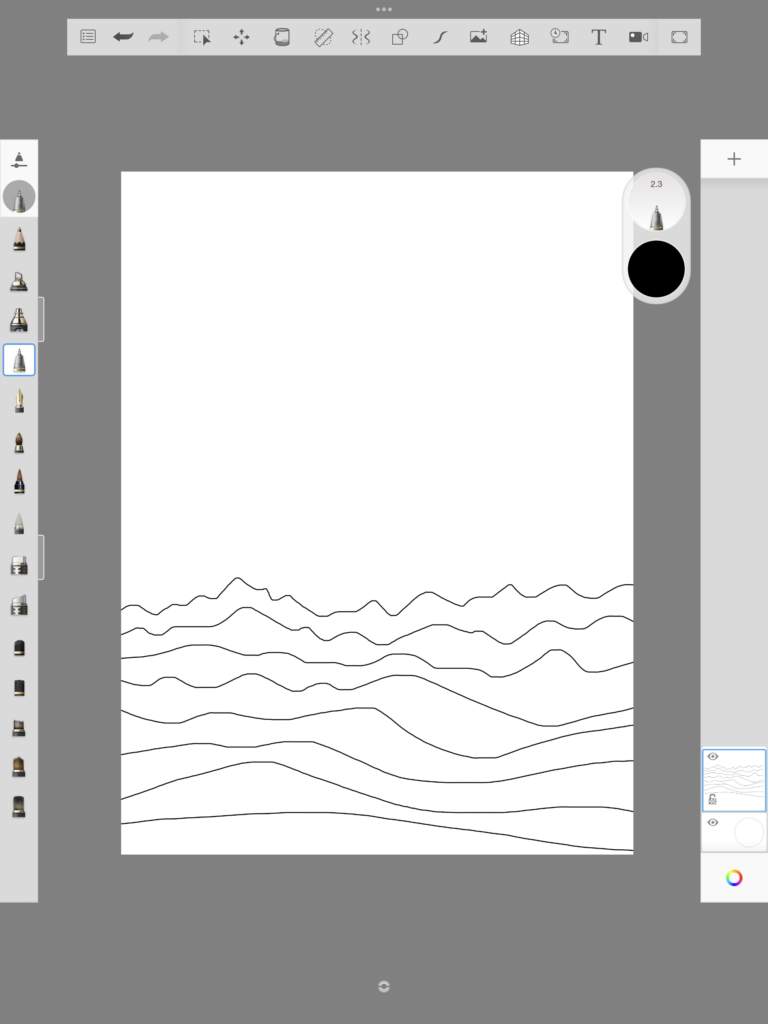
我们绘制了 7–8 条线,注意从画布“边缘外侧”起笔,并始终在可绘区域之外收笔——此举旨在确保形成封闭区域,以便后续用“油漆桶”工具便捷填色。事实上,一旦线条未闭合,待填色区域便无法被准确界定,颜色将溢出边界,填满整张画布。
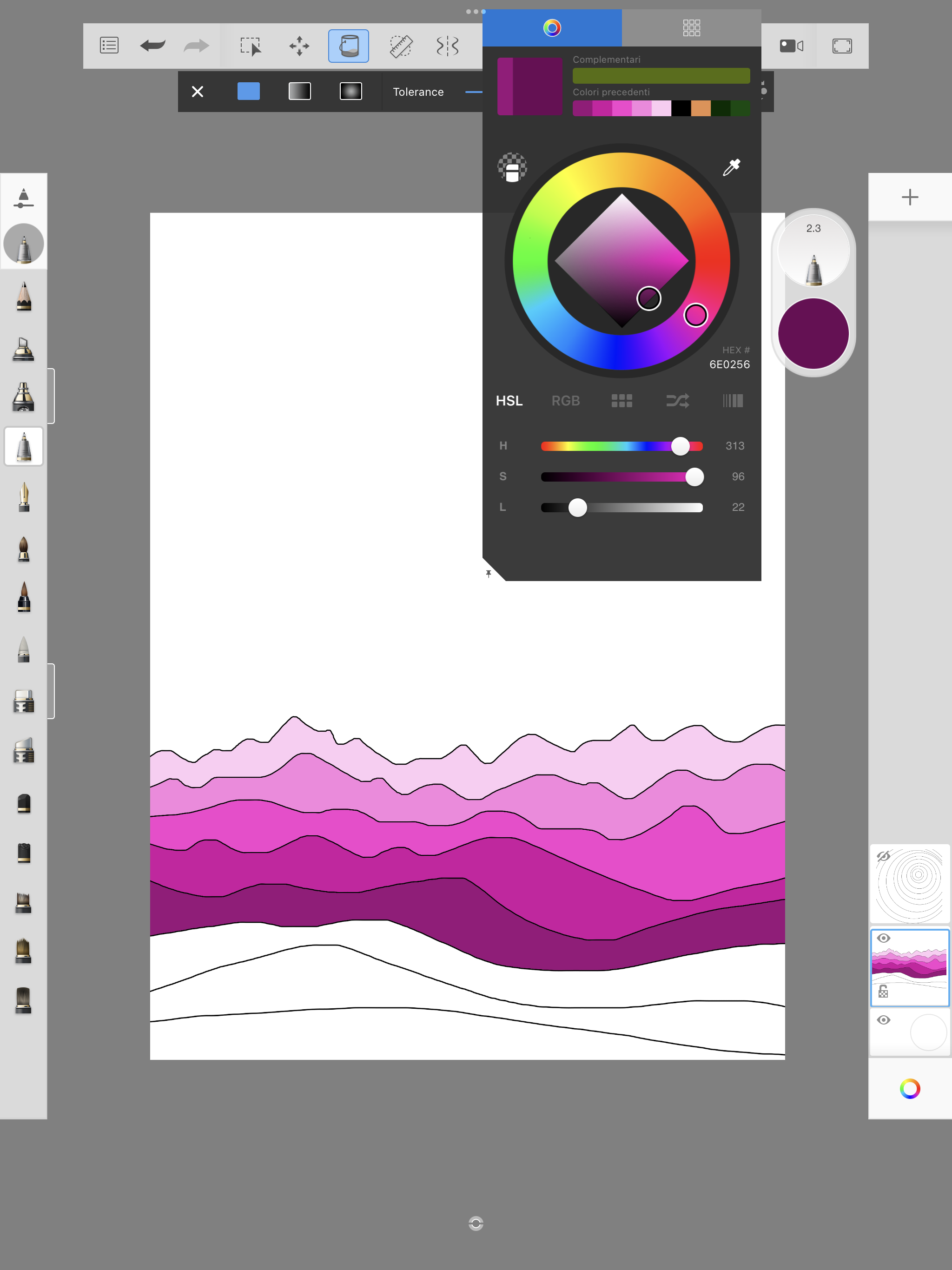
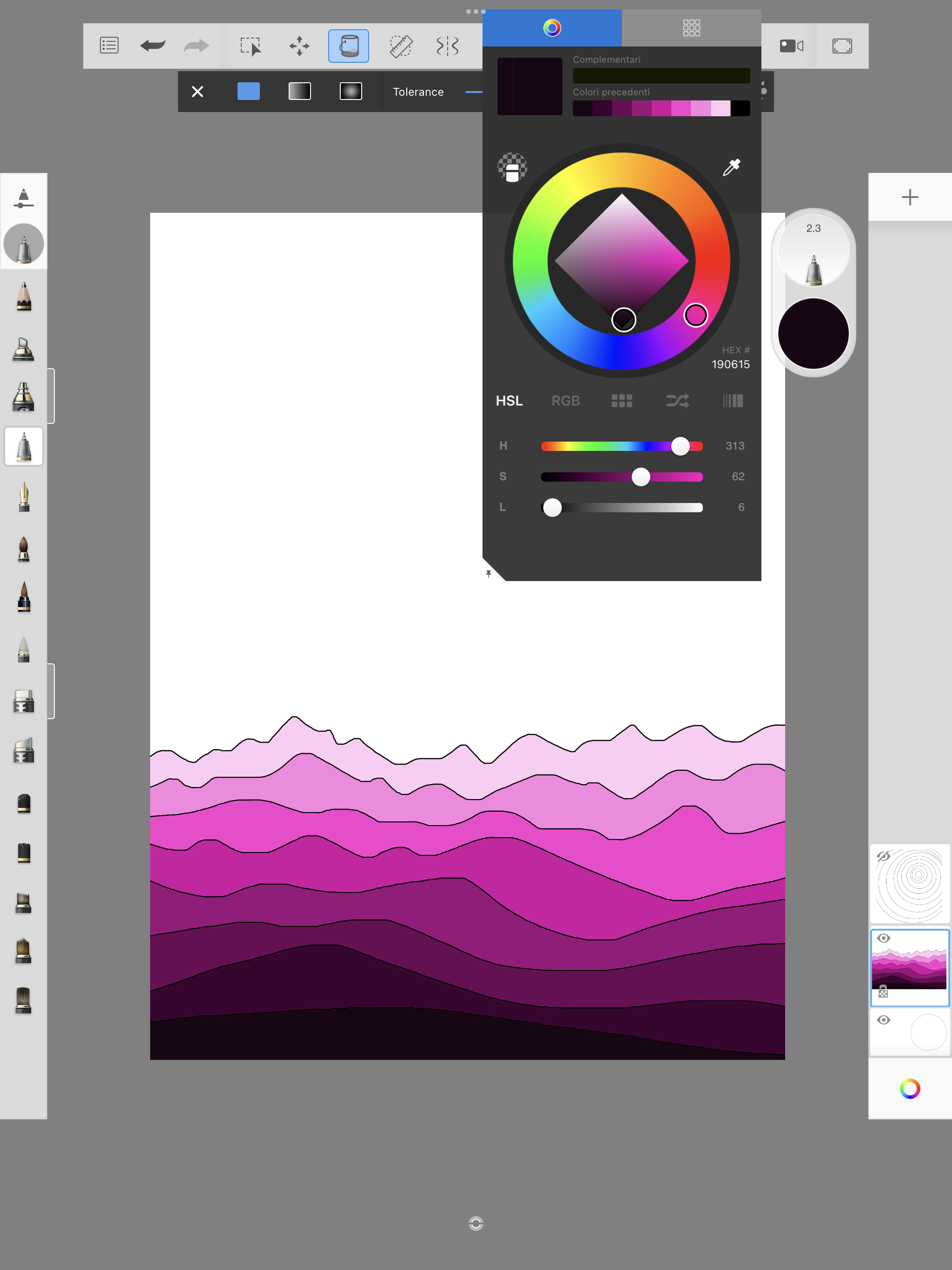
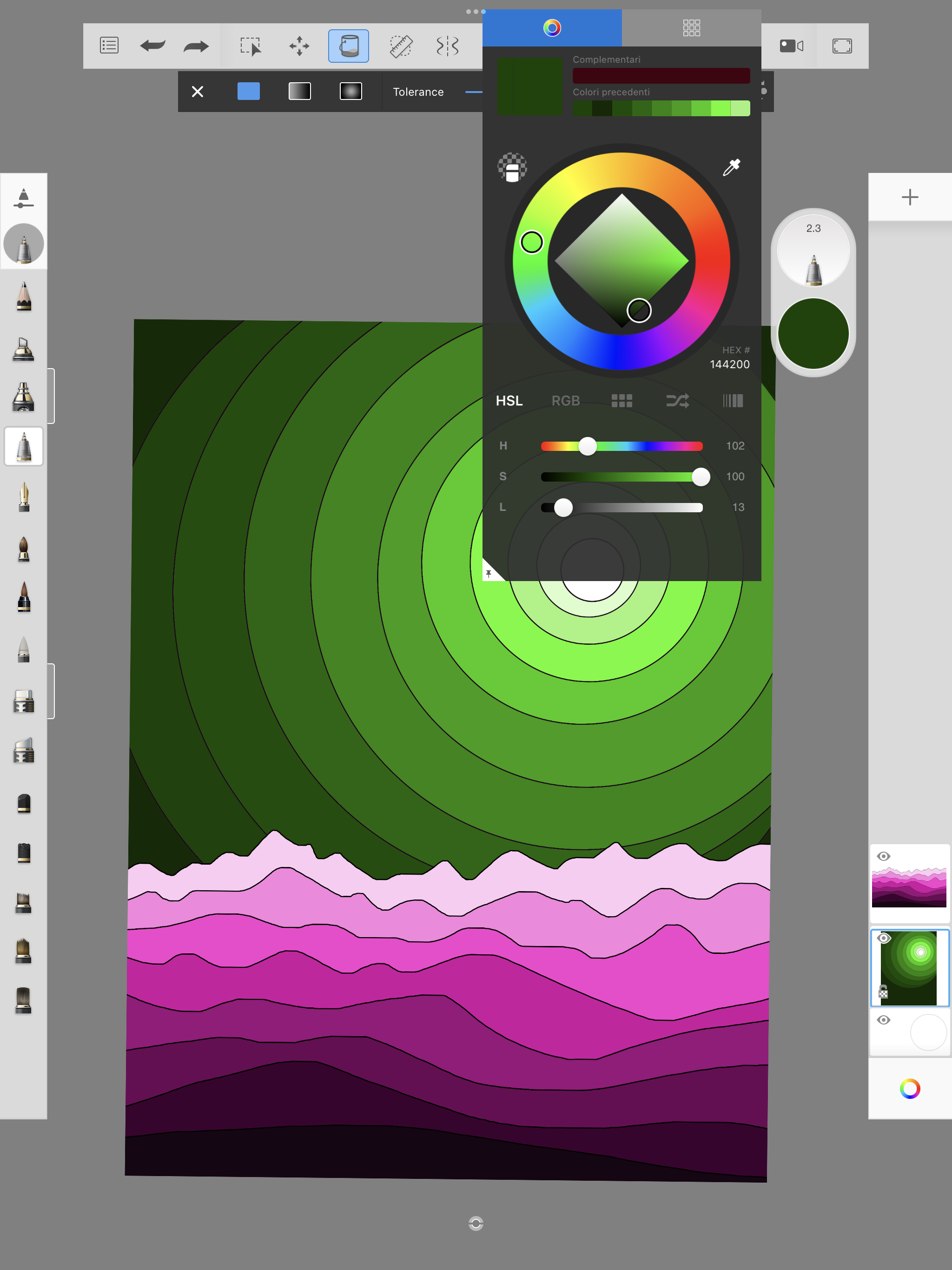
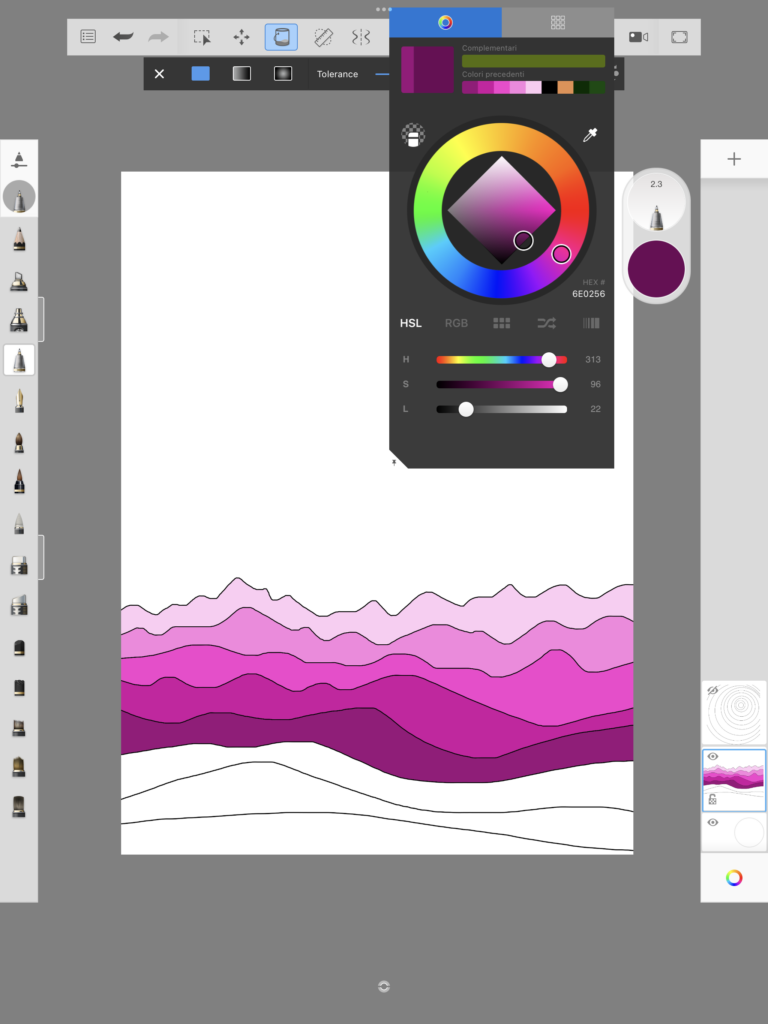
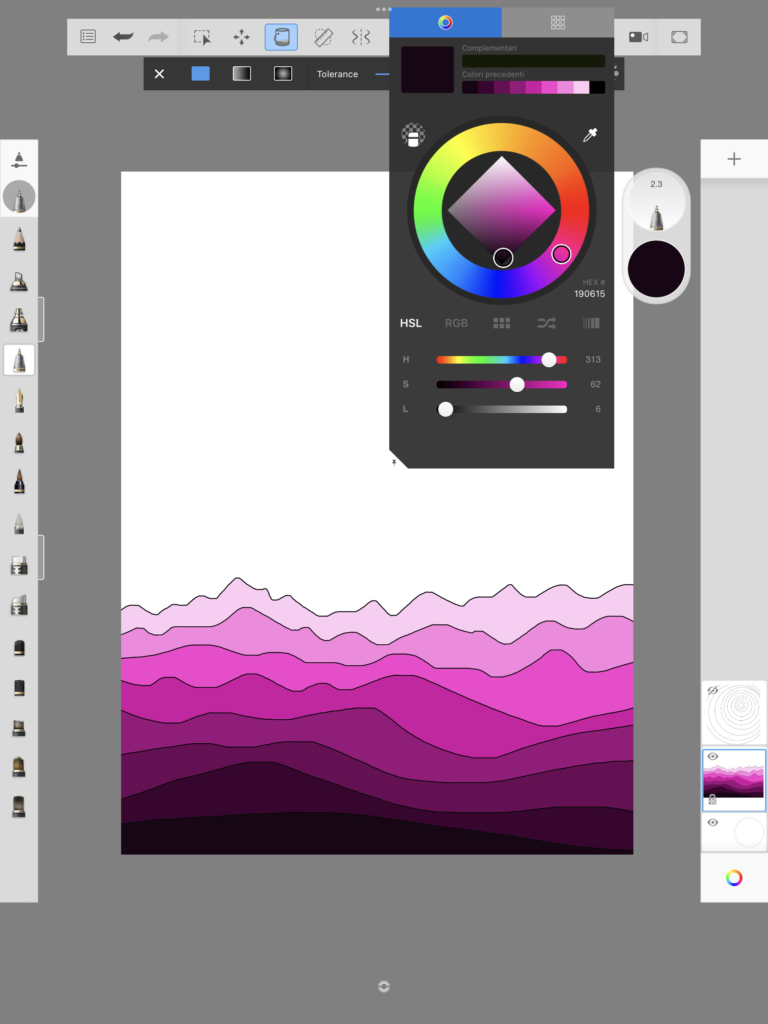
当第一图层上的风景轮廓完成后,我们从调色板中选取一种颜色,为山体着色:从背景中最浅的明度开始,逐步向前景使用越来越深的明度。
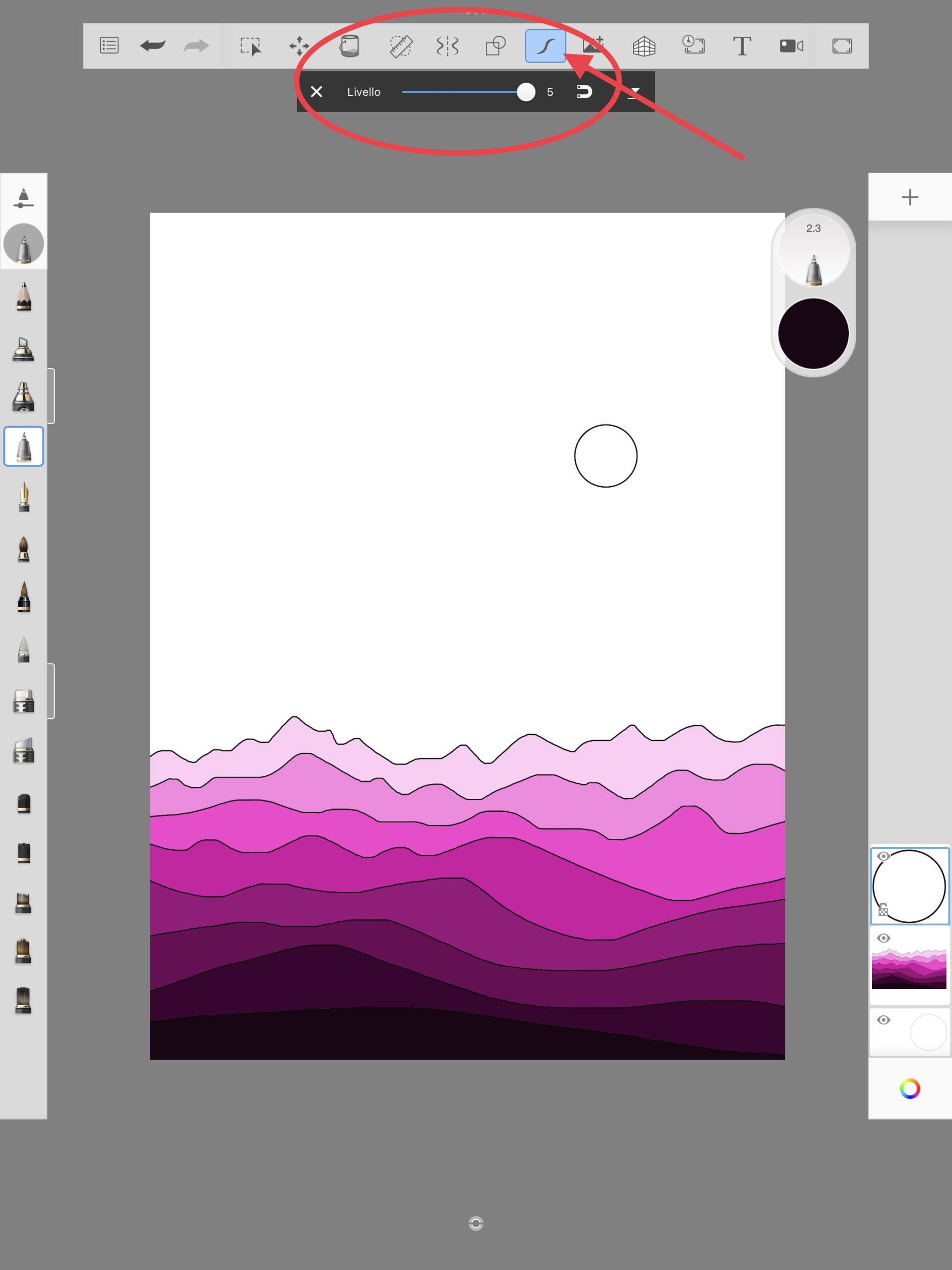
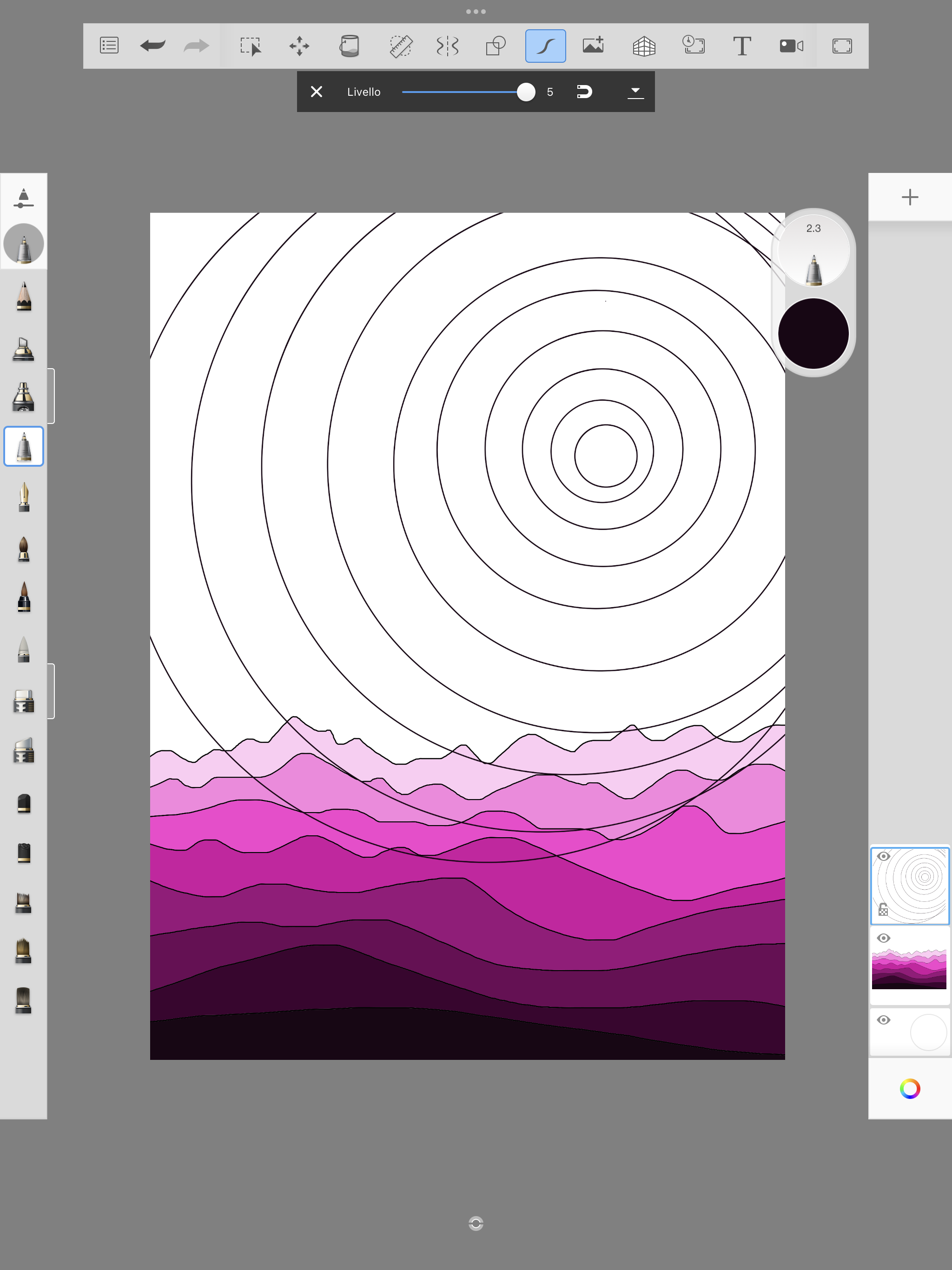
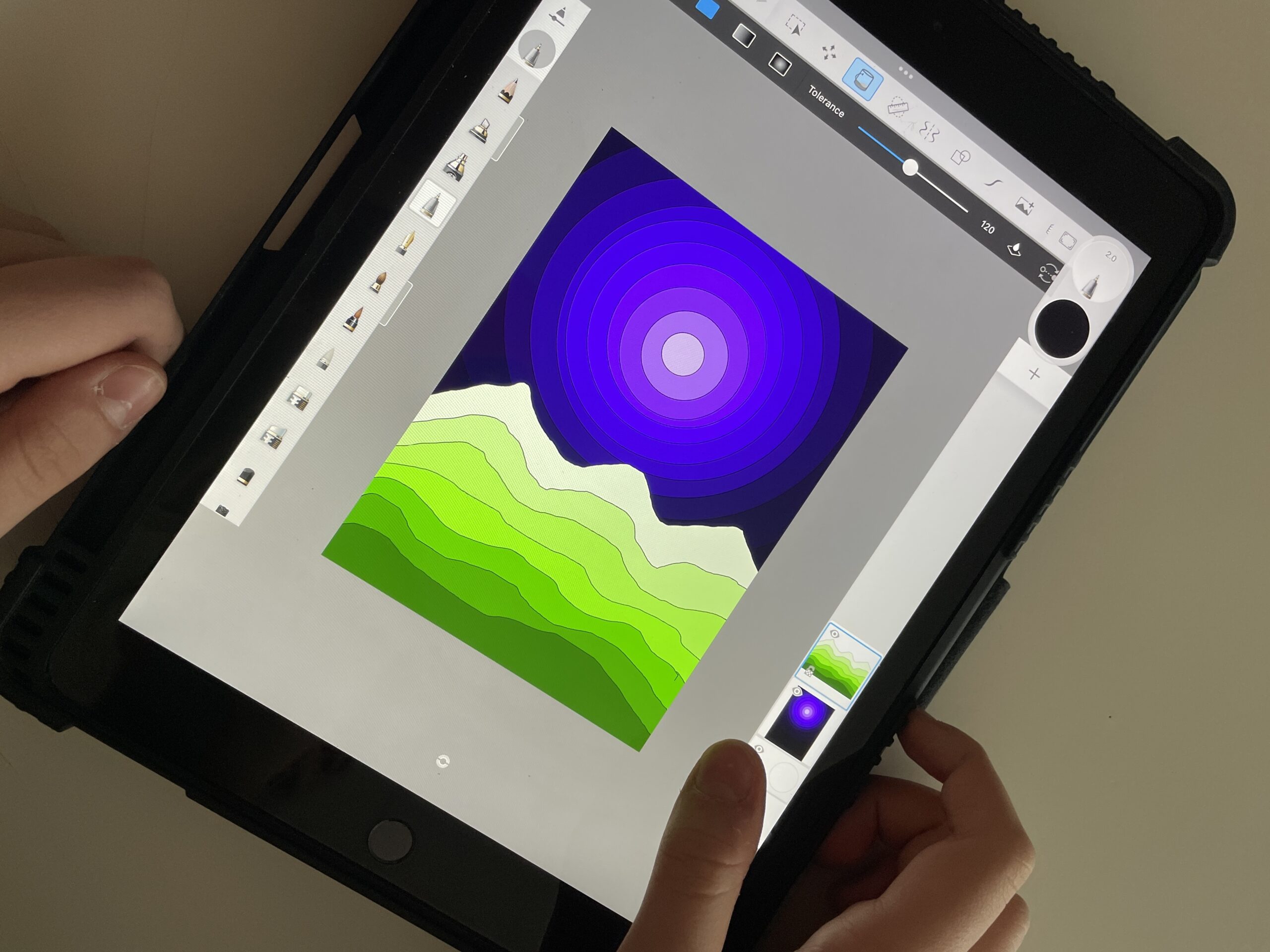
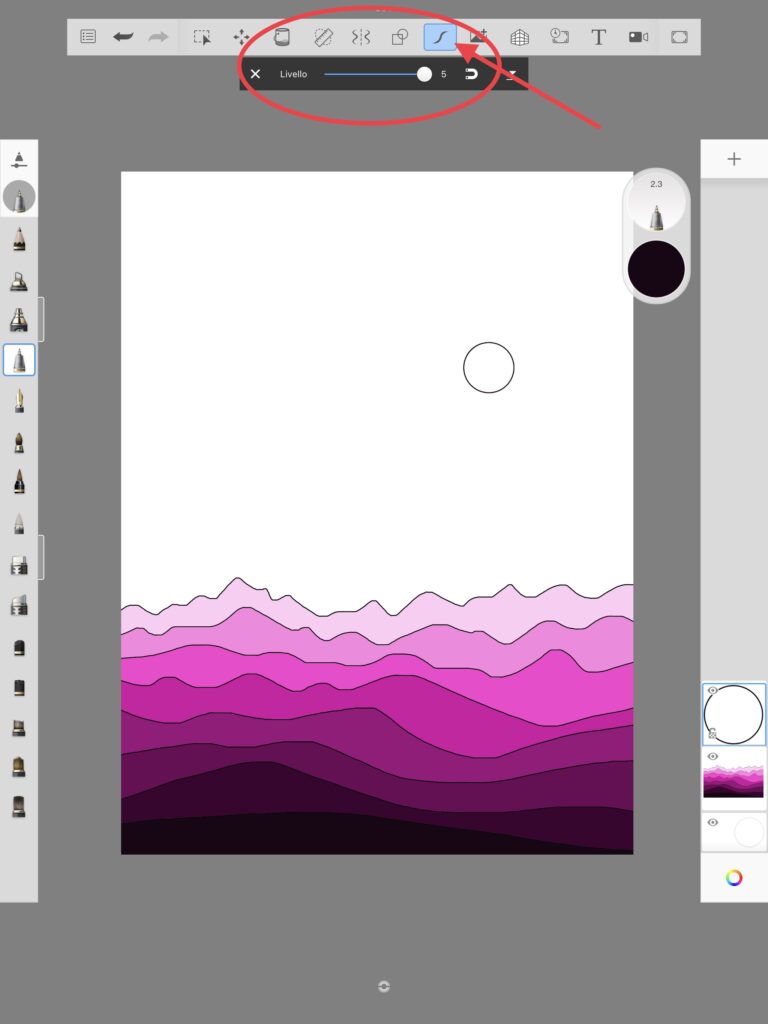
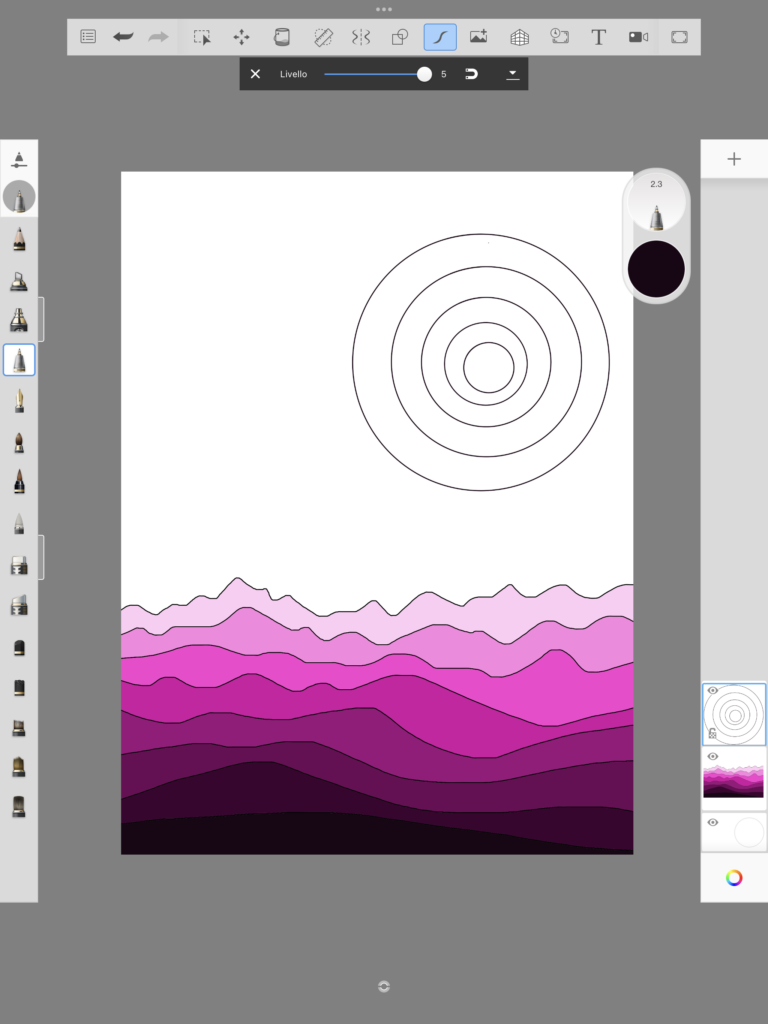
随后,我们点击“+”键新建第二图层,绘制太阳及一组由内向外渐次扩大的同心圆。绘制圆形时,我们启用了“预测描边”功能(位于顶部工具栏,图标为一条 S 形曲线,设置为第 5 级),该功能允许我们徒手绘制不规则圆,系统会自动将其修正为标准几何圆形。显然,所有圆形必须是闭合图形。
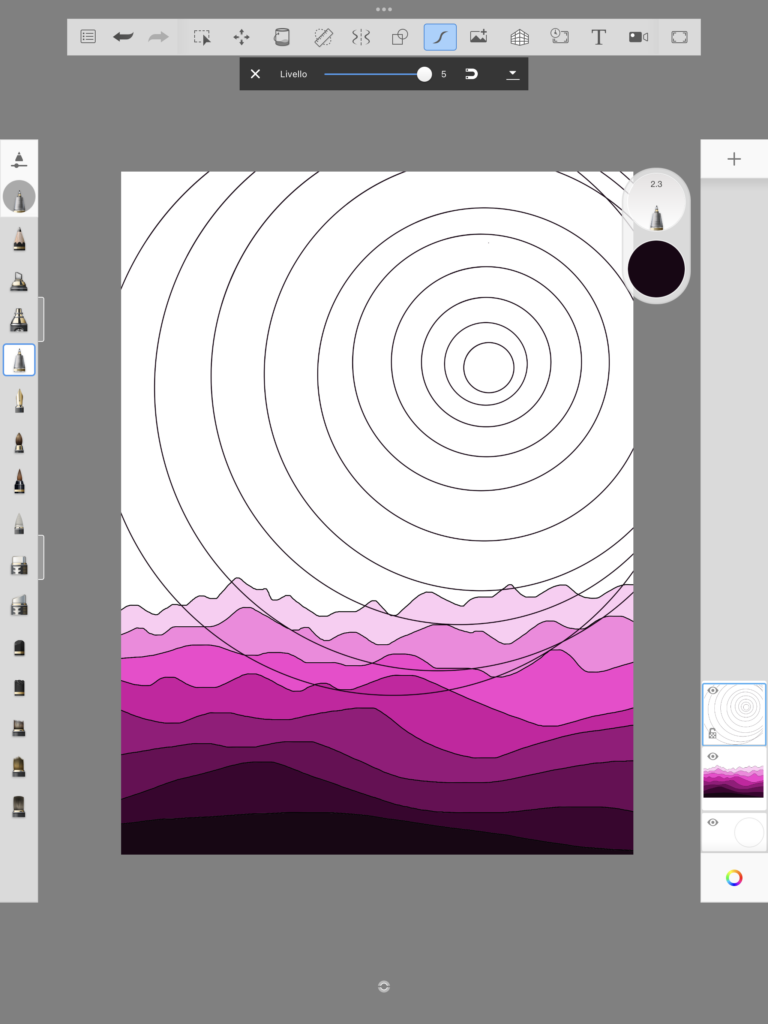
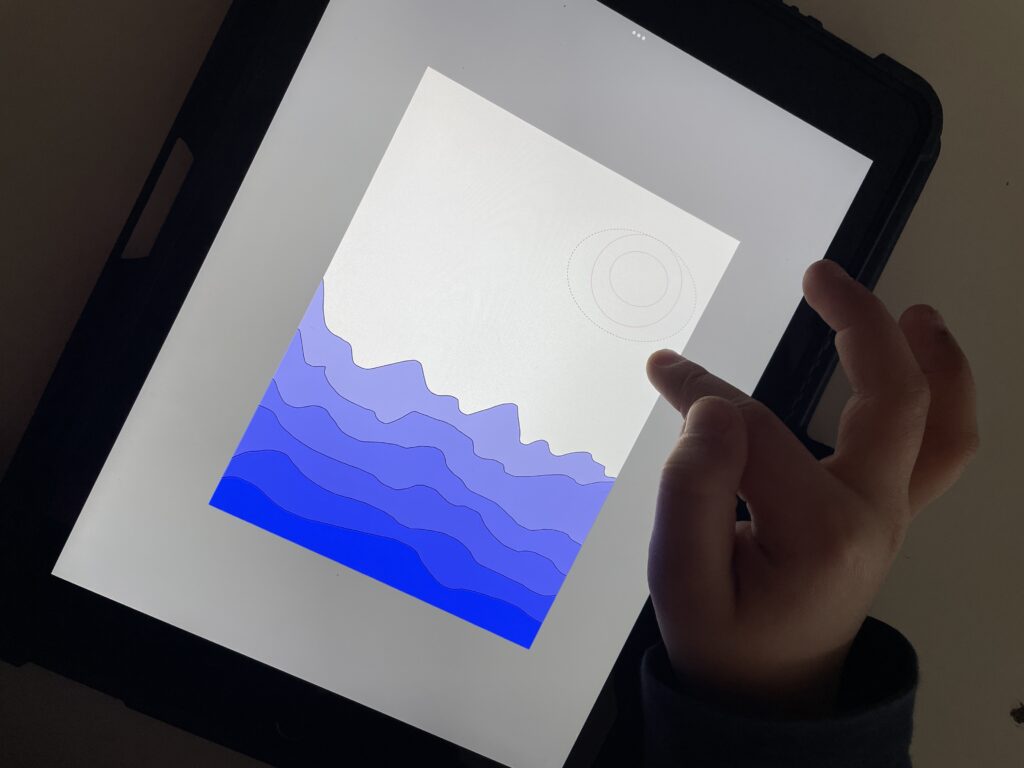
此时,我们可以调整图层顺序,将山体图层移至天空图层前方。操作方法为:长按图层约一至两秒,图层即变为可拖动状态,即可上下移动其位置。
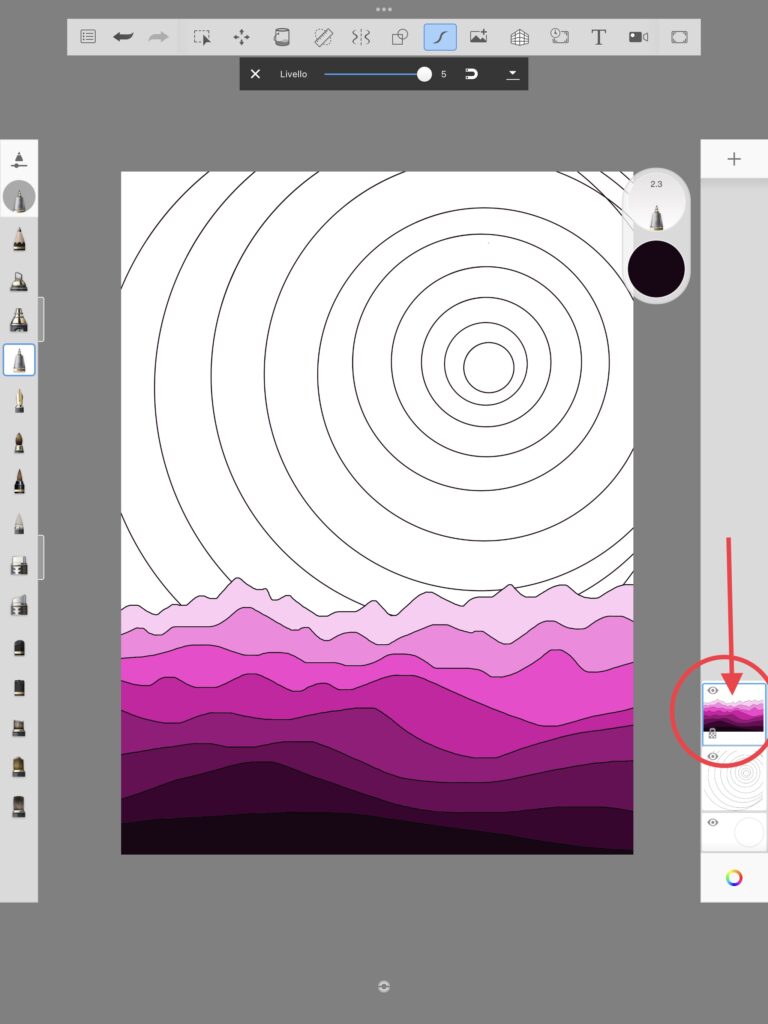
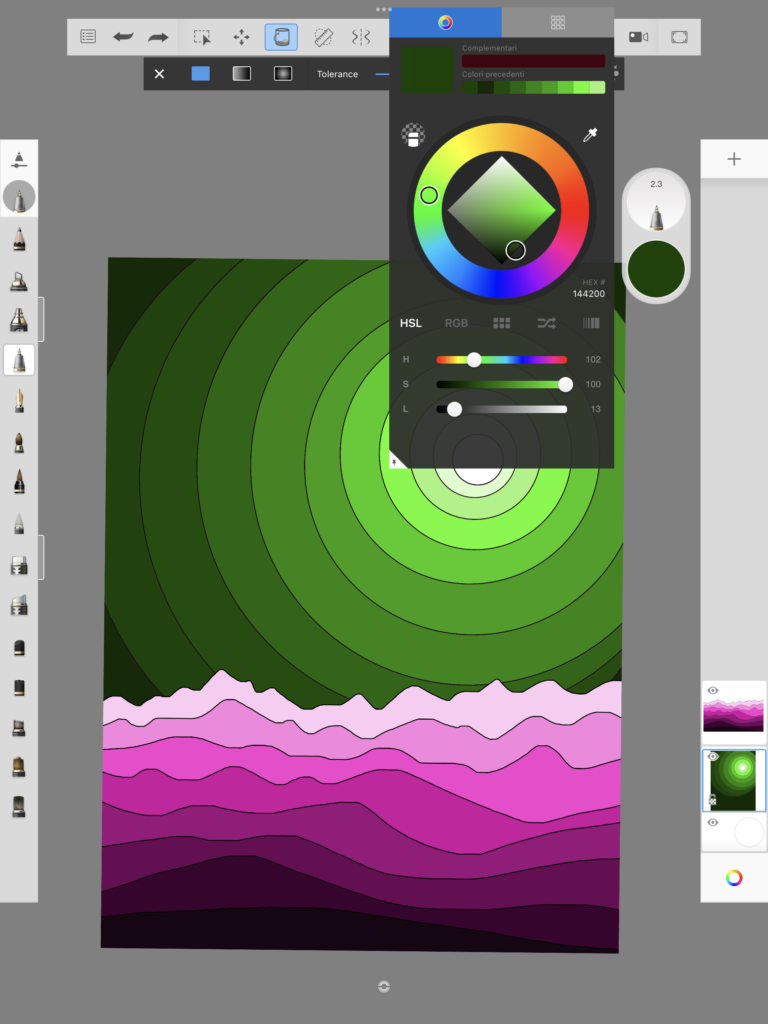
完成此步骤后,即可从调色板中选择颜色,为天空着色:同样采用由最浅至最深的明度阶调进行绘制。
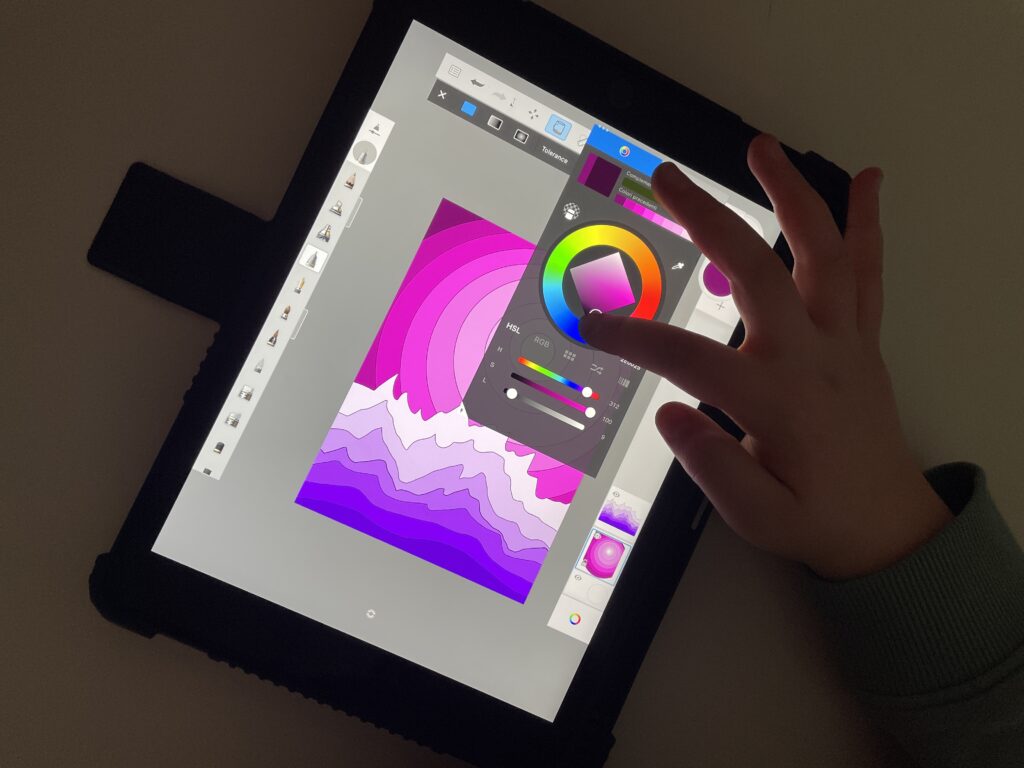
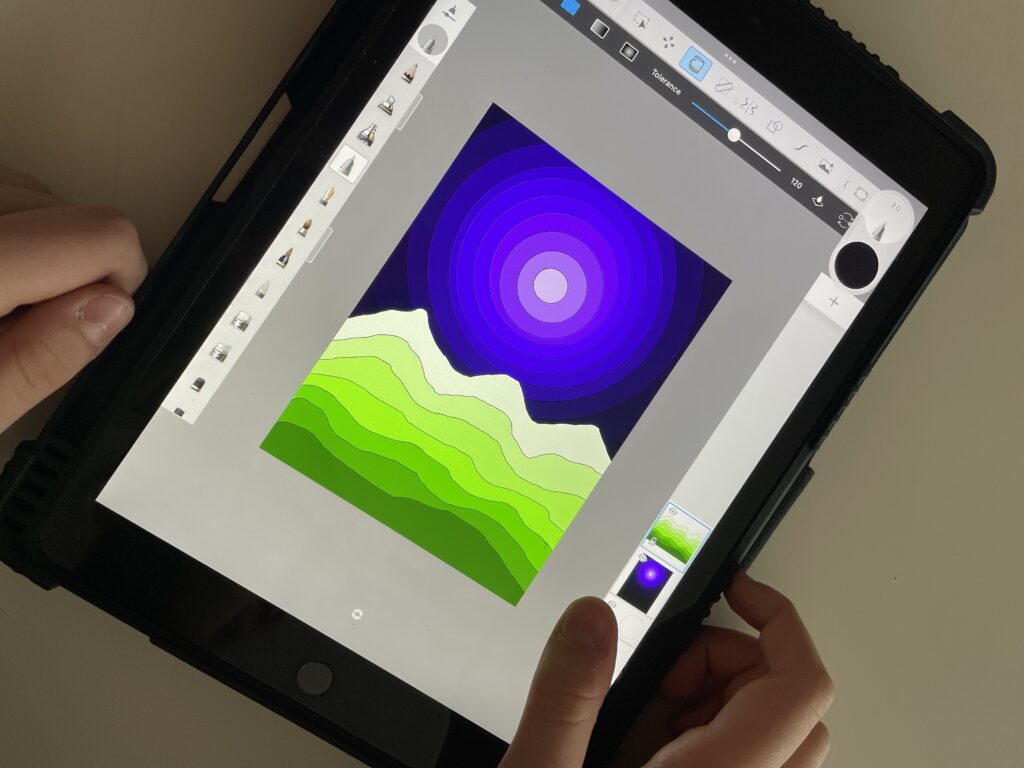
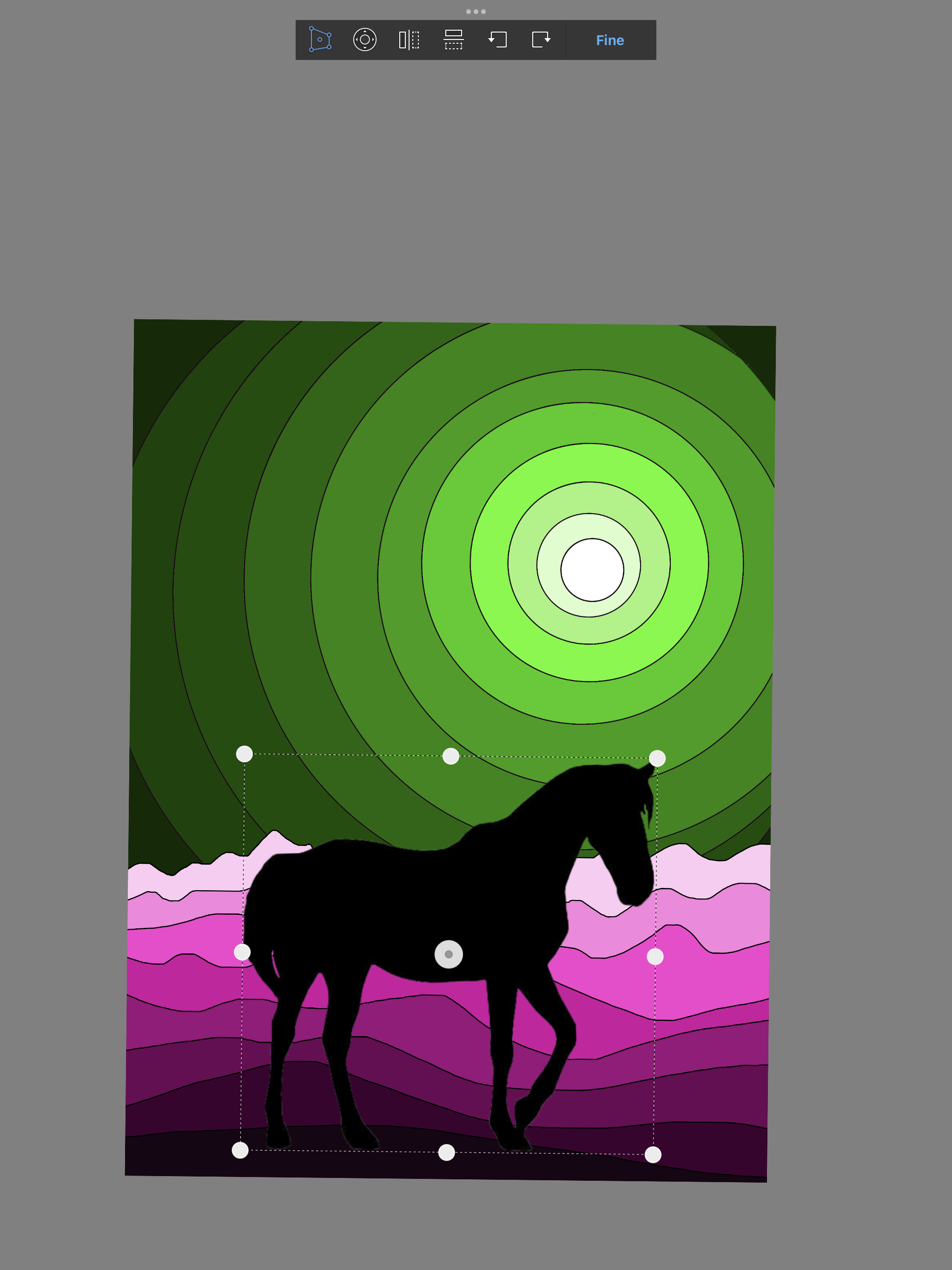
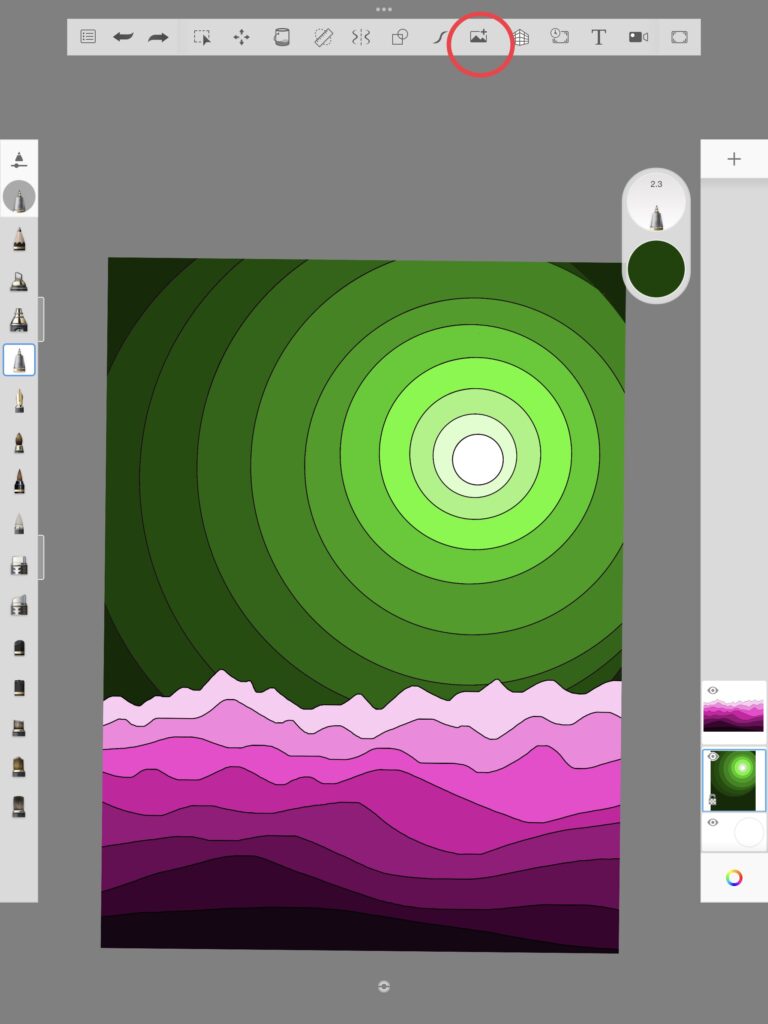
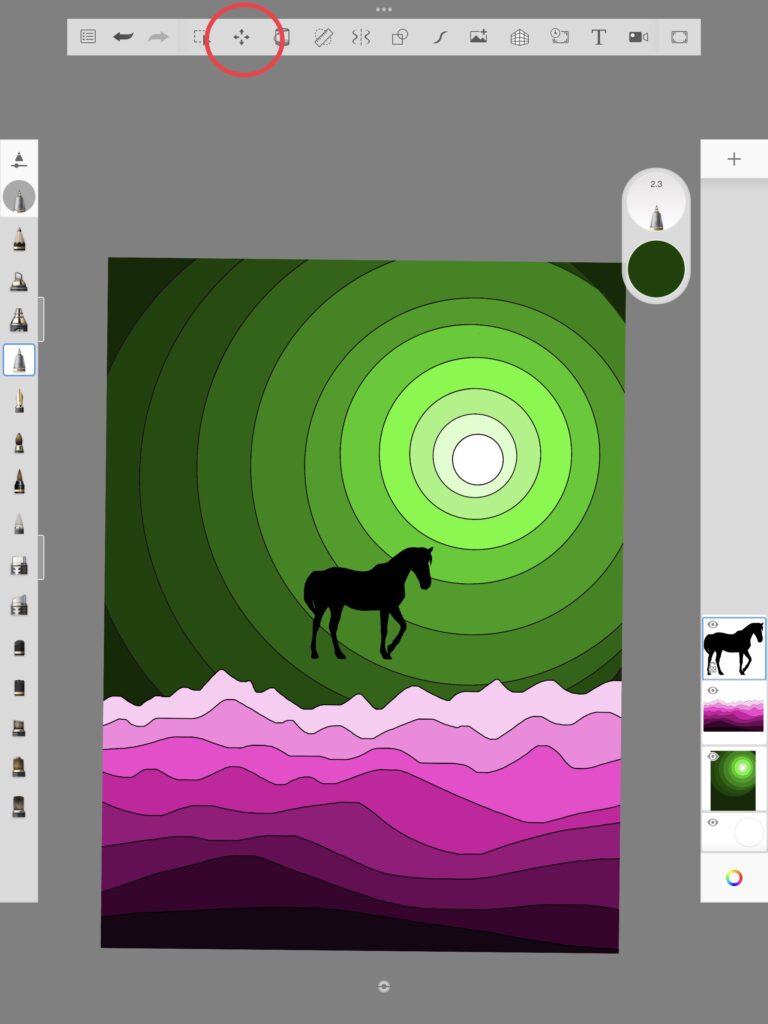
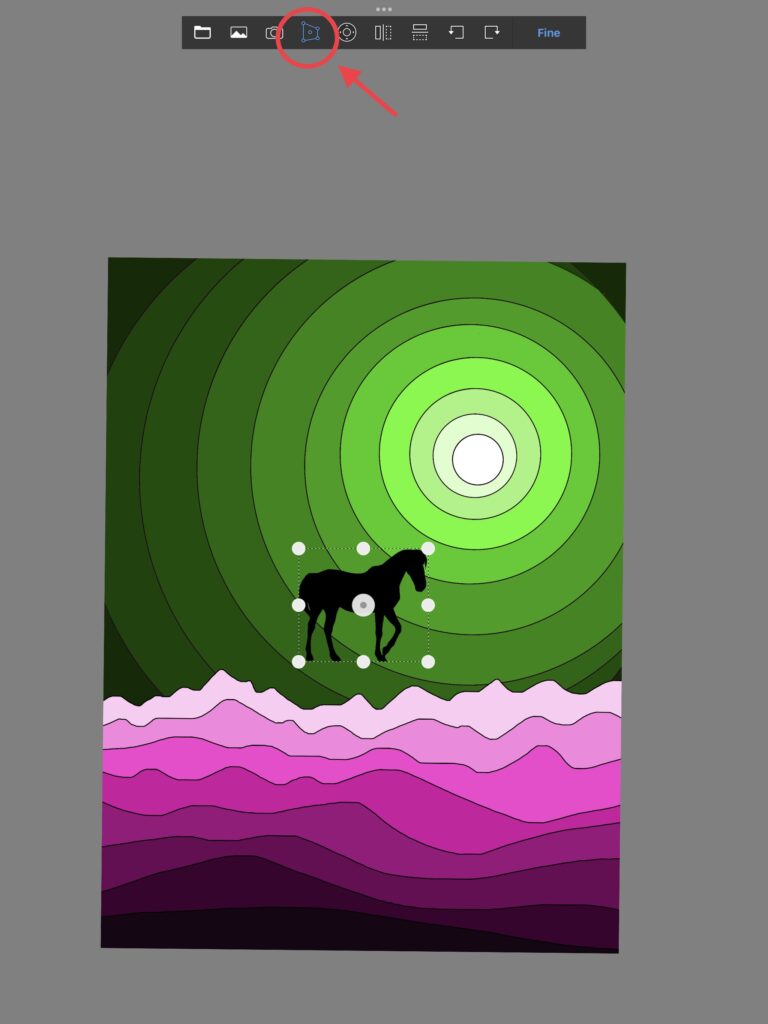
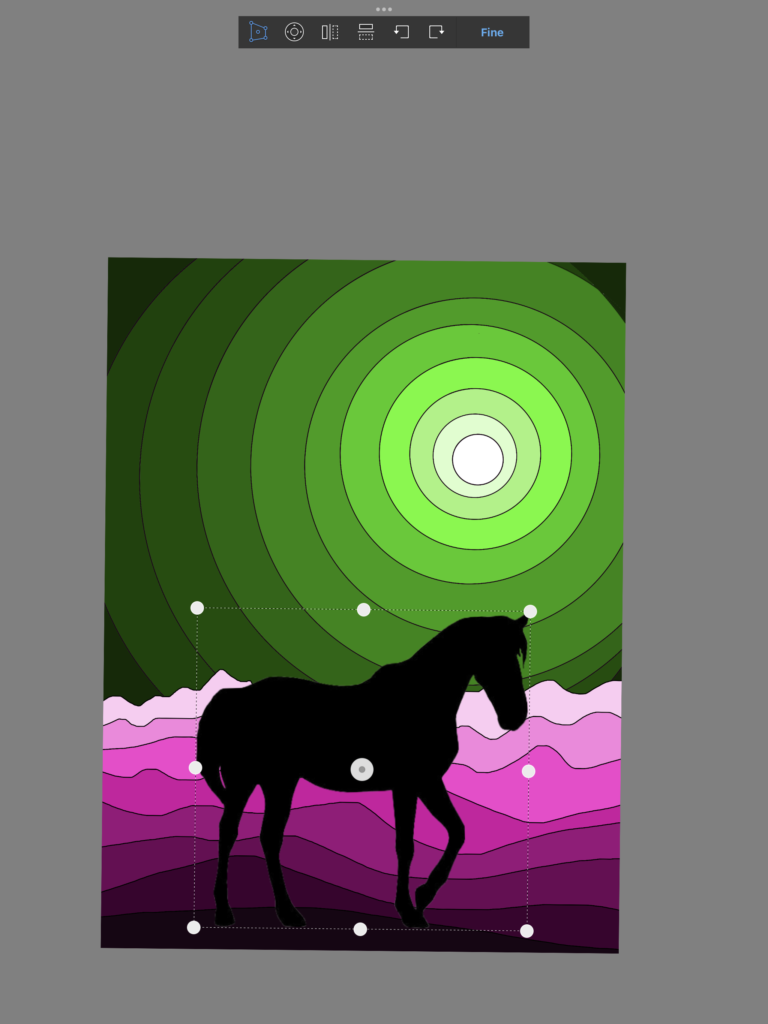
为添加动物剪影,我预先准备了一批带透明背景的 PNG 图像,学生可通过 Classroom 或 Google Drive 获取使用。选定图像后,点击“+”号旁的图片图标将其插入;再利用顶部工具栏中“四向箭头”图标所启动的工具,对图像进行移动、缩放等操作,并通过弹出菜单中的各项选项(移动、扭曲、旋转等)进一步处理。务必确保含动物剪影的图层位于其他图层之上,才能使剪影清晰呈现于风景前方。
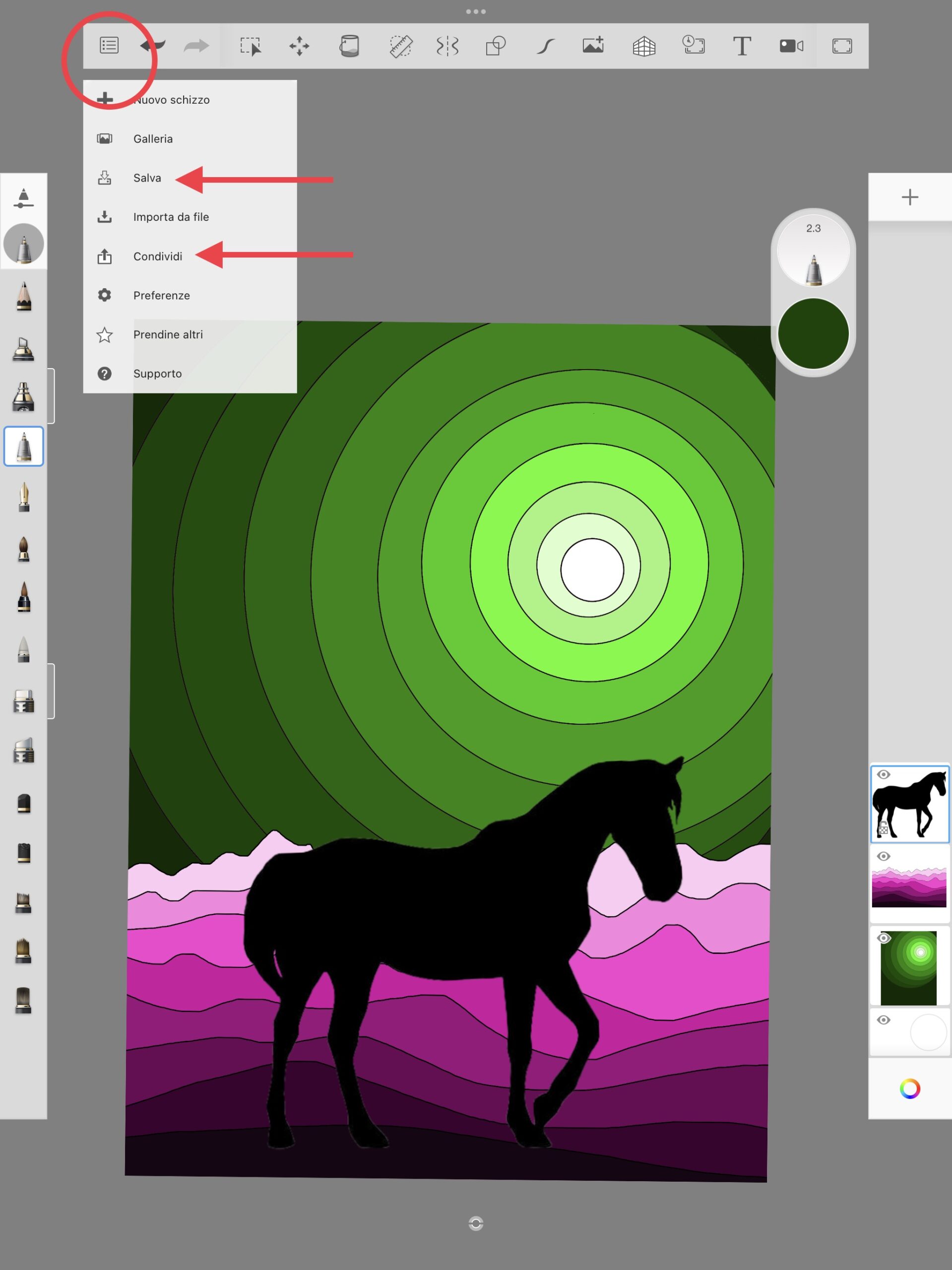
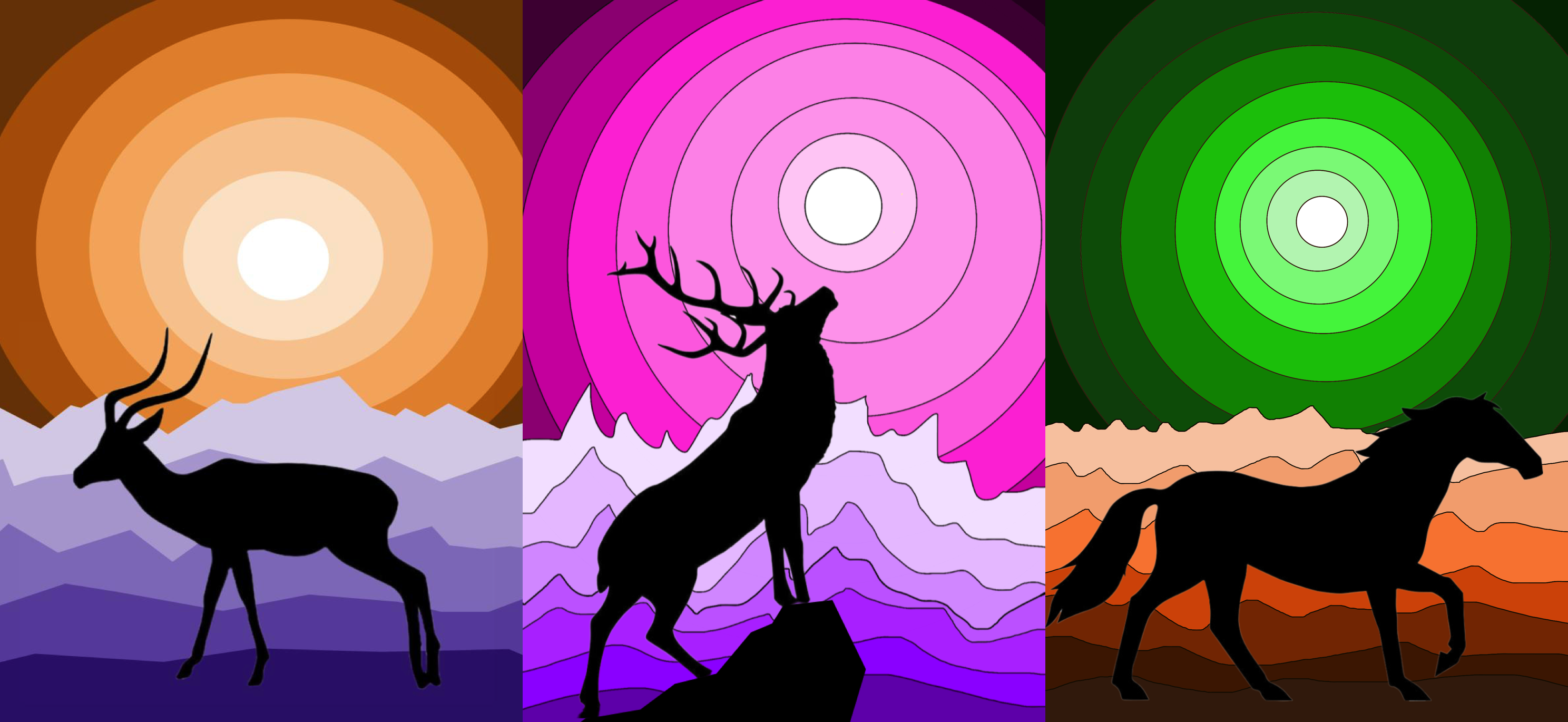
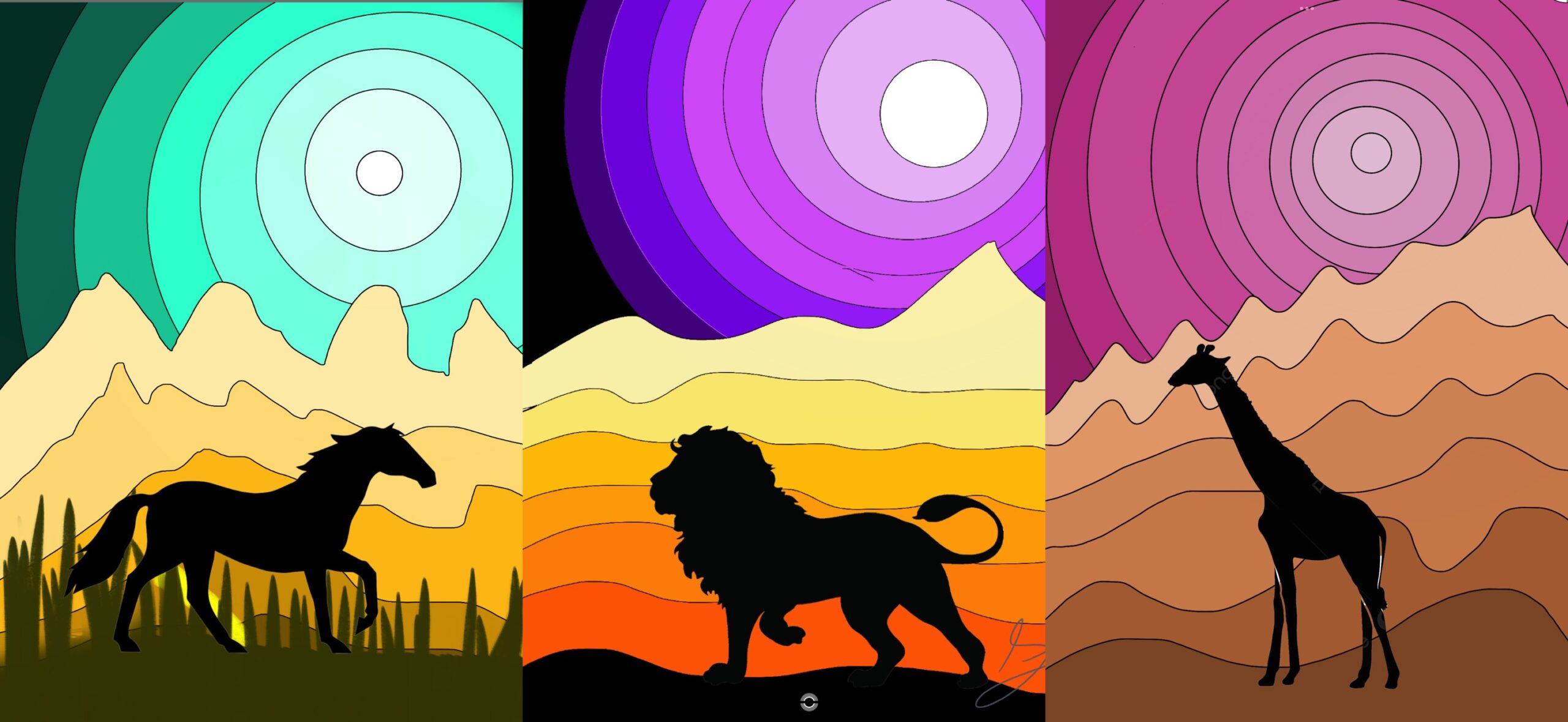
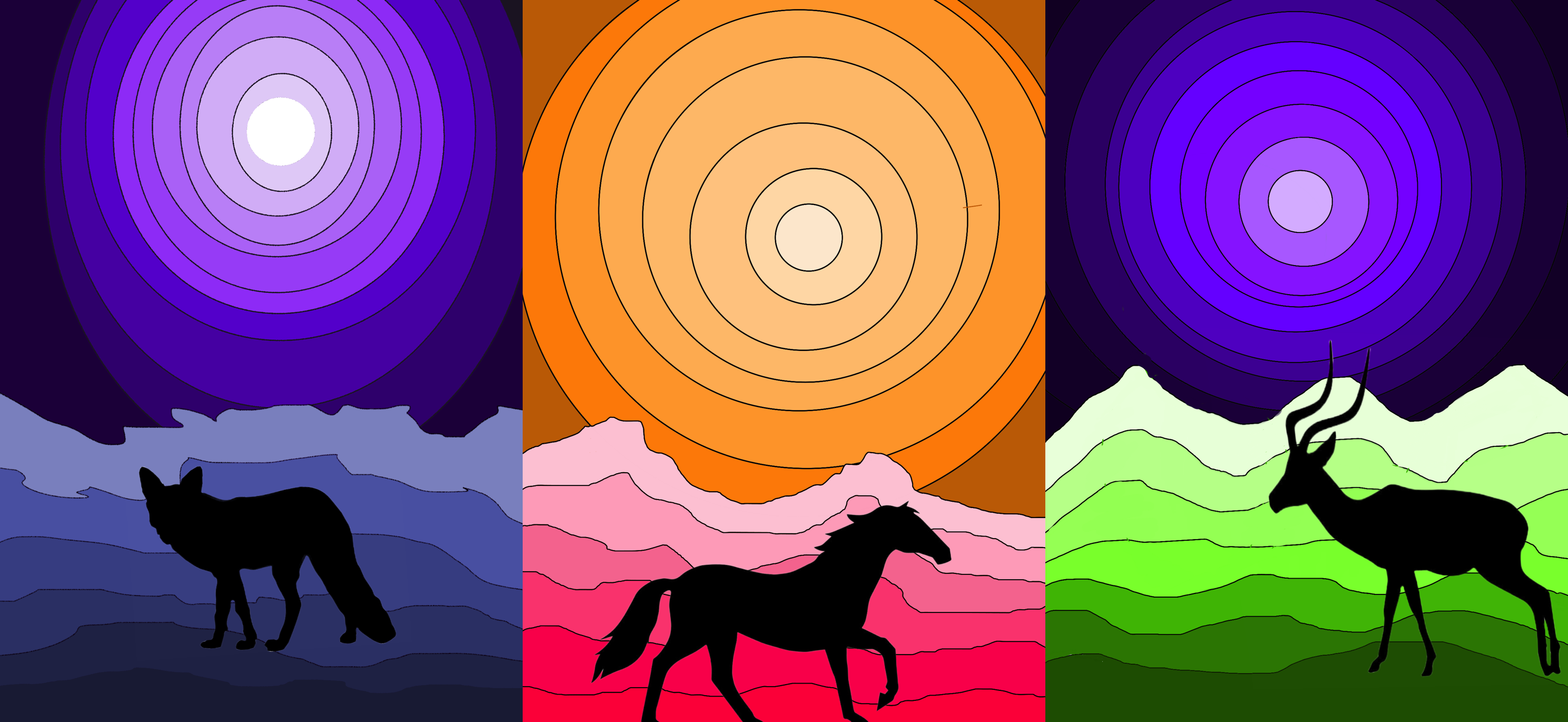
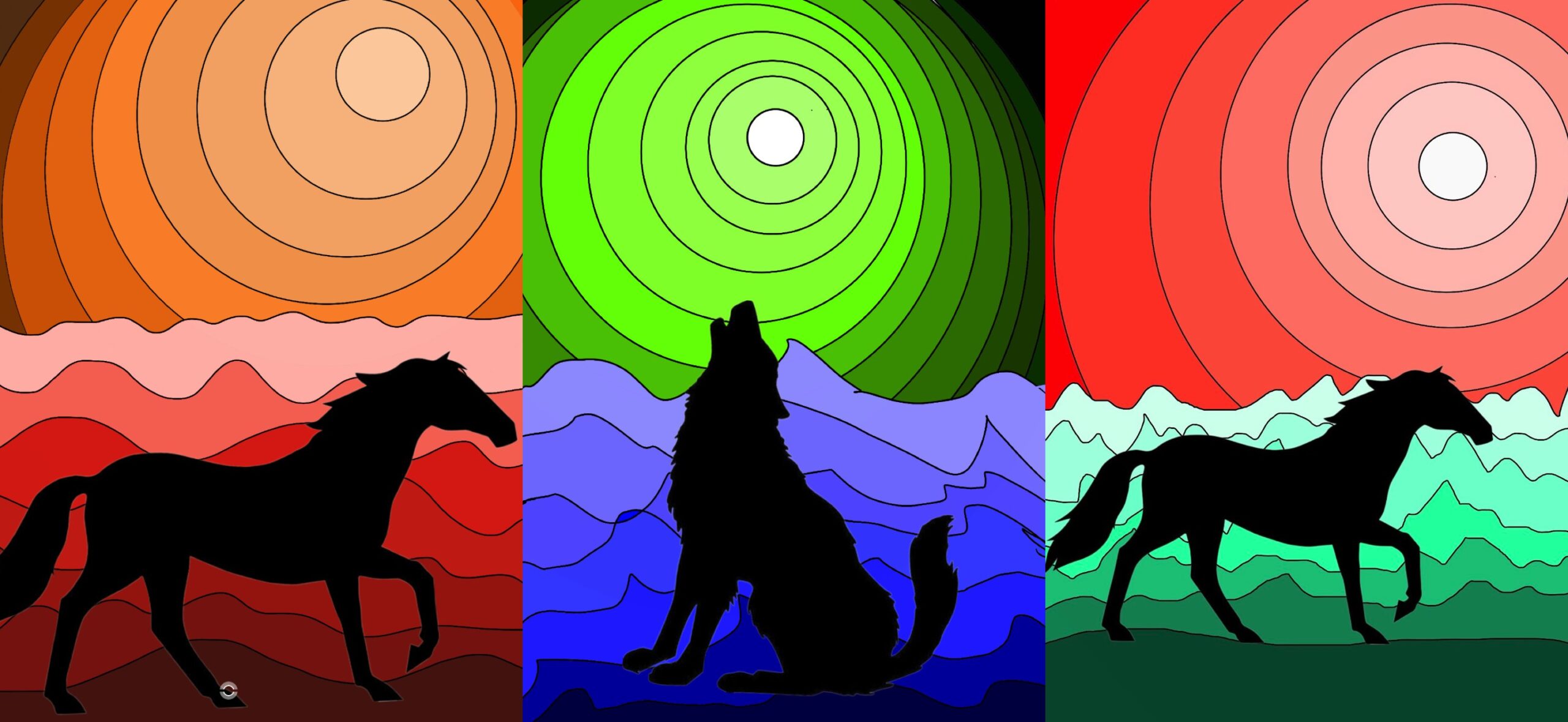
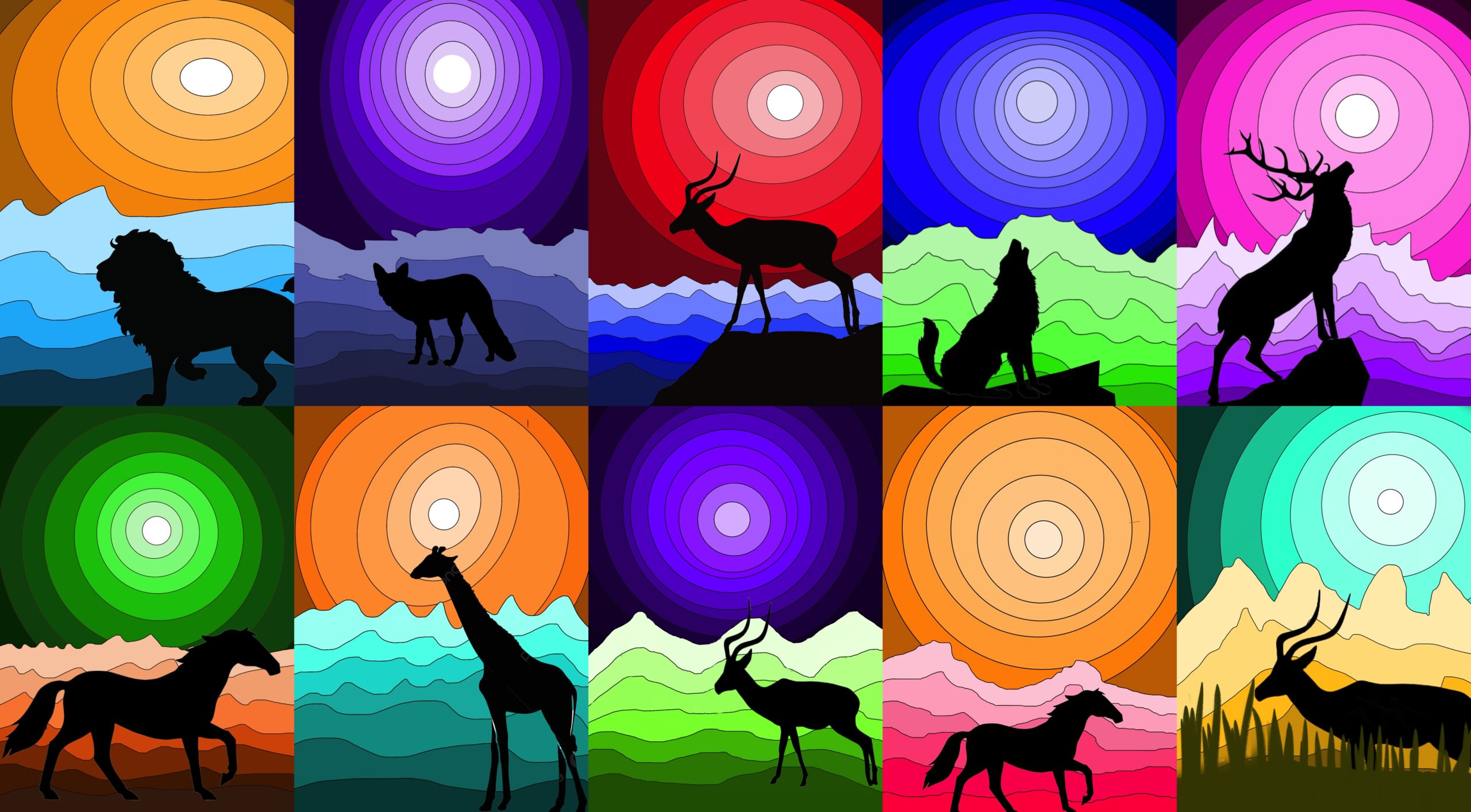
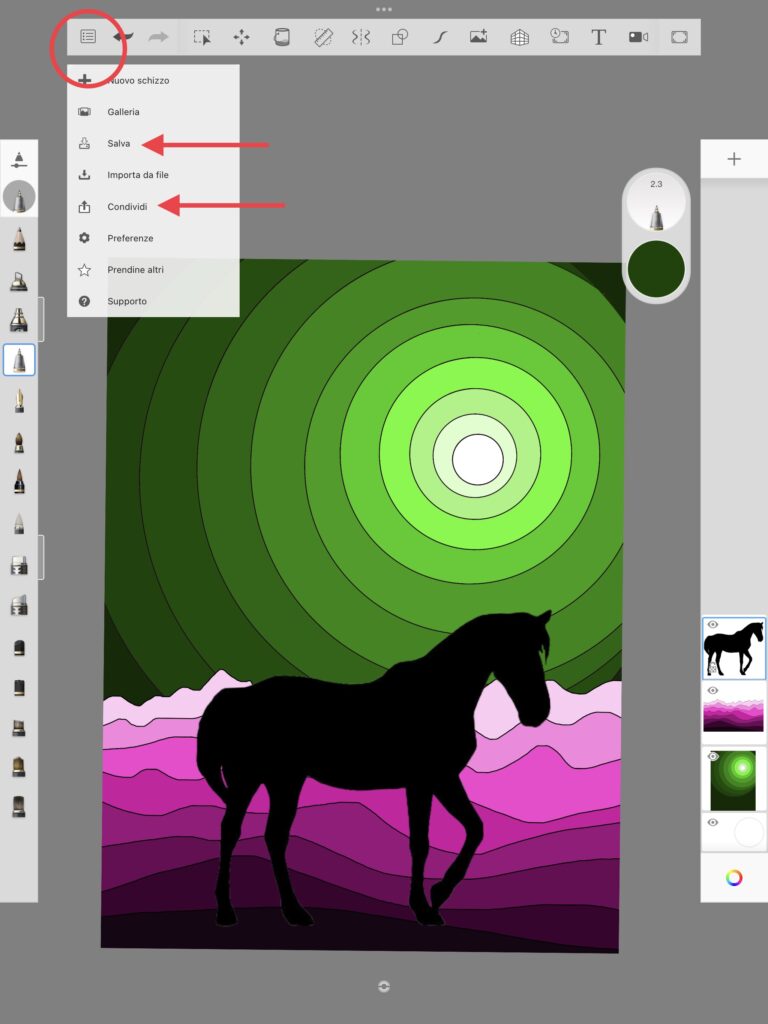
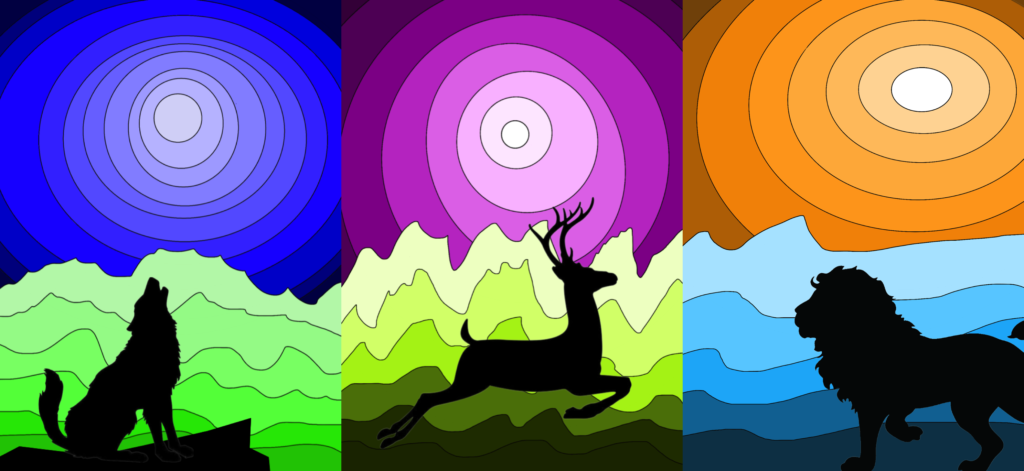
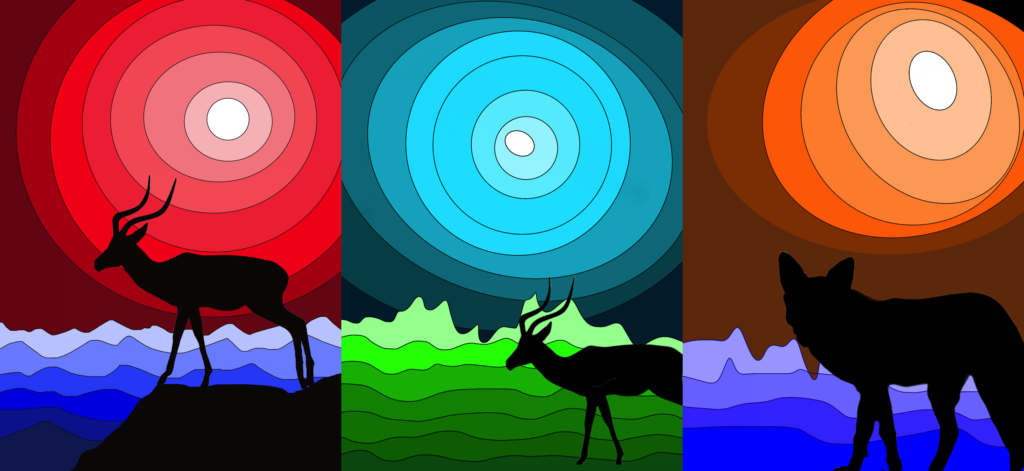
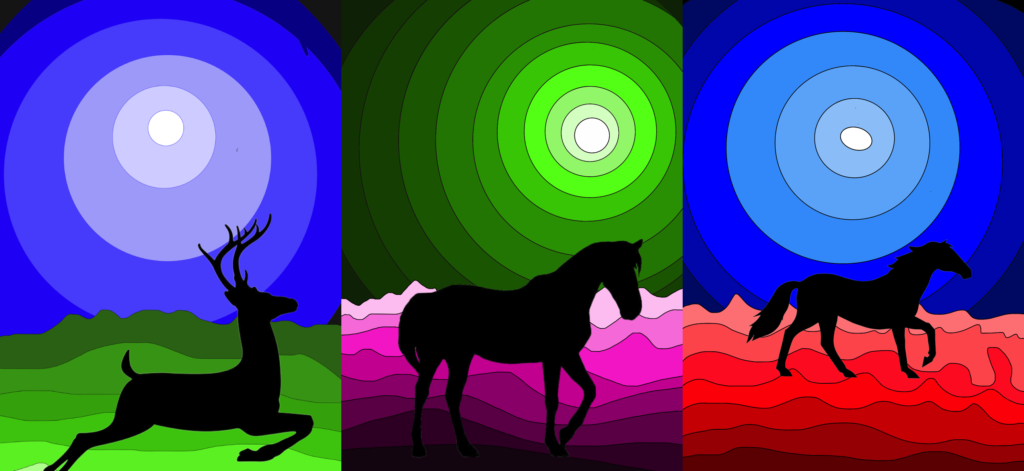
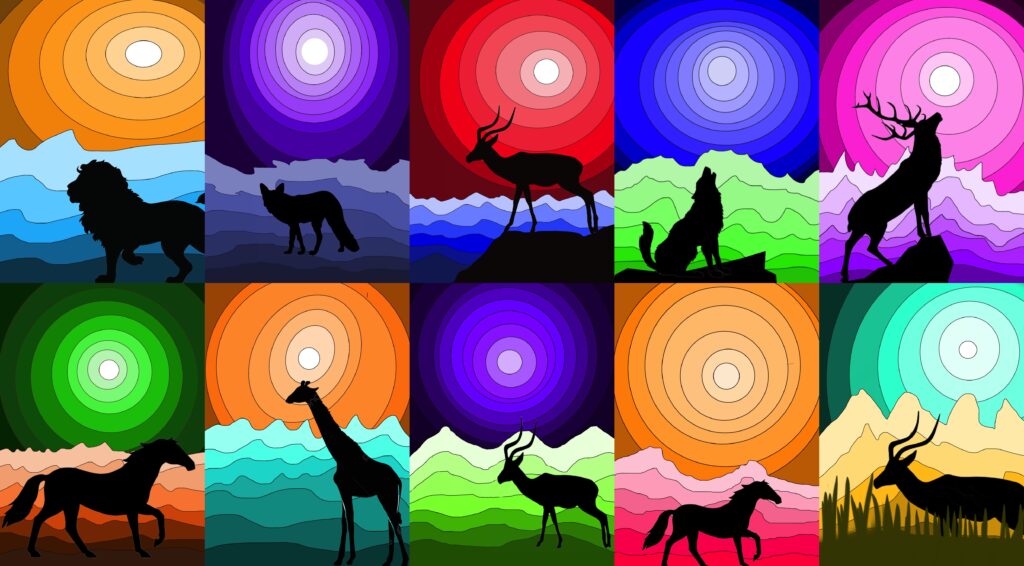
最后,点击左上角菜单图标,调出下拉菜单,保存并分享文件。下方展示的是我们完成的、基于明度阶调的数字风景画:
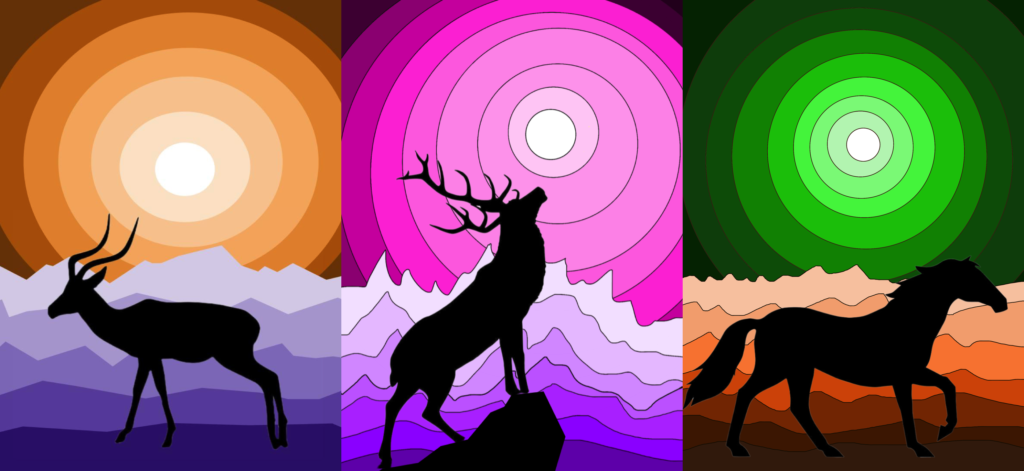
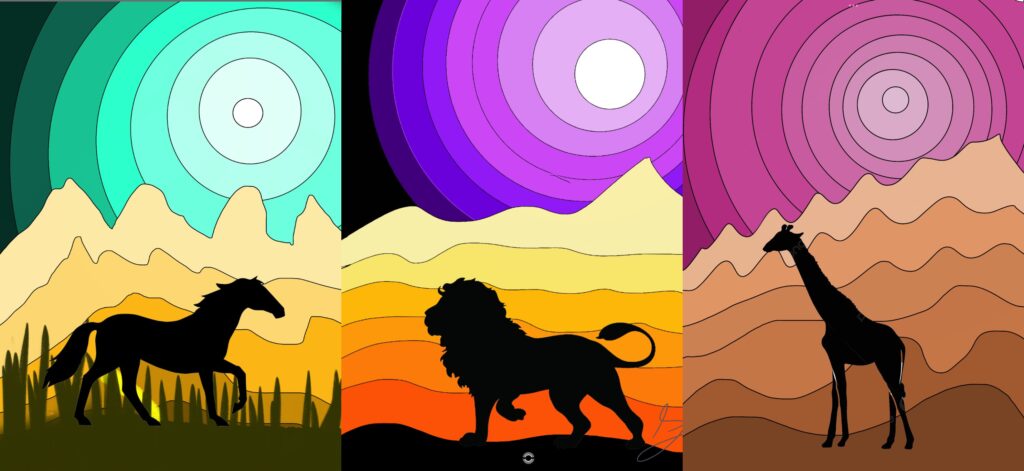
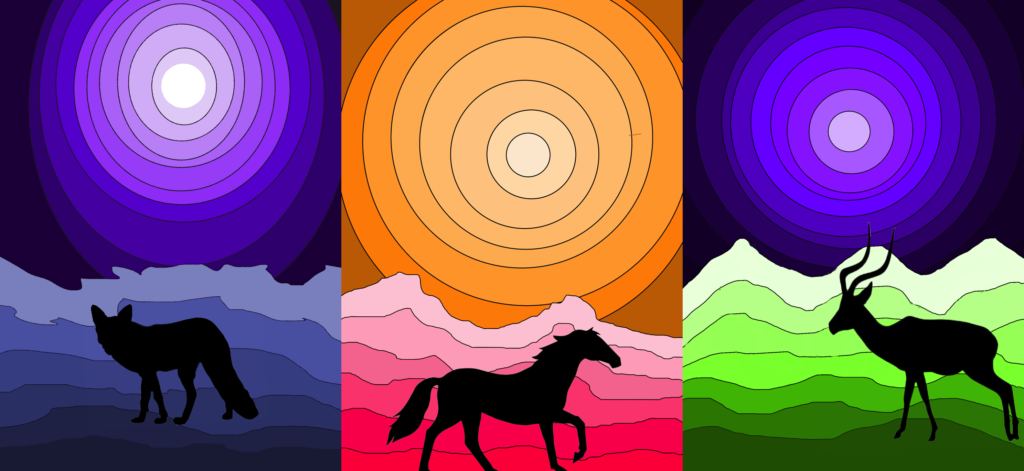
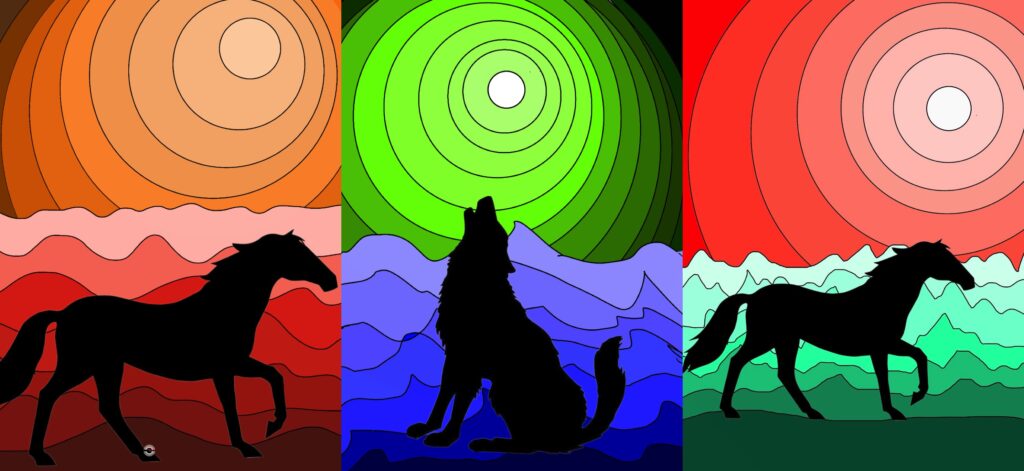
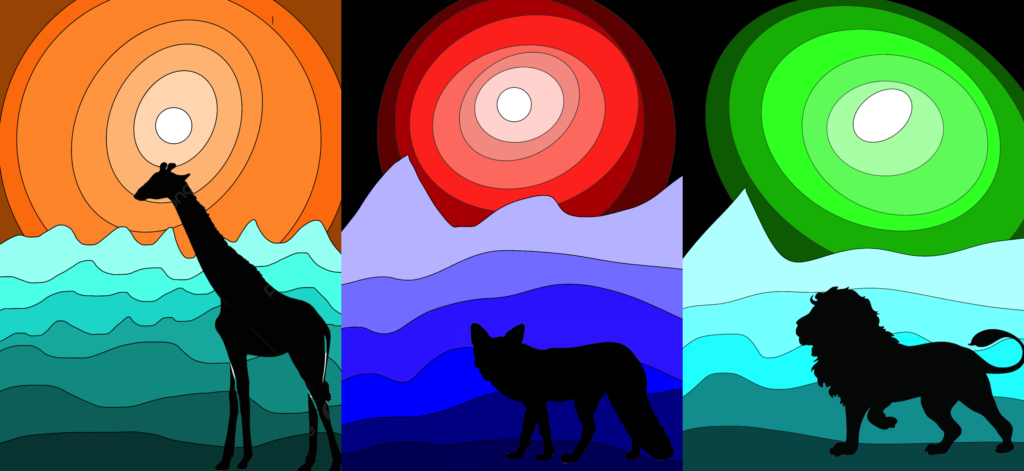
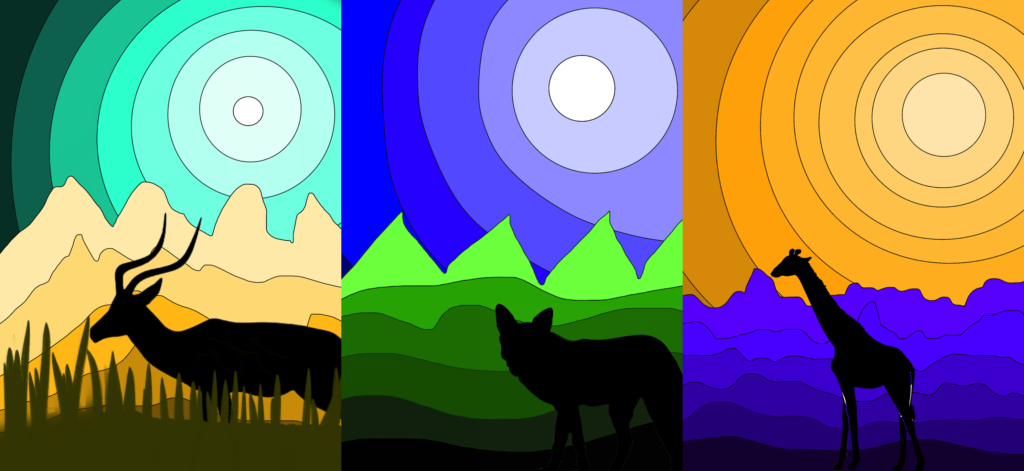
Digital drawings in value scale
To make these digital drawings we used the Sketchbook App on the iPad. We are fortunate to be able to use these devices provided by the school. We can explore the possibilities of digital drawing to learn how to use these tools.
The Sketchbook APP can be downloaded for free on the iPad and allows you to create drawings with layers equipped with blending and grouping modes, and offers a wide range of brushes and highly flexible effects. All with a fairly sober, clean and intuitive interface, suitable for starting the approach to digital drawing.
You can also draw directly with your fingers on the screen with great ease.
With the sixth grade students we studied the topic of tonal gradations (value scale of colors): in order to experiment the digital palettes and their possibilities, we drew fantastic landscapes.
First we created a new drawing with a rectangular format (screen) used vertically.
We started on the first level by drawing with the technical drawing pen (size 2.3 and black color) a series of hills and mountains in the distance.
We drew 7-8 lines taking care to start the drawing from the outside of the “sheet” and always ending the line outside the drawable area, this to ensure we create CLOSED AREAS, easy to fill with the “bucket” tool . In fact, every time a line remains open, the area to be filled is not delimited and the color leaves the line filling the entire sheet.
When the landscape on the first level was traced, we chose a color from the palette and colored the mountains starting from the lightest shade on the background and proceeding with increasingly darker shades.
After that we created a second level with the + key and we drew the sun and ever wider concentric circles. To draw the circles we used the “predictive stroke” function at level 5 (top bar, icon with an S curve) which allows us to draw an irregular freehand circle and this automatically transforms into a regular geometric shape. Obviously the circular shapes must be closed shapes.
At this point we can move the levels, bringing the mountain level in front of the sky level. To do this, just touch the level for one or two seconds, it will become mobile and it will be possible to move it up or down.
After this step it is possible to color the sky by choosing a color from the palette and proceeding with colors in tonal gradation from the lightest to the darkest.
To add the silhouette of the animal, I prepared some png images with a transparent background that students can use via Classroom or Drive. Once the image has been chosen, it is inserted with the image icon with the + and can be moved and enlarged with the tools on the top bar starting from the icon of the four arrows and processing the figure with the menu that offers the various options (move, distort, rotate…). You have to make sure that the LEVEL WITH THE ANIMAL is above the others, to have the silhouette in front of the landscape.
Finally, the file must be saved and shared with the drop-down menu that appears by clicking on the menu icon at the top left. Below we see our digital landscapes in value scale of colors: